NCEdCloud Challenge Questions — How to Set Up and Use Security Questions
What Are NCEdCloud Challenge Questions?
NCEdCloud challenge questions are security questions that every user sets up during account claiming to verify their identity when resetting a forgotten password. NCDPI requires challenge questions as a self-service recovery mechanism built into the NCEdCloud IAM platform.
This applies to all students and staff who claim their own accounts rather than using an administrator-managed login. The key thing to understand is that if you rush through the challenge question setup and later forget your answers, you will not be able to reset your password on your own and will need IT help desk assistance. See our Claim My Account guide for how this step fits into the overall claiming process.
Learn More About → NCEdCloud First Time Login Guide
When Challenge Questions Are Set
Challenge questions are set during account claiming, the one-time process that activates a new account. After you create your password during claiming, the system presents a challenge question screen. You answer “five or more questions” from a preset list, typing an answer for each one.
This happens before you ever fully log in for the first time. You cannot skip this step. If you close the browser before finishing, the account may not be fully claimed, and you may need to start over or contact IT.
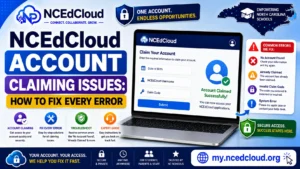
Learn More About → NCEdCloud Account Claiming Issues and Fixes
What the Challenge Question Screen Looks Like
The screen shows a series of rows, each with a dropdown menu to select a question and a text field to type your answer. You’ll complete five or more of these. Common question categories include:
- Name of your first pet
- City where you were born
- Name of your elementary school
- Your favorite childhood teacher
- The make of your first car (more common for staff accounts)
Each question you select must be different from the others. After filling in all your answers, you click Submit or Finish to complete the claiming process.
Complete Guide About → NCEdCloud Staff Account Claim
Tips for Choosing Good Challenge Answers
The most common mistake users make is choosing answers that change over time or that they cannot remember consistently. A good challenge answer is something true in the past and will stay true forever.
Use answers that are:
- Specific and consistent (the exact city you were born in, not the general region)
- Short and unambiguous (avoid answers with multiple possible spellings)
- Easy for you to remember, but hard for others to guess
Avoid using:
- Your current favorite things (they change)
- Answers that friends or classmates would know
- Vague responses like “none” or “idk”
Consistency in capitalization matters. If you type “Charlotte” when you set up the question, type “Charlotte” when you answer it during a password reset, not “charlotte.” Some versions of the NCEdCloud challenge question system are case-sensitive.
How Challenge Questions Are Used for Password Reset
When you forget your password, go to the NCEdCloud login page at my.ncedcloud.org and click “Forgot Password.” The system will ask you to enter your username, then present your challenge questions. You must answer them correctly to proceed to the password reset screen. See our Password Reset guide for the complete recovery process. If you answer enough times incorrectly, the self-service reset may lock and require you to contact your school’s IT help desk.
How to Update Your Challenge Questions
To change your challenge questions after you have already claimed your account, you need to be logged in. Once logged in, look for account settings or profile settings within the NCEdCloud portal, typically under your username in the upper right corner. You will be asked to verify your current password before you can update your challenge questions and answers.
If you cannot log in and also cannot answer your challenge questions correctly, you have no self-service option. You must contact your school’s IT help desk to have them reset your credentials manually.
Frequently Asked Questions
What happens if I answer my NCEdCloud challenge questions wrong?
If you answer a challenge question incorrectly, the system will let you try again up to a limit. After repeated incorrect answers, the self-service password reset will lock, and you will see a message directing you to contact your help desk. Your school’s IT department can reset your challenge questions manually so you can start fresh.
Are NCEdCloud challenge question answers case-sensitive?
They can be, depending on the version of the portal your district uses. Always type your answers exactly as you entered them during setup. Contact IT if you exhaust your attempts.
Can I change my challenge questions after claiming?
Yes. Log in to your NCEdCloud account, navigate to account or profile settings, and look for the security questions section. You will need to verify your current password first.
What if I did not set challenge questions during claiming?
If the claiming process did not complete properly, your account may still be active, but with no recovery method. Contact your school’s IT department. They can verify whether your challenge questions are on file and reset them if needed.
My challenge question answer is not being accepted, even though I know it is right. What do I do?
First, check for capitalization differences and extra spaces before or after your answer. If neither of those works, contact your IT help desk and ask them to reset your challenge questions.
Disclaimer Note: NCEdCloud, RapidIdentity, and Identity Automation are trademarks of their respective owners. NCEdCloudPro.com is not affiliated with or endorsed by NCDPI, NCEdCloud, MCNC, or Identity Automation. Read our full disclaimer.