
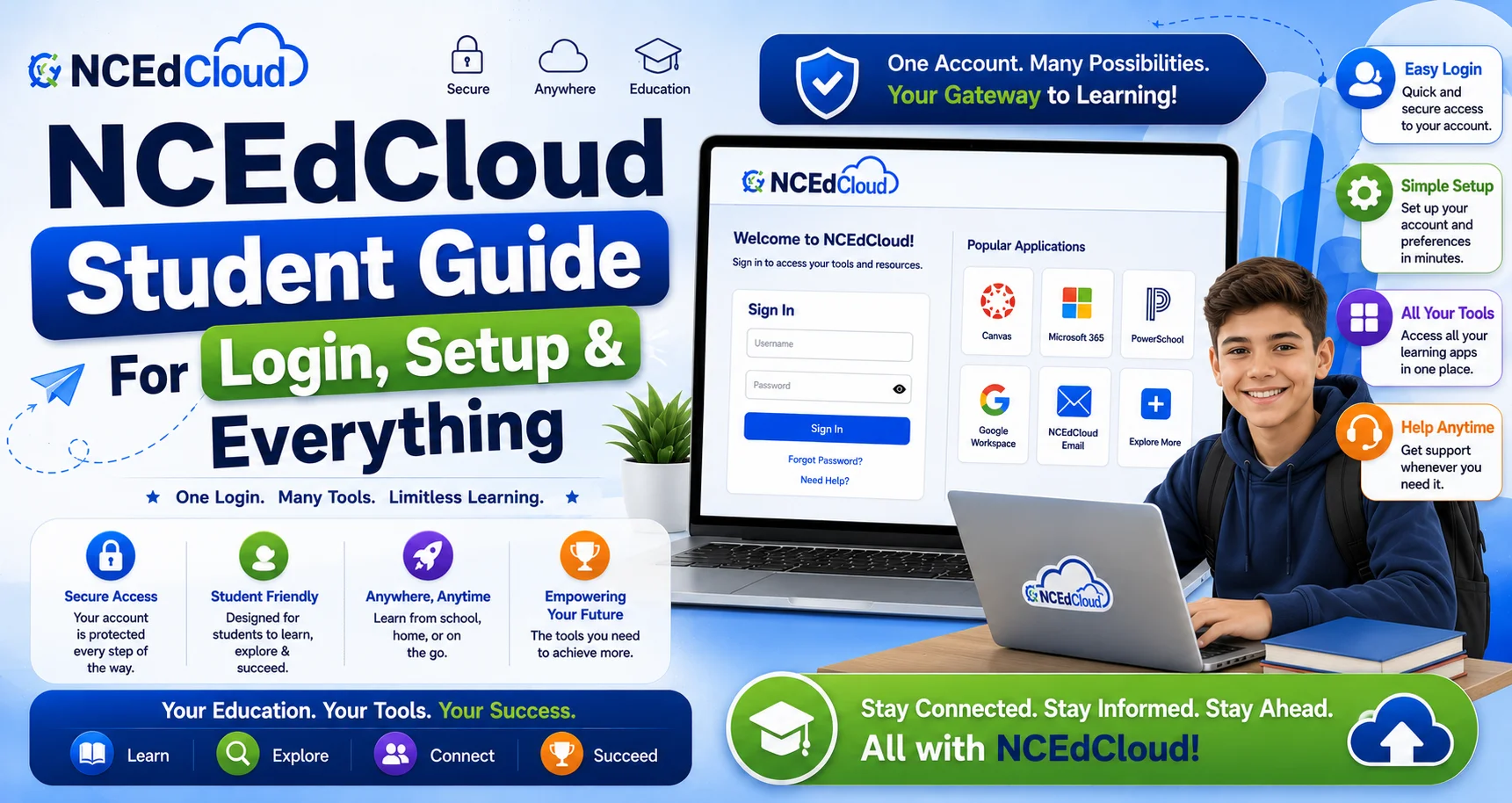
NCEdCloud Student Guide for Login and Account Setup
NCEdCloud is the single login platform for North Carolina public school students. You use it to access Canvas, Google Classroom, PowerSchool, and every other educational app your school has assigned. The platform is part of a statewide system serving roughly 2.5 million student and staff accounts across more than 300 North Carolina LEAs, including charter schools, and runs at my.ncedcloud.org. This NCEdCloud student guide covers everything a student needs: claiming your account for the first time, logging in, finding your apps, resetting your password, and fixing common problems.
What NCEdCloud is for Students?
NCEdCloud is your school’s single sign-on portal. It means you log in once and get access to all your school apps without typing separate usernames and passwords for each one. Your school or district assigns the apps that appear on your dashboard, typically Canvas, Google Workspace, PowerSchool, Discovery Education, and other tools your teachers use.
The platform is managed by the North Carolina Department of Public Instruction (NCDPI) and uses a system called RapidIdentity to handle logins. Every public school student in North Carolina has an NCEdCloud account. Your account is created automatically when your enrollment is processed in PowerSchool, so you should have access within a day or two of starting at a new school. Read out complete New Student Setup guide for everything to expect before and after that first login.
Claiming Your Account for the First Time
Before your first login, you must claim your account if you’re in grades 6-12. Claiming is a one-time step that activates your account and lets you set your own password. You only do this once. See this Student Account Claim walkthrough guide for a complete screen-by-screen process.
What you need to claim your account:
- Your Username (usually your Pupil Number, provided by your teacher or school office)
- Your date of birth
How to Claim Your NCEdCloud Student Account:
- Go to my.ncedcloud.org in a browser.
- Click Claim My Account below the Sign In button.
- Select Student Claim Policy, then enter your Username and date of birth.
- Click Next.
- Create a new password. It must be 8-16 characters with at least one uppercase letter, one lowercase letter, and one number.
- Set up your security challenge questions, five or more from the list NCEdCloud presents. These are used to verify your identity if you forget your password.
- Click Finish.
- Go back to the login page and sign in with your new password.
If you see an error that says your account wasn’t found, wait one school day and try again. Your enrollment may not have synced yet. If the problem continues, tell your teacher or the school office. For complete instructions, see our NCEdCloud claim my account guide.
For PK-5 Students: You cannot self-claim an account at all. Your teacher handles login with a printed QR badge, or provides your username and a district-set password directly. You don’t need to go through the claiming process. Your teacher will set you up. Read this full PK-5 Login guide for how badge login works.
How to Log in as a Student?
There are two ways students log in to NCEdCloud: username and password, or QR badge (PK-5 only). For a complete step-by-step walkthrough of every method, read this Students Login guide.
How to Log in to NCEdCloud as a Student (Username and Password):
- Open a browser and go to my.ncedcloud.org.
- Type your username in the Username field.
- Type your password in the Password field.
- Click Sign In.
- Your Applications dashboard loads. Click any app tile to open it.
How to Log in with a QR Badge (PK-5):
- Ask your teacher to open the NCEdCloud login page on the classroom device.
- Click Sign in with QR Code.
- Hold your QR badge up to the device camera.
- You’re logged in automatically.
If your school uses Google SSO, you may also see a Sign in with Google button. Use your district Google account, not a personal Gmail account, if this option is available.
What You Can Access After Login
After logging in, your dashboard shows all the apps your school has assigned to you as clickable tiles. Common apps for students include:
App | What It Is |
Your learning management system: assignments, grades, class materials | |
Google Docs, Slides, Forms, Drive for school work | |
Your grades, attendance, and school records | |
Video lessons and digital content | |
Textbook and curriculum content | |
Reading and science programs | |
Imagine Learning | Reading practice and intervention |
IXL | Math and ELA practice |
Click any tile to launch that app. NCEdCloud logs you in automatically. You don’t type a separate password. If an app your teacher mentioned isn’t on your dashboard, tell your teacher. They can ask the help desk to add it. See our NCEdCloud Applications guide for more details.
Your Username Format
Your district assigns your NCEdCloud username, and for students it’s built around your Pupil Number. Common visible formats include:
- firstname or firstname.lastname style aliases
- A number added after your name if there’s a duplicate (for example, firstname.lastname2)
- A student ID number or alias ID tied to your Pupil Number
Your username doesn’t change unless your district updates the format. If you’re not sure of your exact username, ask your teacher, the school front office, or look at the paperwork your school sent home at enrollment. Usernames aren’t the same as email addresses, though they may look similar. See our full NCEdCloud Username guide for more format examples.
How to Reset Your Student Password?
If you forget your password, you can reset it yourself using the Forgot Password option, as long as you remember the answers to your security challenge questions. See this Student Password guide for the complete rules and reset options by grade level.
How to Reset Your NCEdCloud Student Password:
- Go to my.ncedcloud.org.
- Click Forgot Password.
- Type your username and click Next.
- Answer your security challenge questions.
- Create a new password that meets the requirements (8-16 characters, uppercase, lowercase, and numbers).
- Click Save.
- Log in with your new password.
If you can’t answer your challenge questions, ask your teacher or the school’s front office. A help desk staff member or administrator can reset your password for you. Bring your student ID. For the complete instructions, including all reset methods, see our NCEdCloud Password Reset guide, or read our full Forgot Password walkthrough for the exact steps.
What to Do if You Are Locked Out
Your account locks after several failed login attempts in a row. When locked, you’ll see an Account Locked message on the login screen. See this Account Locked guide for every unlock method.
How to fix a locked NCEdCloud student account:
- Wait 30 minutes: minor lockouts often clear on their own
- Ask your teacher: teachers can direct you to the school help desk for an immediate unlock
- Contact the school front office or IT help desk in person. They can unlock your account right away
Don’t keep trying to log in when your account is locked; additional attempts can extend the lockout period. To learn more, read our troubleshooting guide for NCEdCloud.
Accessing NCEdCloud from Home
You can access NCEdCloud from any device at home using a web browser. Go to my.ncedcloud.org on your home computer, phone, or tablet. Everything works the same way as at school. See our Mobile Login guide for phone and tablet-specific tips.
Tips for home access:
- Use Chrome or Safari for the best experience
- Make sure you’re using your school username and password, not a personal account
- If an app opens to its own login screen instead of loading your account, close the tab, go back to your NCEdCloud dashboard, and click the app tile again
- If you’re using a shared home computer, log out of NCEdCloud when you’re done so your account isn’t left open
If your district uses Google SSO and you’re logged into a personal Gmail on the same browser, that can cause SSO to fail. Sign out of personal Google accounts before using NCEdCloud’s Google SSO option.
Summer Access
NCEdCloud accounts for students typically remain active over the summer. You can log in at my.ncedcloud.org using your regular username and password during summer break. Read this complete Summer Login guide for what to expect.
However, some apps may be deactivated or have reduced content during the summer, depending on your district’s licenses. Canvas may show last year’s courses as archived. Contact your school if you need access to specific materials over the summer.
At the start of a new school year, your account is updated with new class and app assignments through the nightly roster sync from PowerSchool. It may take a day or two into the new school year for all new app assignments to appear on your dashboard.
Frequently Asked Questions
How do I log in to NCEdCloud as a student?
Go to my.ncedcloud.org, enter your username and password, and click Sign In. If this is your first time and you’re in grades 6-12, you need to claim your account first using your Username and date of birth.
What is my NCEdCloud username as a student?
Your district assigns your username, built around your Pupil Number. Ask your teacher or school office if you’re unsure.
How do I claim my NCEdCloud account for the first time?
Go to my.ncedcloud.org and click Claim My Account. Enter your Username (Pupil Number) and date of birth, then set your password and security questions. See our Claim My Account guide for a full walkthrough. Note that only students in grades 6-12 can self-claim; PK-5 students use badge login instead.
What apps can I access through NCEdCloud?
Your dashboard shows all apps assigned by your school, typically including Canvas, Google Workspace, PowerSchool, Discovery Education, and curriculum apps. Click any tile to open the app.
How do I reset my NCEdCloud password as a student?
Click Forgot Password on the login page at my.ncedcloud.org, enter your username, and answer your challenge questions to set a new password. If you can’t answer the questions, ask your teacher or the school help desk.
Can I use NCEdCloud at home?
Yes. Go to my.ncedcloud.org on any device with a browser. Your login and all your apps work the same at home as at school.
Why is my NCEdCloud account locked?
Your account locks after several failed login attempts. Wait 30 minutes for it to unlock automatically, or ask your teacher to contact the help desk for an immediate unlock.
Does NCEdCloud work on a phone?
Yes. Open my.ncedcloud.org in Chrome (Android) or Safari (iPhone). The site is mobile-friendly, and all login methods work on phones and tablets.
Disclaimer
This page is part of NCEdCloudPro.com, an independent resource for North Carolina’s NCEdCloud platform. We are not affiliated with, endorsed by, or connected to the North Carolina Department of Public Instruction (NCDPI), official IAM Service, MCNC, or Identity Automation.
For account-specific issues, always contact your school or district Help Desk, or go directly to the official login at my.ncedcloud.org and read our full disclaimer written by Mark Albert.