NCEdCloud New Student Setup — Complete First-Access Guide
What is NCEdCloud New Student Setup?
NCEdCloud new student setup is the full sequence of steps a newly enrolled student in grades 6-12 completes to activate their account, set login credentials, and access all assigned learning applications for the first time. NCDPI provisions student accounts automatically through PowerSchool enrollment data, so the account exists before the student ever touches it. See our Student Guide for the complete picture of how NCEdCloud works for students.
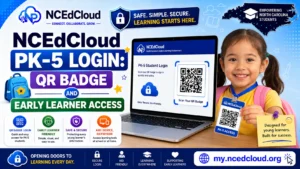
Students in grades PK-5 do not self-claim under any circumstance. Their login is handled through a QR badge or teacher-assisted process instead. See our PK-5 Login guide for that process. Start this claiming process as soon as your school provides your Username. Delays in setup mean delays in accessing class tools.
What Happens Before You Even Start?
Before a student in grades 6-12 can claim their NCEdCloud account, the following must be true:
The student must be enrolled in a North Carolina public school in PowerSchool. This enrollment data syncs to NCEdCloud within 24 to 48 hours of the registrar entering the record. The school must have distributed a Username to the student or their parent.
In most districts, this is the student ID number printed on enrollment paperwork or sent home in a welcome packet. If either of these conditions is not met, the claiming process will fail with an “Account Not Found” error. Wait the full 24 to 48 hours after enrollment before attempting to claim. Read our NCEdCloud Claim My Account guide to learn more about this.
New Student Setup: Step by Step
- Receive your Username from your teacher or school office. Write it down or keep the paper it was printed on.
- Open Chrome on a computer, Chromebook, tablet, or phone.
- Go to my.ncedcloud.org.
- Click “Claim My Account” below the login fields. Do not click Sign In yet.
- Enter your Username exactly as written. Check for leading zeros if it is a number.
- Enter your date of birth in MM/DD/YYYY format.
- Click Next. Wait a few seconds for the system to locate your account.
- On the password screen, create a password that meets the rules: at least 8 characters, one uppercase letter, one lowercase letter, and one number. Special characters are allowed but not required.
- Type the same password in the confirm field.
- Click Next.
- On the challenge questions screen, answer five or more questions. Write your answers down; you will need them if you ever forget your password.
- Click Finish or Submit.
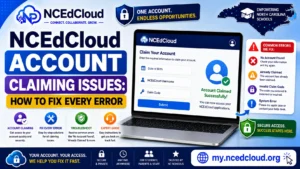
- You will see a success screen. Your account is now active.
- Return to the NCEdCloud main login page.
- Enter your username and the password you just created.
- Click Sign In. You will land on the NCEdCloud dashboard.
What to Have Ready Before You Start
| Item | Where to Find It |
| Username | Teacher, school office, or enrollment paperwork |
| Date of birth | Your own information |
| Password | You create this while claiming |
| Challenge answers | You create these during claiming — write them down |
What Your Dashboard Will Look Like
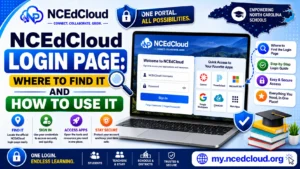
After your first successful login, your NCEdCloud dashboard shows a grid of application tiles. Each tile represents a program your school has licensed and assigned to student accounts. See our NCEdCloud Applications guide for the full common-tools list. Not every school or district uses the same apps, so your dashboard will look different from another student’s at a different school.
If your dashboard appears empty after your first login, wait until the following school day. Some application assignments take up to 24 hours to sync after account activation. If tiles are still missing after 24 hours, tell your teacher.
Setting Up Your Account Securely
After your first login, take two additional steps to keep your account secure. First, make sure your challenge question answers are accurate and memorable. Second, change your password to something personal if you were given a default or temporary one, and don’t share it with friends or leave yourself logged in on a shared school device.
Learn More About → NCEdCloud Account Claiming Issues and Fixes
Frequently Asked Questions
How do I get my NCEdCloud Username as a new student?
Your Username comes from your school. It is usually your student ID number, printed on enrollment paperwork or given to you by your homeroom teacher. If you do not have one, ask your teacher or go to the front office.
Can my parent help me set up my NCEdCloud account?
Yes. Parents can assist students through the claiming process. It requires the student’s Username and date of birth, both of which a parent can help supply.
What username will I use to log in after claiming?
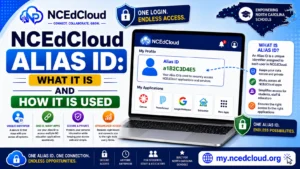
Your login username format depends on your district. Common formats include your student ID number or an alias tied to your name. It’s shown on the success screen at the end of claiming.
I finished claiming, but I cannot log in. What should I do?
Try typing your username and password carefully. If you just completed claiming, wait a minute and try again. If it still fails, use “Forgot Password” to reset using your challenge question answers, or ask your teacher to submit a help desk ticket.
Do I need to set up NCEdCloud again at the start of each school year?
No. Your NCEdCloud account persists from year to year. Your username and password remain the same unless you change them or an administrator resets them.
Disclaimer Note: NCEdCloud, RapidIdentity, and Identity Automation are trademarks of their respective owners. NCEdCloudPro.com is not affiliated with or endorsed by NCDPI, NCEdCloud, MCNC, or Identity Automation. Read our full disclaimer.