
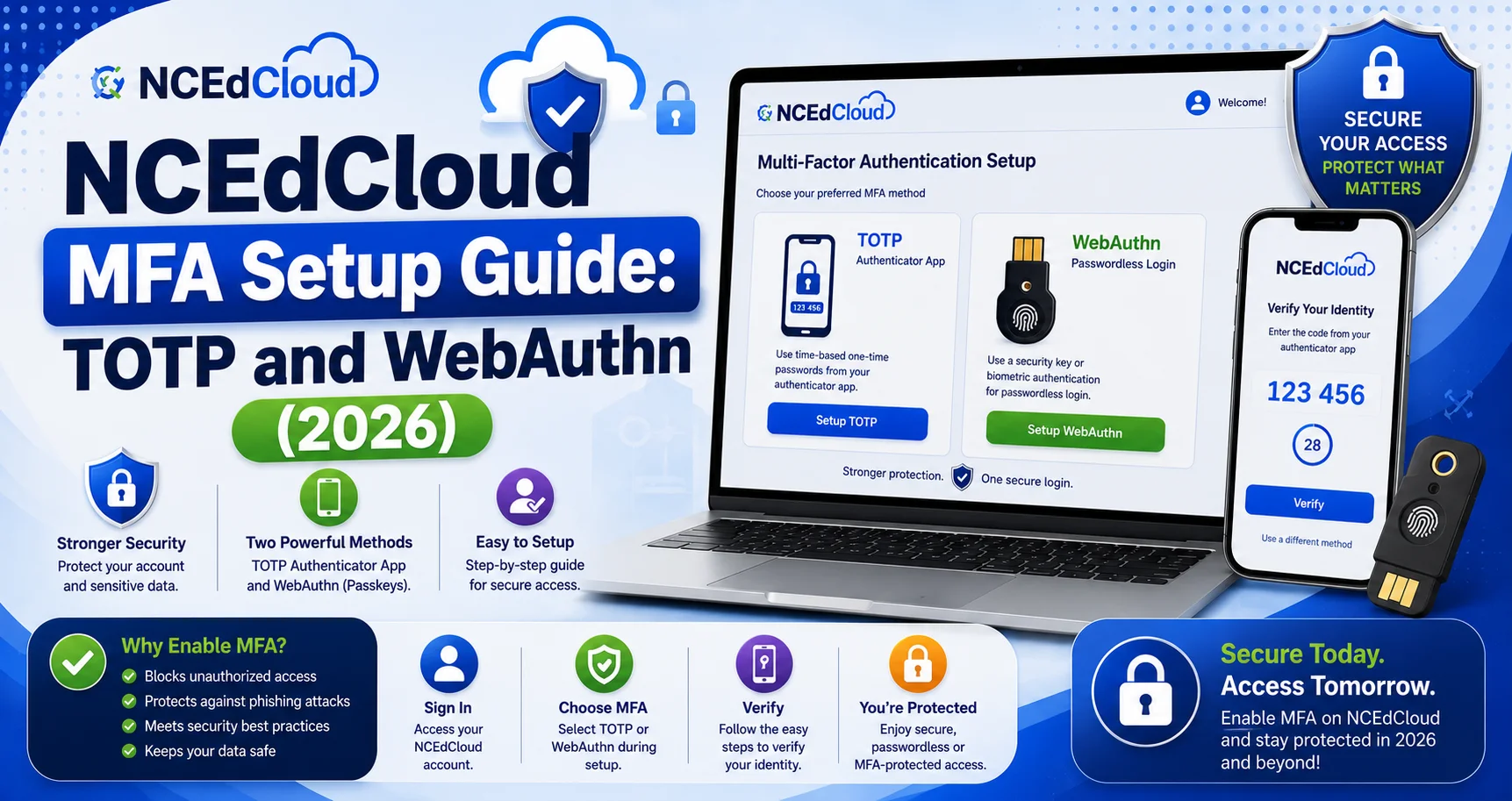
NCEdCloud MFA Setup Guide for TOTP and WebAuthn
NCEdCloud supports two types of multi-factor authentication: TOTP (Time-based One-Time Password) and WebAuthn. TOTP generates a 6-digit code in an authenticator app that refreshes every 30 seconds. WebAuthn uses a device passkey, fingerprint, or facial recognition and eliminates the code-entry step. Learn more in our NCEdCloud overview guide.
As of July 1, 2026, MFA is mandatory statewide for every NCEdCloud employee, not an optional or district-by-district choice. Read our Teachers Login guide for how this shows up in a staff member’s day-to-day sign-in. It has been mandatory for privileged roles, such as LEA Administrator, since 2019. This guide covers how to set up both NCEdCloud login methods and how to recover access if you lose your authenticator.
What is MFA on NCEdCloud?
Multi-factor authentication (MFA) adds a second verification step after you enter your username and password. Without MFA, your login depends entirely on one credential: your password. With MFA enabled, someone who obtains your password still can’t log in without also having physical access to your second factor, such as your phone or a biometric device.
NCEdCloud supports MFA through the RapidIdentity platform. Once MFA is active on your account, you’ll see a prompt after the password step asking for your code or device approval. As of July 1, 2026, this applies to every employee statewide; MFA has applied to privileged roles like LEA Administrator, LEA Help Desk, and School Help Desk since 2019. For the official announcement, see NCEdCloud’s Multi-Factor Authentication page at ncedcloud.mcnc.org.
TOTP vs WebAuthn: Which to Choose
Feature | TOTP | WebAuthn |
How it works | 6-digit rotating code in an app | Biometric or device passkey |
Requires | Smartphone or desktop app with an authenticator | Compatible device with biometrics or PIN |
Code entry needed | Yes, type the code each login | No, approve with fingerprint, face, or PIN |
Works offline | Yes, codes generate without internet | Depends on device |
Best for | Staff who already use an authenticator app | Staff wanting the fastest secure login |
Setup difficulty | Low | Low to medium |
For most staff, TOTP with one of NCEdCloud’s officially supported apps is the easiest starting point. Learn more in our TOTP FAQ for setup troubleshooting. WebAuthn is faster once enrolled and is a strong option for staff on dedicated work devices. Our complete WebAuthn guide covers device compatibility in more depth.
Officially Supported Authenticator Apps
NCEdCloud’s own documentation names three apps as approved for TOTP: Google Authenticator, the RapidIdentity app, and Authy. If you’re on a desktop or Chromebook without a phone, Authy’s desktop app and the GAuth Chrome extension are the officially referenced browser-based options.
Other standard TOTP apps, such as Microsoft Authenticator or 1Password, use the same open TOTP protocol and will likely generate working codes, but they aren’t named in NCEdCloud’s own supported-apps list. If MFA is mandatory for your role, it’s worth checking with your district’s IT department before relying on an app outside the three officially listed ones.
How to Set Up TOTP with Google Authenticator
How to Set Up NCEdCloud MFA with Google Authenticator:
- Install Google Authenticator on your iOS or Android device from the App Store or Google Play.
- Log in to NCEdCloud at my.ncedcloud.org.
- Click your name or the gear icon in the top-right corner of the dashboard.
- Select Security Settings or MFA Settings from the menu.
- Click Enroll next to the TOTP option.
- A QR code appears on screen. Open Google Authenticator, tap the + button, and choose Scan a QR code.
- Point your phone camera at the QR code on the screen.
- Google Authenticator adds an NCEdCloud entry and starts generating 6-digit codes.
- Enter the current 6-digit code in the NCEdCloud enrollment confirmation field and click Verify or Go.
- TOTP enrollment is complete. Your next login will require the code after the password step.
How to Set Up TOTP with the RapidIdentity or Authy App
How to Set Up NCEdCloud MFA with RapidIdentity or Authy:
- Install the RapidIdentity app or Authy on your iOS or Android device. Authy requires a phone number to register; RapidIdentity and Google Authenticator do not.
- Log in to NCEdCloud at my.ncedcloud.org and navigate to Security Settings, then MFA Settings.
- Click Enroll next to the TOTP option. A QR code appears.
- In your chosen app, add a new account and scan the QR code, or use the manual alphanumeric key shown below it.
- The account is added. Enter the current 6-digit code into NCEdCloud’s verification field and click Verify or Go.
- Enrollment is complete.
How to Set Up TOTP on a Desktop or Chromebook
For staff who work exclusively on a Chromebook or desktop computer without a phone, NCEdCloud’s documentation points to two officially referenced browser-based options: the Authy Desktop app or the GAuth Chrome extension. To learn more, see our Chromebook Login guide for the complete Chromebook-specific login process beyond just MFA.
How to Set Up NCEdCloud MFA with a Desktop Authenticator:
- Install Authy Desktop or the GAuth Chrome extension.
- Log in to NCEdCloud and navigate to Security Settings, then MFA Settings.
- Click Enroll next to TOTP. A QR code and a manual setup key appear.
- Add a new account in your desktop app or extension, using the QR code or the manual key.
- Enter the current 6-digit code in NCEdCloud’s verification field and click Verify or Go.
- Enrollment is complete.
Note: browser-based TOTP is less secure than phone-based TOTP because it runs on the same device you use to log in. Use phone-based TOTP or WebAuthn if possible.
How to Enroll WebAuthn on NCEdCloud
WebAuthn enrollment binds your NCEdCloud account to a specific device’s biometric or passkey capability, and NCEdCloud officially supports it as an alternative to TOTP, including Yubikeys, Apple Touch ID or Face ID, and Windows Hello. You must be on the device you want to enroll during setup.
How to Enroll WebAuthn on NCEdCloud:
- Log in to NCEdCloud at my.ncedcloud.org from the device you want to enroll.
- Click your name or gear icon and go to Security Settings, then MFA Settings.
- Click Enroll next to WebAuthn or Passkey.
- Your browser displays a prompt asking to register a passkey. Click Continue or Allow.
- Your device prompts you to verify your identity using your fingerprint, Face ID, Windows Hello PIN, or device PIN.
- Complete the biometric or PIN prompt.
- WebAuthn enrollment is saved to your NCEdCloud account for this device.
On your next login from this device, you’ll see a Sign in with WebAuthn option. After entering your username, you can approve the biometric prompt instead of entering a password and TOTP code.
How to Fix MFA Problems?
“TOTP Code is Rejected”
The most common cause is a device clock that isn’t synced to internet time, since TOTP codes are time-sensitive. For complete instructions, read our troubleshooting guide for more details.
Steps to fix:
- Go to your phone’s date and time settings.
- Enable Set automatically or Use network-provided time.
- In your authenticator app, look for a time correction or sync option and use it if available.
- Try a new code immediately after it refreshes.
“QR Code Didn’t Scan”
Clean the camera lens and ensure the QR code is fully visible on screen without cropping. Move the phone back slightly; some cameras focus better at 6-8 inches. If scanning still fails, use the manual entry key shown below the QR code in NCEdCloud’s enrollment screen.
“NCEdCloud MFA Screen Doesn’t Appear”
Since MFA is now mandatory statewide for all employees, every staff account should prompt for it. If you’re not seeing the MFA prompt after entering your password, check Security Settings to confirm your enrollment status, and contact your school’s help desk if enrollment shows as active but the prompt still doesn’t appear. Read this complete Error Messages guide for this and other login screen errors.
What to Do If You Lost Your Authenticator App?
If you lose your phone, switch phones, or accidentally delete your authenticator app, your TOTP codes are gone and you can’t log in with the saved codes. You have two options:
Use backup codes.
Some TOTP enrollments generate one-time backup codes at setup. If you saved these, use one to log in, then re-enroll MFA from Security Settings.
Help desk MFA reset.
Contact your school help desk or LEA Administrator. They can reset your MFA enrollment, which disables the old TOTP configuration. Once reset, log in with username and password only and enroll MFA again using this guide.
After recovering access, enroll MFA on your new device immediately to restore protection on your account.
How LEA Administrators Manage MFA?
Since MFA is now a statewide requirement for all employees, LEA Administrators are mainly responsible for helping staff enroll and for resetting enrollments when someone loses access, rather than deciding whether to require it in the first place. LEA Administrators can also apply MFA to individual accounts or specific school codes ahead of broader rollouts using NCEdCloud’s Enforce MFA request workflows.
How LEA Administrators Apply MFA Enforcement:
- Log in at my.ncedcloud.org with the LEA Administrator account.
- Navigate to Requests, then the relevant Enforce MFA workflow, for a single user or an entire school code.
- Enter the required PSU or school code information for the request.
- Submit the request. The affected accounts are prompted to enroll MFA at their next login.
Students are typically not subject to the statewide MFA mandate, though some districts choose to enable it for older students or shared staff-student devices. To learn more, read our Students Login guide for the student-specific login process. For the full admin guide, see our LEA Administrator guide.
Frequently Asked Questions
Does NCEdCloud require MFA?
Yes. As of July 1, 2026, MFA is mandatory statewide for every NCEdCloud employee. It has been mandatory for privileged roles like LEA Administrator since 2019.
What authenticator apps work with NCEdCloud?
NCEdCloud’s own documentation names Google Authenticator, the RapidIdentity app, and Authy as officially approved. Authy Desktop and the GAuth Chrome extension are the referenced desktop options. Other standard TOTP apps may work since TOTP is an open protocol, but they aren’t on NCEdCloud’s official list.
What is WebAuthn on NCEdCloud?
WebAuthn is a browser standard for passkey-based authentication. On NCEdCloud, it lets you log in using your device’s fingerprint reader, Face ID, or Windows Hello PIN instead of a password and TOTP code. You must enroll your device through NCEdCloud security settings first.
How do I reset my NCEdCloud MFA?
Contact your school help desk or LEA Administrator. They can reset your MFA enrollment from the admin console. After the reset, log in with your username and password and re-enroll in MFA from Security Settings.
Why is my NCEdCloud TOTP code not working?
Your device clock is likely out of sync. Enable automatic time in your phone’s settings and use the time correction feature in your authenticator app if it has one. Enter the fresh code immediately after it refreshes.
Can students use MFA on NCEdCloud?
Students aren’t part of the statewide MFA mandate, but some districts allow or require it for older students. Contact your school IT department to confirm whether student MFA applies in your district.
What happens if I lose my MFA device and have no backup codes?
Contact your school help desk or LEA Administrator. They can reset your MFA enrollment so you can log in with just your password and re-enroll MFA on your new device.
Disclaimer
This page is part of NCEdCloudPro.com, an independent resource for North Carolina’s NCEdCloud platform. We are not affiliated with, endorsed by, or connected to the North Carolina Department of Public Instruction (NCDPI), official IAM Service, MCNC, or Identity Automation.
For account-specific issues, always contact your school or district Help Desk, or go directly to the official login at my.ncedcloud.org and read our full disclaimer written by Mark Albert.