NCEdCloud Login for Students — Step-by-Step Sign-in Guide
How NCEdCloud Students’ Login Works
NCEdCloud students’ login is the process by which K-12 students in North Carolina public schools authenticate into the statewide SSO platform to access their assigned educational applications. NCDPI’s RapidIdentity platform manages student identities across roughly 2.5 million student and staff accounts spanning more than 300 North Carolina LEAs, including charter schools. Read our NCEdCloud Login Complete Guide to learn more.
Students login once and can then access Canvas, Google Workspace, Discovery Education, PowerSchool, and other district-licensed apps without entering separate credentials. Students must complete account claiming before their first login. Attempting to sign in without claiming first results in an authentication error. See our complete Claim My Account guide for that process.
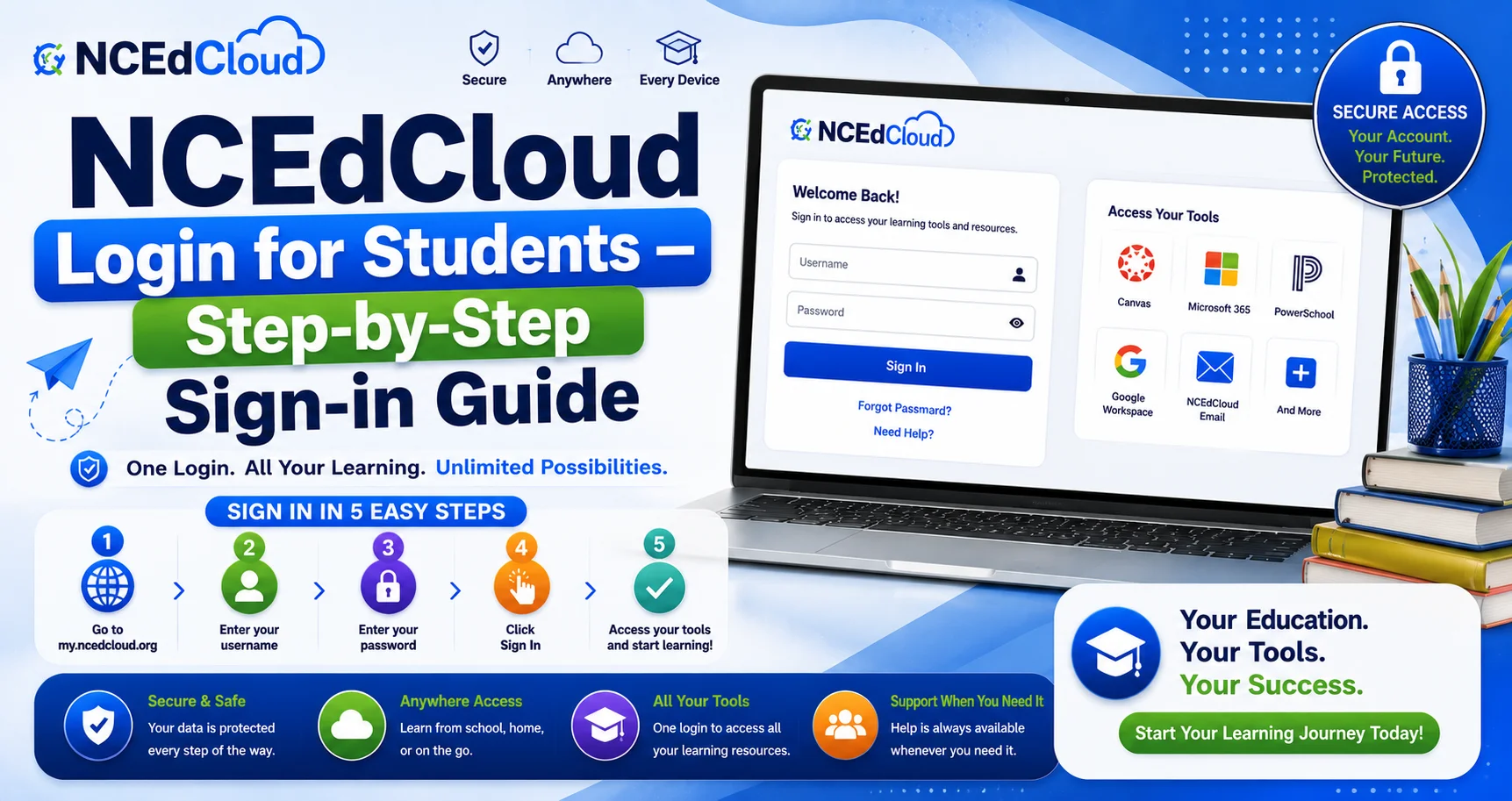
NCEdCloud Students Login: Step-by-Step Guide
- Open Chrome on any device, computer, Chromebook, tablet, or phone.
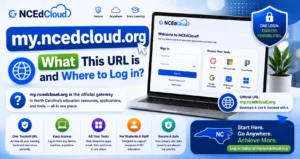
- Go to my.ncedcloud.org.
- Enter your NCEdCloud username in the username field. This is not your email address. It’s a Username (State UID/Pupil Number) assigned during claiming.
- Enter your password in the password field.
- Click Sign In.
- Your dashboard loads with tiles for your assigned applications.
If you’ve never logged in before, click “Claim My Account” instead of Sign In. See our full student account claiming guide for full instructions.
Student Login Methods Compared
| Method | Who Uses It | Requires | Best For |
| Username and password | All students who have claimed | NCEdCloud username and password | Standard login on any device |
| QR badge scan | PK-5 students | Teacher-issued QR badge, compatible device | Young students who cannot type |
| Google SSO (if configured) | Districts using Google sign-in | District Google account | Chromebook-heavy schools |
Learn More About → NCEdCloud PK-5 QR Badge Login
Common Student Login Errors and Quick Fixes
| Errors | Fix |
| Invalid Credentials | Check Caps Lock; use Forgot Password if unsure |
| Account locked | Wait 15-30 minutes or contact the school help desk |
| Account not found | Complete claiming if you haven’t yet |
| The Request Is Invalid | Clear browser cache, navigate directly to my.ncedcloud.org |
| No app tiles on dashboard | Wait 24 hours after claiming for provisioning to complete |
Complete Guide About → NCEdCloud Not Working
After Login — Using the Student Dashboard
After signing in, your dashboard shows tiles for all apps your district has assigned to you. Click any tile to launch that application via SSO. No additional login is needed. If you close the browser and come back, NCEdCloud may ask you to sign in again, depending on your session settings.
If you want to log out, click your name or profile icon in the upper right and select Sign Out. Always log out on shared computers.
Frequently Asked Questions
What is a student’s NCEdCloud username?
Your NCEdCloud username is assigned during account claiming and is based on your Username (State UID/Pupil Number) as it appears in your district’s student information system.
Can a student log in to NCEdCloud on a phone?
Yes. Open Chrome (or Safari on iPhone) and go to my.ncedcloud.org. Log in with your username and password. The mobile experience works the same as desktop.
My student claimed their account last week, but cannot log in. What is wrong?
Confirm the username format with the school. Confirm the password meets the complexity requirements shown on screen. If both are correct and login still fails, contact the school help desk. The account may need an IT data correction.
Is the NCEdCloud students login the same as the teachers login?
Both use the same my.ncedcloud.org URL and login form. The difference is in what account you log in with. A student account shows student tiles, and a teacher account shows teacher tiles. The platform itself is shared. See our my.ncedcloud.org explained guide for more.
What should a student do if they forget their NCEdCloud password?
Go to my.ncedcloud.org and click “Forgot Password.” Enter your username and answer your challenge questions to reset. If challenge questions were never set up, contact your teacher or school help desk for a manual reset. Read our complete Password Reset guide to learn more.
Disclaimer Note: NCEdCloud, RapidIdentity, and Identity Automation are trademarks of their respective owners. NCEdCloudPro.com is not affiliated with or endorsed by NCDPI, NCEdCloud, MCNC, or Identity Automation. Read our full disclaimer.