NCEdCloud Parents Login — How to Access Your Child’s School Apps
How NCEdCloud Parents Login Works
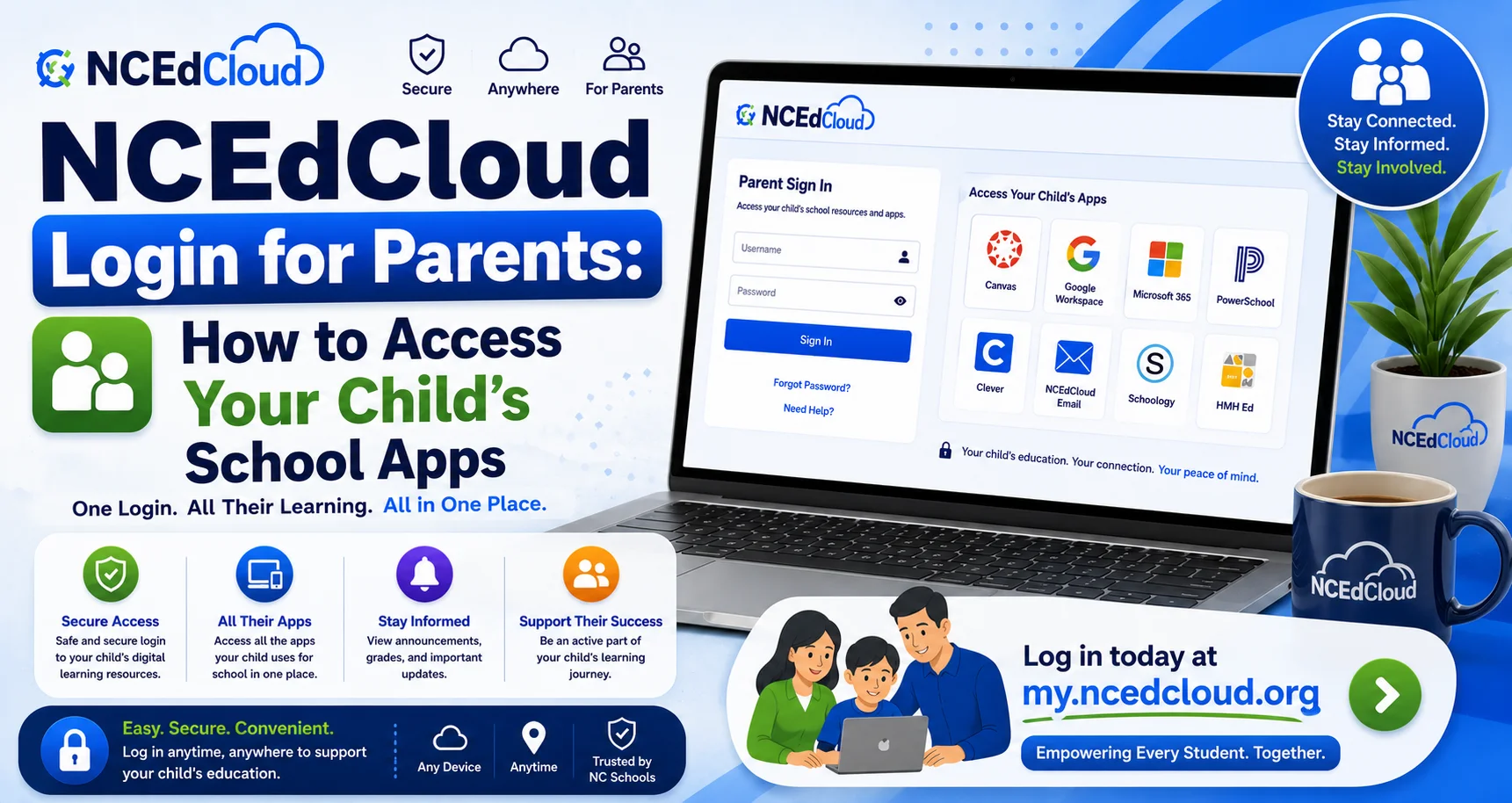
NCEdCloud Parents Login depends on whether your child’s district has configured parent accounts in the platform. NCDPI’s RapidIdentity platform supports parent account provisioning, but it isn’t enabled in the same way by every North Carolina LEA and charter school. Some districts provide full NCEdCloud parent accounts with a dashboard and SSO tiles. Read our NCEdCloud Login guide to learn more in detail.
Others direct parents to application-specific portals, like the PowerSchool Parent Portal, without going through NCEdCloud at all. There’s no universal parent login for NCEdCloud: your access depends entirely on what your district has set up. See our complete NCEdCloud Districts guide for how each LEA configures things differently.
How Parent Access Typically Works
| District Approach | What Parents Do |
| NCEdCloud parent account provided | Log in at my.ncedcloud.org with the provided credentials |
| No NCEdCloud parent account — PowerSchool only | Access PowerSchool Parent Portal directly at the district URL |
| No NCEdCloud parent account — app-specific access | Use individual application logins issued by the school |
Contact your child’s school office to find out which approach your district uses.
If Your District Provides NCEdCloud Parent Accounts
- Your school or district provides your NCEdCloud username and a temporary password, typically at enrollment or the start of the school year.
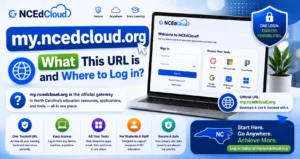
- Go to my.ncedcloud.org.
- If this is your first login, click “Claim My Account” and enter the Username your district provided. See our full Claim My Account guide for the complete process.
- Set your password and challenge questions.
- Your parent dashboard shows tiles for applications your district has configured for parents, typically the PowerSchool parent portal and possibly communication tools.
Accessing PowerSchool Without an NCEdCloud Account
If your district doesn’t provision NCEdCloud accounts for parents:
- Ask your child’s school for the PowerSchool Parent Portal URL for your district.
- If you don’t have a parent account in PowerSchool, contact the school office to have one created.
- Log in with the PowerSchool-specific credentials issued to you.
Helping Your Child With NCEdCloud Login
- Contact the school office to get your child’s username if they’ve forgotten it.
- Ask the school’s media specialist or front office to reset your child’s password.
- Verify your child’s enrollment is correctly entered in the SIS if their account isn’t found.
Parents can’t reset their child’s NCEdCloud password directly; that requires school staff with a help desk role. Read our NCEdCloud Student Login Guide to learn more.
Frequently Asked Questions
How do I find out if my district gives parents an NCEdCloud login?
Contact your child’s school office or check the district’s technology support page. If your district provides parent NCEdCloud accounts, credentials would have been provided at enrollment or sent to your email on file.
I received an NCEdCloud parent account but forgot my password. What do I do?
Go to my.ncedcloud.org and click “Forgot Password.” Enter your parent username and answer your challenge questions to reset. If that fails, contact the school office for an admin password reset.
Can I see my child’s grades through NCEdCloud?
If your district configured a PowerSchool parent tile, clicking it opens the PowerSchool Parent Portal with grades and attendance. If no such tile appears, ask your school for the direct PowerSchool Parent Portal URL.
My district says it uses NCEdCloud for parents, but I never received login credentials. What should I do?
Contact your child’s school office directly. Parent credentials are typically issued during enrollment or at the start of the school year. If you missed the distribution, the office can provide your Username or issue credentials directly.
Can I log in to NCEdCloud to see all of my children’s grades in one place?
This depends on your district’s configuration. Some districts link multiple children to a single parent account; others require separate accounts for each child. Contact your school office to understand your district’s structure.
Disclaimer Note: NCEdCloud, RapidIdentity, and Identity Automation are trademarks of their respective owners. NCEdCloudPro.com is not affiliated with or endorsed by NCDPI, NCEdCloud, MCNC, or Identity Automation. Read our full disclaimer.