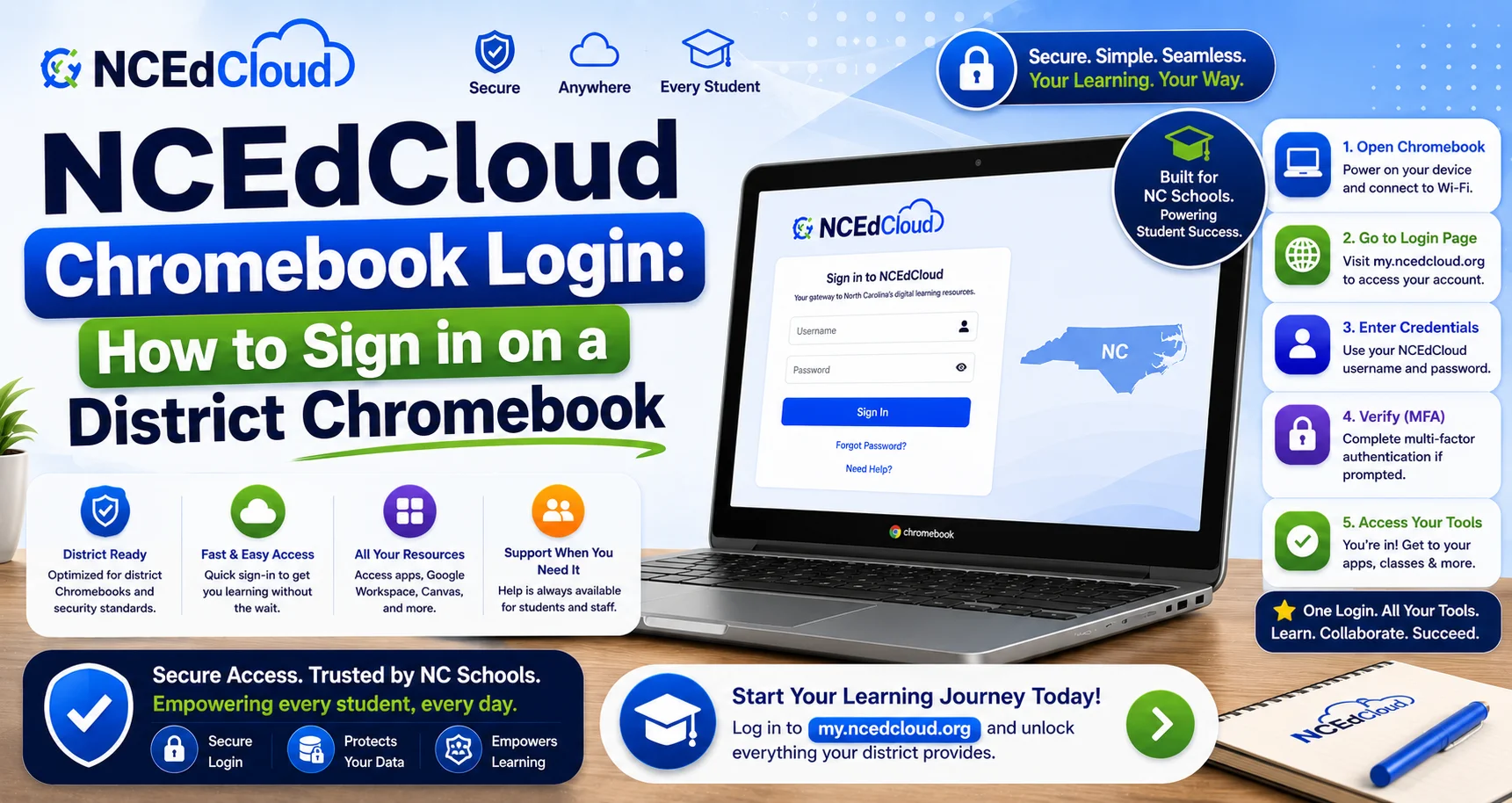
NCEdCloud Chromebook Login — How to Sign in on a District Chromebook
NCEdCloud Chromebook Login For District Sign-in
Chromebooks are the most common student device in North Carolina public schools. NCEdCloud works natively in the Chrome browser built into every Chromebook. On a district-managed Chromebook, students and staff may find NCEdCloud set as the browser homepage or pinned as a shortcut. See our full NCEdCloud Login guide for the complete process shared across all devices.
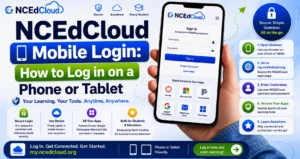
NCDPI’s RapidIdentity platform is fully compatible with Chrome OS. There are two different logins on a Chromebook: the Google account used to sign in to the device itself, and the NCEdCloud username used to log in to the learning platform. These are separate credentials. Read our full NCEdCloud Mobile Login Guide to learn more.
Two Logins on a District Chromebook
| Login | What It Is | Used For |
| Chromebook device login | Google account (usually district Google account) | Signs in to Chrome OS, syncs settings, opens the device |
| NCEdCloud login | NCEdCloud username and password | Opens the NCEdCloud dashboard and all SSO apps |
Some districts configure Chromebooks so that logging in with your district Google account also opens NCEdCloud automatically. In others, students log in to the Chromebook and then separately open my.ncedcloud.org in the browser. Read our complete my.ncedcloud.org guide for more.
Step-by-Step: NCEdCloud Login on a Chromebook
1. Sign in to the Chromebook with your district Google account (this opens Chrome OS).
2. Open the Chrome browser.
3. Navigate to my.ncedcloud.org. It may already be your homepage.
4. Enter your NCEdCloud username and password.
5. Click Sign In.
6. If MFA is required, enter the code from your authenticator app or the GAuth Chrome extension.
7. Your NCEdCloud dashboard loads with your application tiles.
Using the GAuth Chrome Extension for MFA on Chromebooks
Staff who need MFA but primarily use Chromebooks without a separate phone can use the officially supported GAuth Chrome extension:
1. Open the Chrome Web Store.
2. Search for the officially supported GAuth extension your district’s MFA guide references.
3. Install the extension.
4. Click the extension icon in the Chrome toolbar.
5. Scan the QR code shown on NCEdCloud’s MFA setup screen.
6. The extension now generates TOTP codes in the browser.
See our full MFA Setup guide for the complete list of officially supported apps.
Common Chromebook Login Issues
| Issues | Fix |
| Chromebook device login works, but NCEdCloud shows an error | Different issue — clear Chrome cookies, navigate to my.ncedcloud.org directly |
| Login loop on managed Chromebook | District policy may block session cookies — contact IT |
| Cannot clear cookies on managed Chromebook | Chromebook is under MDM control — ask IT to clear cache |
| Extension unavailable on managed Chromebook | District policy may block extensions — contact IT coordinator |
| QR badge camera not working on Chromebook | Check camera permissions for Chrome; enable if blocked |
Learn More About → NCEdCloud Troubleshooting Guide
Frequently Asked Questions
Does logging in to a Chromebook automatically log me in to NCEdCloud?
This depends on your district’s Chromebook management configuration. Some districts configure SSO between Google Workspace and NCEdCloud so signing in to the Chromebook also opens NCEdCloud. Others keep the two logins separate. Contact your school IT coordinator to confirm.
What happens to NCEdCloud on a Chromebook when the student returns it at year-end?
The district IT team typically wipes or re-enrolls the returned device. The student’s NCEdCloud account is separate from the device and isn’t affected by the return.
Can I use NCEdCloud on a Chromebook at home?
Yes. Log in to the Chromebook with your district Google account over home Wi-Fi, then go to my.ncedcloud.org in Chrome. Access from home works identically to school access, with no VPN required.
The MFA extension is missing from my Chromebook. How do I get it?
If not installed and the Chrome Web Store is accessible, search for the extension your district’s MFA guide specifies. If the Web Store is restricted, contact your school IT coordinator to have it pushed through the Google Admin console.
My Chromebook keeps logging me out of NCEdCloud. Why?
Managed Chromebooks may have session timeout policies that close NCEdCloud sessions after inactivity — normal security behavior on shared devices. If you’re logged out immediately or within minutes, contact your school IT coordinator.
Disclaimer Note: NCEdCloud, RapidIdentity, and Identity Automation are trademarks of their respective owners. NCEdCloudPro.com is not affiliated with or endorsed by NCDPI, NCEdCloud, MCNC, or Identity Automation. Read our full disclaimer.