
NCEdCloud Applications Access and Troubleshooting Guide
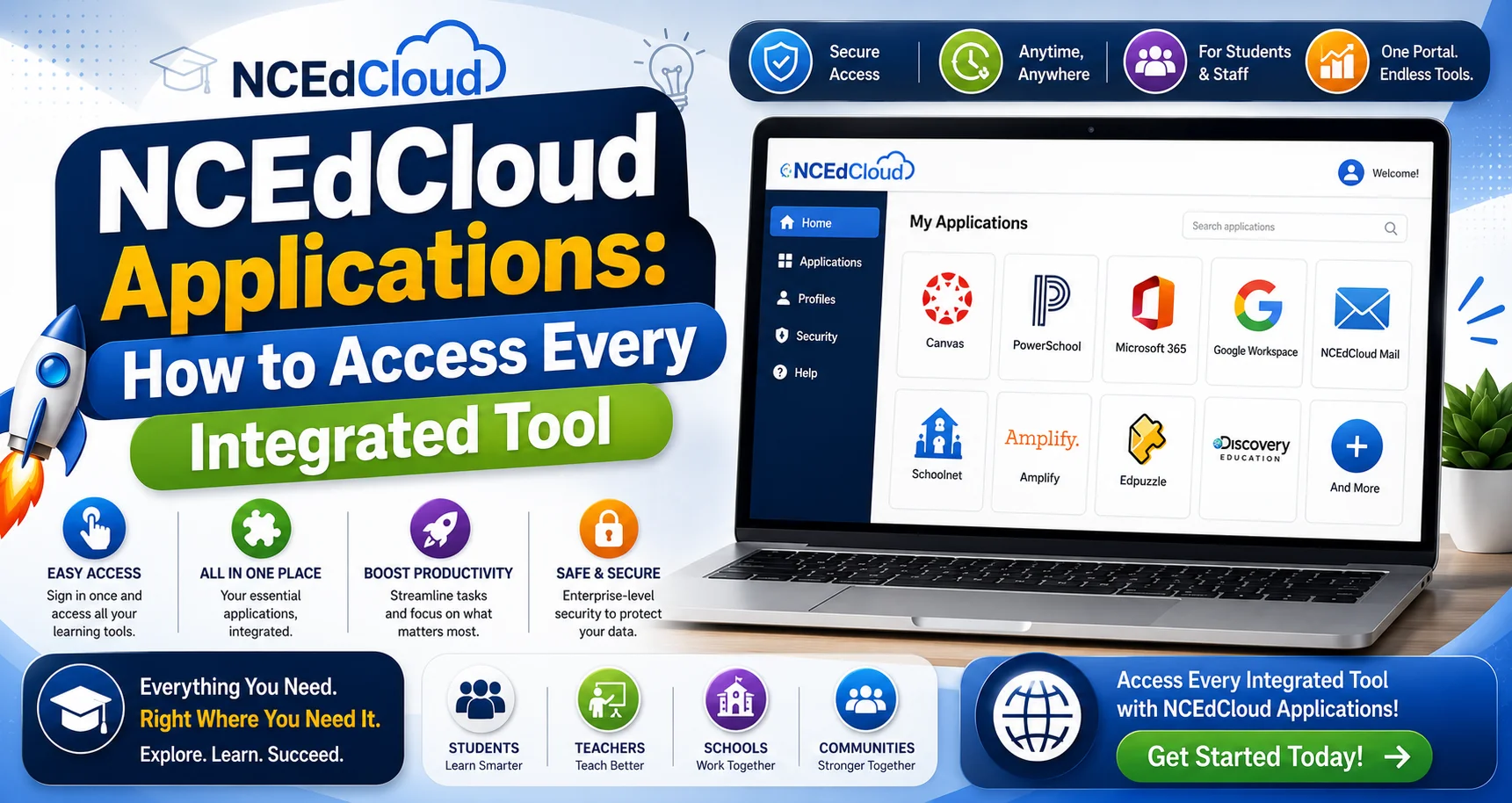
Once you log in at my.ncedcloud.org, you land on a tile-based dashboard listing every tool your school or district has connected to your account: Canvas, PowerSchool, Google Workspace, and dozens more, depending on your role and district. Click a tile, and you’re in, with no separate username or password to type. This is what most people mean when they refer to their NCEdCloud Applications dashboard. This guide covers how single sign-on gets you into each tool, why a tool you expect might be missing, and how districts add new integrations.
What is the NCEdCloud Applications Dashboard?
NCEdCloud Applications dashboard is the central screen you see immediately after logging in. This dashboard displays every tool your school or district has provisioned for your account as a clickable tile. RapidIdentity’s single sign-on engine powers this dashboard, most commonly authenticating through SAML 2.0, an industry-standard protocol used across K-12 and enterprise identity platforms. Some integrations instead use account synchronization or LDAP, depending on what the receiving tool supports.
SAML is the most common method for modern cloud applications, but not the only one. You can read more about how the official NCEdCloud IAM Service handles these integrations on MCNC’s documentation site.
Tiles are assigned at the district (LEA) level. Your district’s administrators decide which tools appear for each user type, so students, teachers, and administrators typically see different sets of tiles based on role and grade level.
How Single Sign-On Works?
You authenticate once, and every connected tool accepts that authentication without asking you to log in separately. Here’s the flow when you click a tile:
1. You click a tile on your dashboard.
2. The identity provider (idp.ncedcloud.org) generates a signed authentication token containing your identity information.
3. That token is sent to the destination tool.
4. The tool validates the token against its configured integration settings.
5. The tool grants access and loads your account.
This entire process takes a couple of seconds and is invisible to you. There’s no visible login screen for the destination tool, because you’ve already been authenticated. To learn more, read our How Single Sign-On works guide.
Commonly Integrated NCEdCloud Applications
The table below lists tools widely deployed across North Carolina districts. Availability always depends on your district’s license and configuration. Not every tool below will appear for every user.
Application | Category | Typical Users |
Learning Management System | Students, Teachers | |
Student Information System | Students, Teachers, Admin | |
Productivity / Collaboration | All users | |
Digital Curriculum | Students, Teachers | |
Digital Curriculum | Students, Teachers | |
Assessment / Data | Teachers, Administrators | |
App Launcher (secondary) | Students, Teachers | |
ELA / Science Curriculum | Students, Teachers | |
Rostering/SSO layer | Younger students | |
IXL Learning | Math / ELA Practice | Students |
Imagine Learning | Reading Intervention | Students |
Seesaw | Portfolio / Communication | Students, Teachers |
Microsoft 365 | Productivity | All users (select districts) |
Schoology | Learning Management System | Students, Teachers |
Lexia Core5 | Reading Literacy | Students |
BrainPOP | Supplemental Content | Students, Teachers |
Destiny | Library System | Students, staff |
This list is not exhaustive, and availability is set district by district basis. To see everything available to your specific account, log in to NCEdCloud and check your dashboard directly.
A Note on Student Information Systems
Most of this guide assumes PowerSchool as your district’s student information system (SIS), since it’s the most common in North Carolina. A smaller number of NC districts use Infinite Campus instead. If your district uses Infinite Campus, account provisioning, roster syncs, and grade data follow the same overall NCEdCloud process, but sync timing and support routing differ slightly.
Infinite Campus issues are routed through a separate official support channel rather than PowerSchool’s support case system. Confirm with your school’s technology coordinator which SIS your district uses if you’re unsure.
How to Launch a Tool?
1. Log in at my.ncedcloud.org with your username and password.
2. Your dashboard loads with all assigned tiles.
3. Find what you need by scrolling or using the search bar at the top.
4. Click the tile.
5. An authentication request is sent automatically to that tool.
6. The tool loads and you’re signed in.
If a tile opens to its own login screen instead of your account, the integration may be temporarily misconfigured. Close the tab, return to your dashboard, and click the tile again. If that doesn’t resolve it, see our complete troubleshooting guide.
Why a Tool Might Be Missing?
If you experience that the app is missing from your dashboard, one of these is usually why:
It hasn’t been assigned to your account.
Tools are assigned by role or individually by your district’s administrator. If your class uses something that isn’t showing up, your teacher or school help desk can submit an access request on your behalf.
You’re looking at the wrong account type.
Administrators sometimes see tools that students or teachers don’t, and vice versa. Confirm with your teacher or IT staff which tools are available at your specific role level.
Your district hasn’t licensed or integrated it yet.
Some tools require a district license and a completed integration agreement before they can appear, even if your school technically uses that vendor elsewhere.
Your account was just created.
New accounts can take 24–48 hours after the nightly sync to show every assigned tool. If you just claimed your account, check again after one business day.
How Districts Add a New Integration?
Individual students and teachers can’t add tools directly. New integrations are requested by a district LEA administrator, submitted as a workflow request inside the RapidIdentity portal rather than a manual form. If you’re a teacher or student who wants something added, your school’s IT department or district Help Desk is the right contact. They can submit the request on your behalf.
Incognito and Private Browsing Issues
Single sign-on relies on browser cookies to keep you authenticated across tabs. Incognito and private browsing block persistent cookies, which can cause:
- Being asked to log in again every time you open a new tab.
- A tool opening to its own login screen instead of your account.
- A tool loading but showing you as logged out despite a successful login.
The fix is to use a standard browser window for all your school-related activity. For example, if you must use incognito on a shared computer, expect to re-authenticate more often. Google’s SSO integration specifically requires cookies and often won’t function correctly in incognito mode.
Frequently Asked Questions
What tools are available through my dashboard?
This varies by district. Common ones include Canvas, PowerSchool, Google Workspace, Discovery Education, HMH, and SchoolNet. Log in and check your dashboard for the exact list available to your account.
Why isn’t Canvas showing up for me?
Your district and school control this assignment. If it’s missing, your account likely hasn’t been granted access yet. Contact your teacher or school help desk to request it.
How does single sign-on actually work?
NCEdCloud acts as the identity provider. When you click a tile, it generates a signed authentication token and sends it to the destination tool, which validates the token and logs you in automatically, without a separate password.
Can I add my own tools to the dashboard?
No. Your district administrator controls what appears. Individual users can’t add or remove tiles themselves.
Why does a tool ask me to log in again after I click its tile?
Usually one of three things: the integration is temporarily misconfigured, your session expired, or you’re in an incognito window that blocked the authentication cookie. Try a normal browser window and click the tile again. Read our guide about Target Application Error to learn more.
What is the “Target Application” link I sometimes see?
It’s the tool you were originally trying to reach when you got redirected to the login screen. After logging in, you’re sent there automatically as your destination.
How do I search for a specific NCEdCloud application?
Use the search bar at the top of the dashboard and type the tool’s name. If nothing matches, it hasn’t been assigned to your account.
What should I do if an integration seems broken?
Report it to your school’s help desk. They can escalate to your district administrator or directly to NCEdCloud’s support team at Identity Automation.
Disclaimer
This page is part of NCEdCloudPro.com, an independent resource for North Carolina’s NCEdCloud platform. We are not affiliated with, endorsed by, or connected to the North Carolina Department of Public Instruction (NCDPI), official IAM Service, MCNC, or Identity Automation.
For account-specific issues, always contact your school or district Help Desk, or go directly to the official login at my.ncedcloud.org and read our full disclaimer written by Mark Albert.