NCEdCloud SSO Guide — How Single Sign-On Works for NC Schools
What is NCEdCloud SSO?
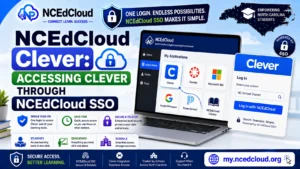
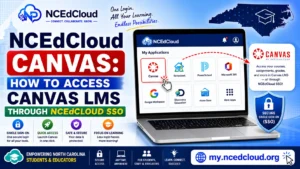
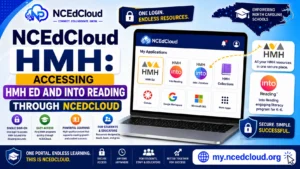
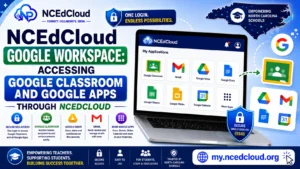
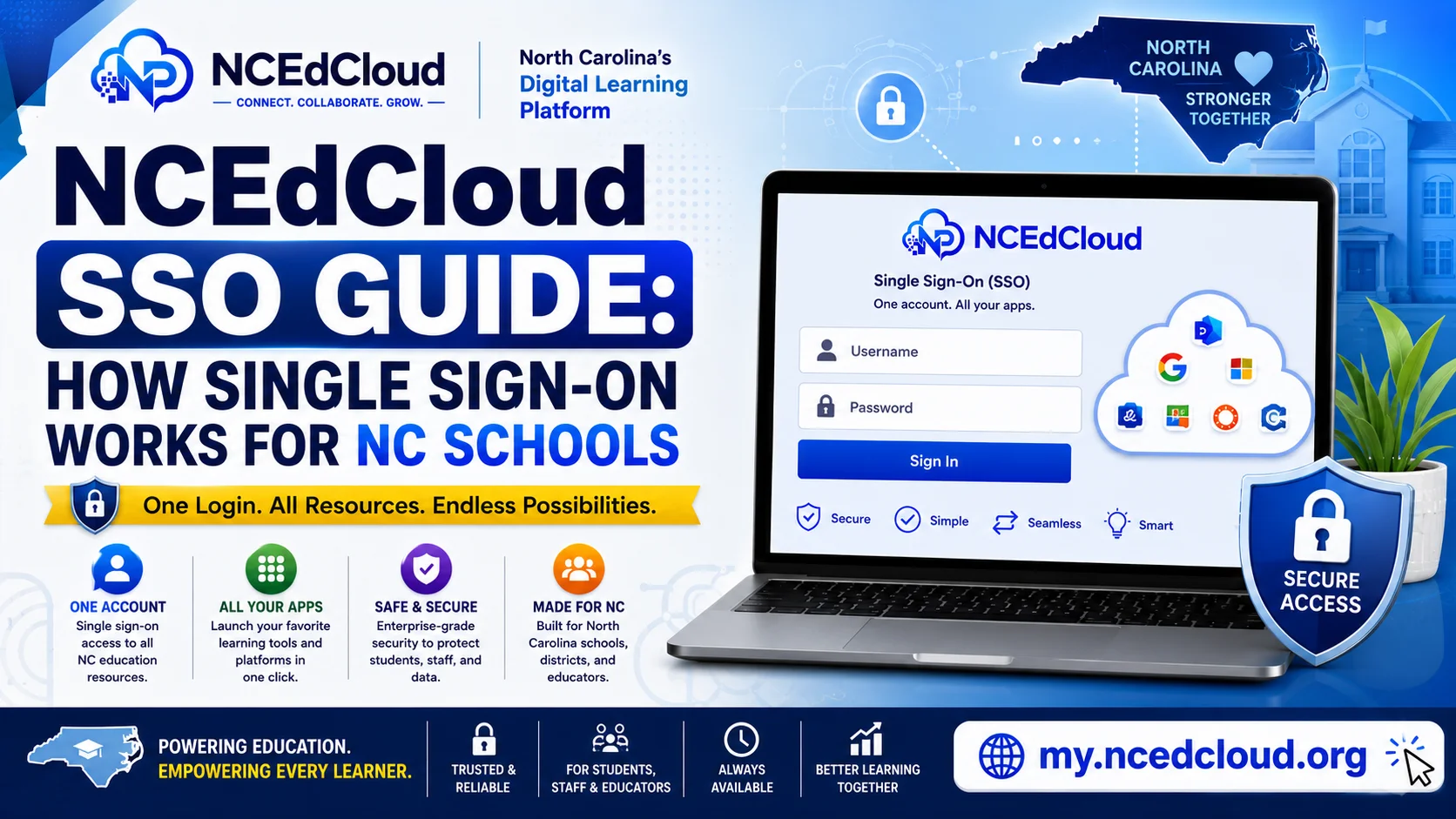
NCEdCloud SSO (Single Sign-On) is the system that lets every North Carolina public school user log in once at my.ncedcloud.org and then access all their educational applications without entering another username or password. NCDPI’s RapidIdentity platform from Identity Automation serves as the identity provider. For the full application list this powers, see our NCEdCloud Applications guide.
When you click an application tile, NCEdCloud sends a cryptographically signed authentication assertion to the application via the SAML 2.0 protocol, indicating who you are and what roles you hold. The application trusts that assertion and signs you in.
This applies statewide, across roughly 2.5 million student and staff accounts spanning more than 300 North Carolina LEAs, including charter schools. The most important thing to know is that every application on your dashboard connects through this same SSO chain. One login protects access to all of them. For the official technical reference, see NCEdCloud’s IAM Service documentation at ncedcloud.mcnc.org.
How the NCEdCloud SSO Flow Works: Step by Step
- You enter your username and password at my.ncedcloud.org.
- RapidIdentity verifies your credentials against the NCEdCloud directory.
- If MFA is required, you complete the second factor (TOTP code or WebAuthn key).
- NCEdCloud creates a signed SAML assertion containing your identity attributes: username, email, role, school, and grade level.
- You click an application tile.
- NCEdCloud sends the SAML assertion to the application’s service provider endpoint.
- The application verifies the assertion signature using a shared certificate.
- The application maps your identity to an internal account and loads your dashboard.
- You are signed in without entering any additional credentials.
Learn More About → How to Set Up NCEdCloud MFA
SAML vs. OIDC in NCEdCloud
Most NCEdCloud application integrations use SAML 2.0. Some newer applications use OIDC (OpenID Connect) instead. The user experience is identical: click the tile, and you are in. The difference is technical: SAML uses XML-based assertions while OIDC uses JSON tokens. LEA Administrators configure the correct protocol when setting up each application integration. You do not need to know which protocol an application uses to access it.
What Attributes Does NCEdCloud Send to Applications?
| Attribute | What It Contains | Why Applications Need It |
| Username / UID | Your NCEdCloud unique identifier | Links you to your account in the application |
| Your district email address | Used for display and communication | |
| Role | Teacher, student, admin, etc. | Controls what features you see |
| School | Your assigned school code | Scopes your access to the right data |
| Grade level | Student grade (for student accounts) | Assigns correct content and courses |
| First/Last name | Your display name | Shows correctly inside the application |
If any of these attributes are incorrect in NCEdCloud because the source data in PowerSchool or Home Base is incorrect, the application receives incorrect data, and your access or content may be affected.
Learn More → NCEdCloud App Missing From Dashboard
Why Does NCEdCloud SSO Sometimes Fail?
| Failure Type | Cause | Fix |
| Tile present, error on click | Expired SAML certificate or misconfigured endpoint | LEA Administrator updates integration settings |
| Signed in to the wrong account in the app | Attribute mismatch | IT corrects the attribute mapping |
| App asks for a separate login | App not configured for SSO | Contact LEA admin to set up integration |
| SSO works on the school network, but not at home | IP restriction configured on the application | Contact IT to remove the IP restriction or add home access |
If SSO is failing rather than just for one app, see our full NCEdCloud troubleshooting guide.
Learn More → NCEdCloud Target Application Error Fix
Frequently Asked Questions
Does NCEdCloud SSO store my passwords for other applications?
No. NCEdCloud does not store or pass your password to other applications. Instead, it passes a signed identity assertion. Applications never see your NCEdCloud password — they only see the identity information in the assertion.
If I change my NCEdCloud password, do I need to update it in all my applications?
No. Because applications use SSO and do not receive your password, changing your NCEdCloud password does not affect application access. Your new NCEdCloud password is only used at the NCEdCloud login screen.
Why do some applications still ask me to log in separately even though NCEdCloud is supposed to handle SSO?
Some applications support SSO but are not yet configured by your LEA Administrator. Others use SSO only for initial account creation and then require their own login. If an app consistently asks for a separate login after you click its NCEdCloud tile, contact your IT coordinator and ask them to verify the SSO configuration for that application.
Can I stay signed in to NCEdCloud applications without logging in to NCEdCloud first?
Once NCEdCloud creates a session, most connected applications maintain their own session independently. If your NCEdCloud session expires, you may need to log back in to NCEdCloud to access new applications, but apps you already have open may remain active until their own session times out.
Does NCEdCloud SSO work on mobile devices?
Yes. Log in to my.ncedcloud.org in a mobile browser (Chrome on Android or Safari on iOS) and tap application tiles. Mobile SSO works the same way as desktop. Some applications also have native mobile apps that accept NCEdCloud SSO credentials; setup steps vary by app.
Disclaimer Note: NCEdCloud, RapidIdentity, and Identity Automation are trademarks of their respective owners. NCEdCloudPro.com is not affiliated with or endorsed by NCDPI, NCEdCloud, MCNC, or Identity Automation. Read our full disclaimer.