NCEdCloud Target Application Error — What it Means and How to Fix it
What is the NCEdCloud Target Application Error?
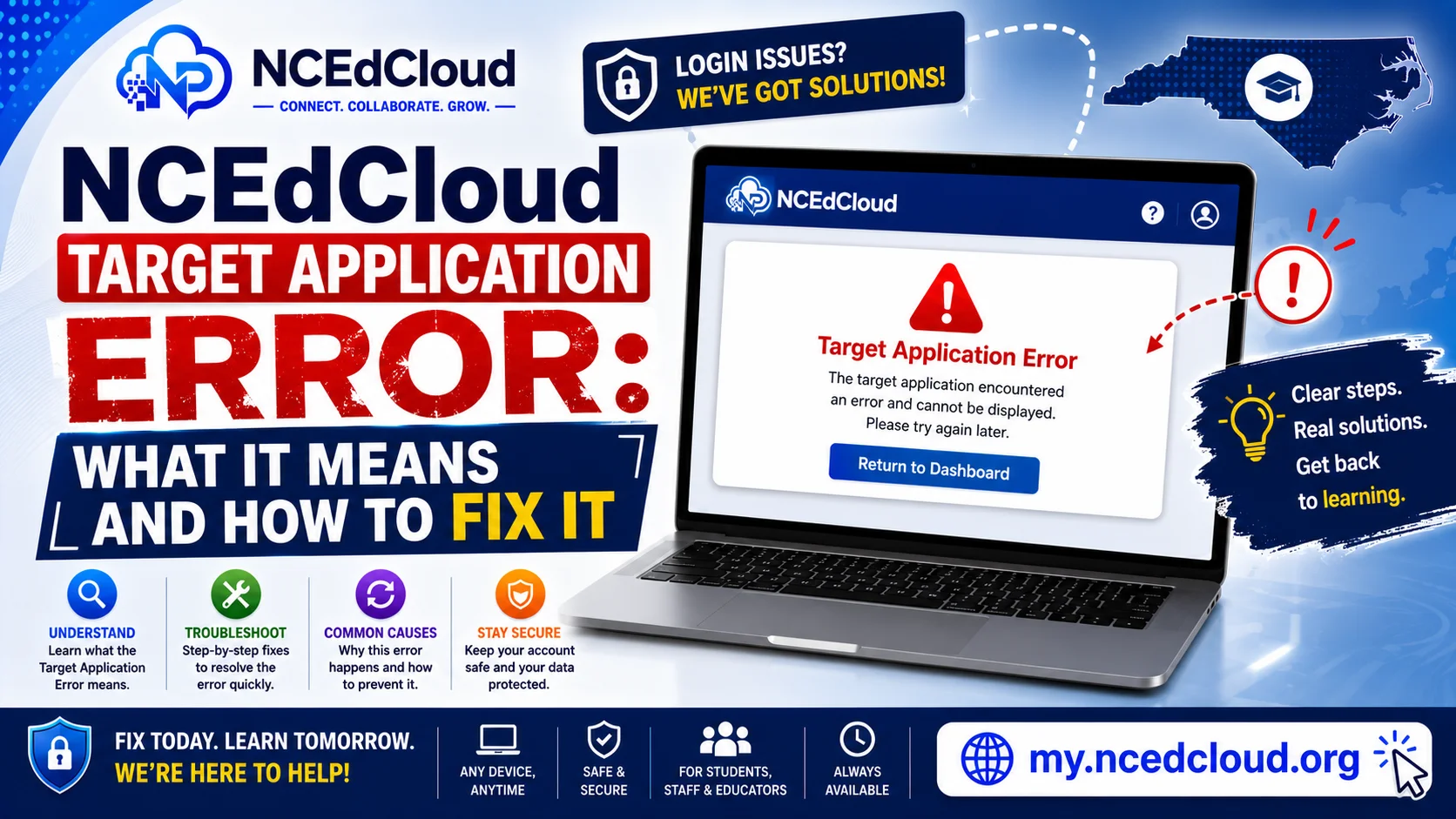
The NCEdCloud target application error occurs when you click an application tile on your dashboard, and the SSO authentication to the destination application fails. The tile is visible, meaning NCEdCloud considers you provisioned for the app, but the handoff between NCEdCloud and the application breaks at the SAML or OIDC level. See our NCEdCloud SSO guide for how that handoff is supposed to work.
NCDPI’s RapidIdentity platform generates these errors when the application rejects the authentication assertion. The most important thing to know is that this is almost always a configuration issue on the application side or in the NCEdCloud integration settings. A wrong password does not cause it, and it will not fix itself without action by your LEA Administrator.
What the Error Looks Like?
Target application errors appear in several forms depending on which application is failing:
- “The target application encountered an error”
- “Unable to sign in to [application name].”
- “SAML authentication failed”
- A blank white screen after clicking the tile
- The application’s own error page immediately on load
These all indicate the same category of problem: the SSO handoff failed after NCEdCloud authenticated you.
Learn More → NCEdCloud Applications Guide
Common Causes of Target Application Errors
| Cause | Who Needs to Fix It | Fix |
| SAML certificate expired on the application side | LEA Administrator | Renew the certificate in the application’s SSO settings |
| Attribute mapping mismatch | LEA Administrator | Match NCEdCloud attribute names to what the app expects |
| Application SSO configuration changed | LEA Administrator | Verify and update SSO settings in the NCEdCloud admin console |
| User account not provisioned in the application | LEA Administrator or application admin | Create or sync the user account in the application |
| The browser blocked third-party cookies | End user | Allow third-party cookies for the application domain |
| Incognito mode blocks cookies | End user | Use a standard browser window |
What End Users Can Try First?
Before contacting the help desk, try these quick steps:
- Log out of NCEdCloud completely, then log back in and click the tile again.
- Clear your browser cache and cookies, then try again.
- Try a different browser (Chrome is most reliable for NCEdCloud SSO).
- Disable browser extensions temporarily, especially ad blockers and privacy extensions that may block SSO cookies.
- Check if a colleague with the same role can access the application. If they can, the problem is specific to your account. If they cannot, it is a broader configuration issue.
Learn More → NCEdCloud App Missing From Dashboard
What to Tell the Help Desk?
If user-side steps do not work, contact your school or district help desk with:
- Your NCEdCloud username
- The exact name of the application that is failing
- The exact error message you see
- Whether the tile worked before, and approximately when it stopped working
- Whether colleagues have the same problem
This information helps the LEA Administrator identify whether the fix involves the NCEdCloud integration settings, the application’s SSO configuration, or your specific account provisioning. For broader NCEdCloud login issues beyond a single app, see our full troubleshooting guide.
Frequently Asked Questions
Why does an app tile appear on my dashboard but fail when I click it?
The tile appears because NCEdCloud has provisioned you for the application based on your role and account attributes. The error happens downstream during the SAML handoff when the application tries to match your NCEdCloud identity to an account in its own system. The existing tile does not guarantee the full SSO chain is working.
Can I fix a target application error myself?
In most cases, no. If clearing the cache and trying a different browser does not resolve it, the fix requires an LEA Administrator to review the SSO configuration. End users do not have access to the NCEdCloud admin console or the application’s SSO settings.
Is the target application error the same as “The Request Is Invalid”?
No. “The Request Is Invalid” typically appears on the NCEdCloud login page itself and relates to session or authentication flow issues at the NCEdCloud level. A target application error occurs after NCEdCloud has authenticated you, and the handoff to the destination application fails.
Why did a target application error suddenly start appearing for an app that worked before?
The most common trigger for sudden SSO failures on a previously working application is an expired SAML certificate. Certificates used for SSO have expiry dates, and when they expire, the handoff fails. An LEA Administrator needs to renew the certificate in both NCEdCloud and the application’s settings.
I have target application errors on multiple apps at once. What does that mean?
Multiple simultaneous target application errors usually point to an issue at the NCEdCloud level rather than individual application configuration problems. Check whether other users are affected. It may indicate a broader platform issue. Contact your LEA help desk.
Disclaimer Note: NCEdCloud, RapidIdentity, and Identity Automation are trademarks of their respective owners. NCEdCloudPro.com is not affiliated with or endorsed by NCDPI, NCEdCloud, MCNC, or Identity Automation. Read our full disclaimer.