NCEdCloud Password Reset Admin — How Administrators Reset User Passwords
How Does NCEdCloud Admin Password Reset Work?
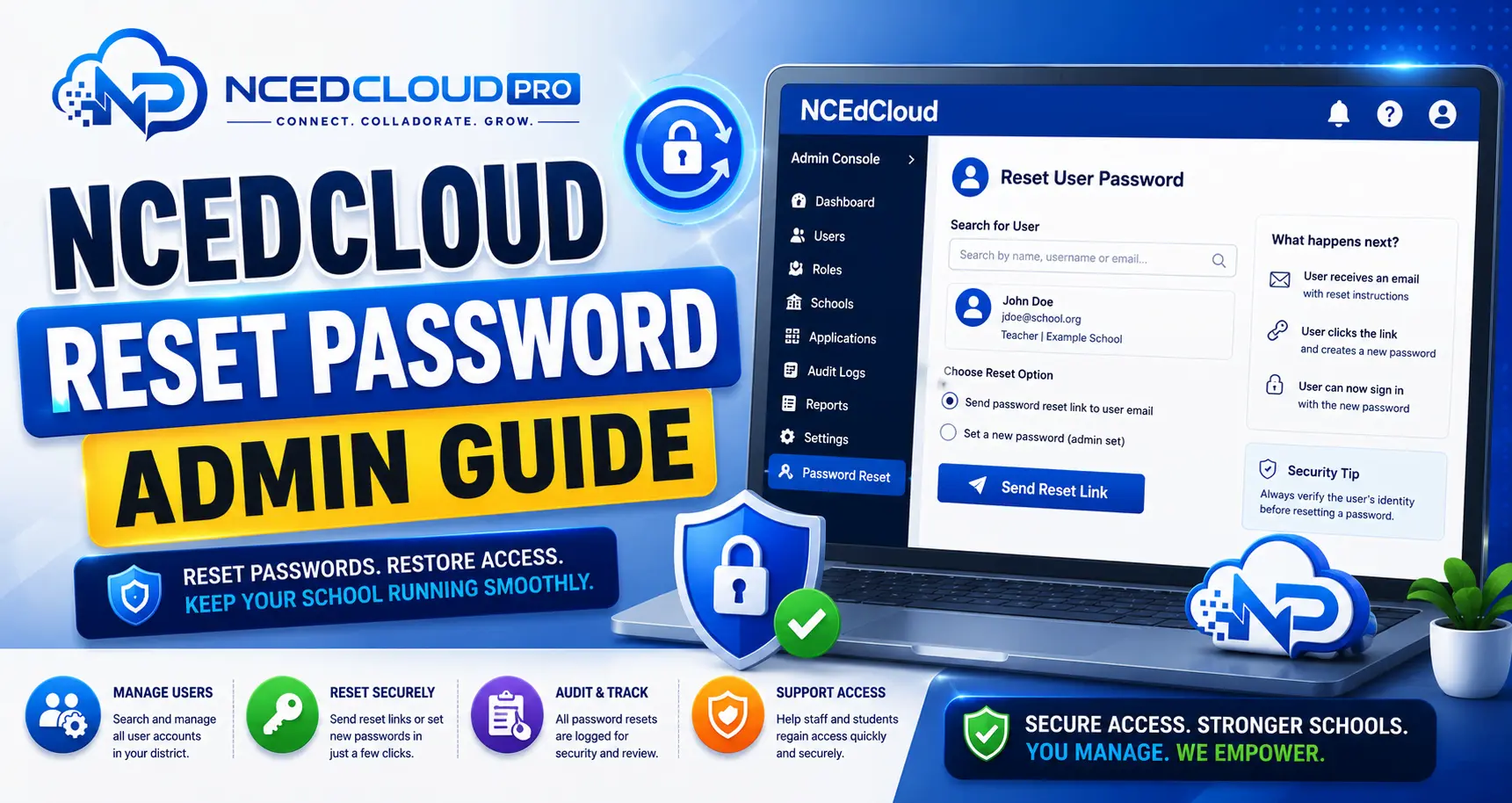
The NCEdCloud password reset admin function allows LEA Administrators, LEA Help Desk staff, and School Help Desk staff to reset a user’s password directly from the admin console without needing the user’s current password or challenge question answers. RapidIdentity, the platform behind NCEdCloud, provides this capability statewide as a core help desk operation.
This applies to student and staff accounts across every North Carolina LEA and charter school. The most important thing to know is that an admin password reset bypasses all user-side verification. The help desk staff member is taking responsibility for confirming the user’s identity before performing the reset. For the self-service side of password resets, see our Password Reset guide.
Admin Reset vs. Self-Service Reset
| Feature | Admin Reset | Self-Service Forgot Password |
| Who initiates it | Admin or help desk staff | End user |
| Current password required | No | No |
| Challenge questions required | No | Yes |
| Phone or in-person verification | Recommended | Not required |
| Takes effect immediately | Yes | Yes |
| User notified automatically | Varies by district config | Yes (on-screen) |
Admin resets are the correct tool when the user is locked out and cannot complete self-service recovery. They are not a substitute for self-service recovery when self-service is available.
Learn More → NCEdCloud School Help Desk Role Guide
How to Reset a User’s Password as an Admin?
- Log in to my.ncedcloud.org with your Admin or help desk credentials.
- Open the admin console and navigate to User Management.
- Search for the user by name, username, or student/employee ID.
- Open the account profile.
- Select “Reset Password” or “Change Password” from the account actions.
- Enter a temporary password or use the auto-generate option.
- Enable the “Must change at next login” option if available. This forces the user to set their own password immediately.
- Save the change. The reset takes effect immediately.
- Communicate the temporary password to the user through a secure method, in person, by phone, or through a school-managed messaging system.
To Learn More → NCEdCloud LEA Help Desk Role Guide
Identity Verification Before an Admin Reset
Help desk staff should verify the user’s identity before performing a password reset. Accepting unverified requests creates a social engineering risk. Standard verification methods in K-12 settings include:
- In-person verification (student or staff presents to the office)
- Phone call to a verified district number
- Verification through a teacher or supervisor
- Matching the user to records in the SIS (name, grade, ID number)
Districts should document their identity verification procedure for password resets and train help desk staff on it.
Read More → NCEdCloud LEA Administrator Overview
After the Reset — What Users Should Do
Communicate these steps to the user after an admin reset:
- Log in with the temporary password provided.
- If the “must change at next login” flag was set, the system will prompt for a new password immediately.
- Set a new password that meets NCEdCloud requirements: 8 to 16 characters, one uppercase, one lowercase, one number.
- Log in with the new password to confirm access.
Frequently Asked Questions
Can a School Help Desk user reset a staff member’s password?
Generally no. The School Help Desk role is designed for student password resets at the school level. Staff password resets typically require LEA Help Desk or LEA Administrator access. Check your district’s specific permission configuration if you are unsure.
How do I communicate a temporary password securely to a user?
Avoid sending temporary passwords over email to personal addresses. Preferred methods: in-person verbal communication, phone call to a verified school number, or a school-managed messaging platform. If email must be used, send it to the user’s district-issued email address and instruct them to change the password immediately.
Should I always enable “must change at next login” for admin-reset passwords?
Yes, as a best practice. Setting a temporary password that the user is required to change immediately ensures the help desk does not retain knowledge of the user’s active password. This reduces insider risk and aligns with standard password security practices.
What should I do if someone calls claiming to be a student and asks for a password reset?
Do not perform the reset based on a phone call alone unless you can verify the caller’s identity through a secondary method. For students, require them to come to the office in person or have a parent or guardian present for the verification. Document all remote reset requests.
Does an admin-reset password count toward the 90-day expiry cycle?
Yes. Any password change, whether self-service or admin-reset, restarts the 90-day expiry clock from the date of the change. The new clock starts on the day the temporary password was set, not on the day the user changes it at the next login.
Disclaimer Note: NCEdCloud, RapidIdentity, and Identity Automation are trademarks of their respective owners. NCEdCloudPro.com is not affiliated with or endorsed by NCDPI, NCEdCloud, MCNC, or Identity Automation. Read our full disclaimer.