NCEdCloud Approve Role — How LEA Administrators Review And Approve Role Requests
What is the NCEdCloud Approve Role Process?
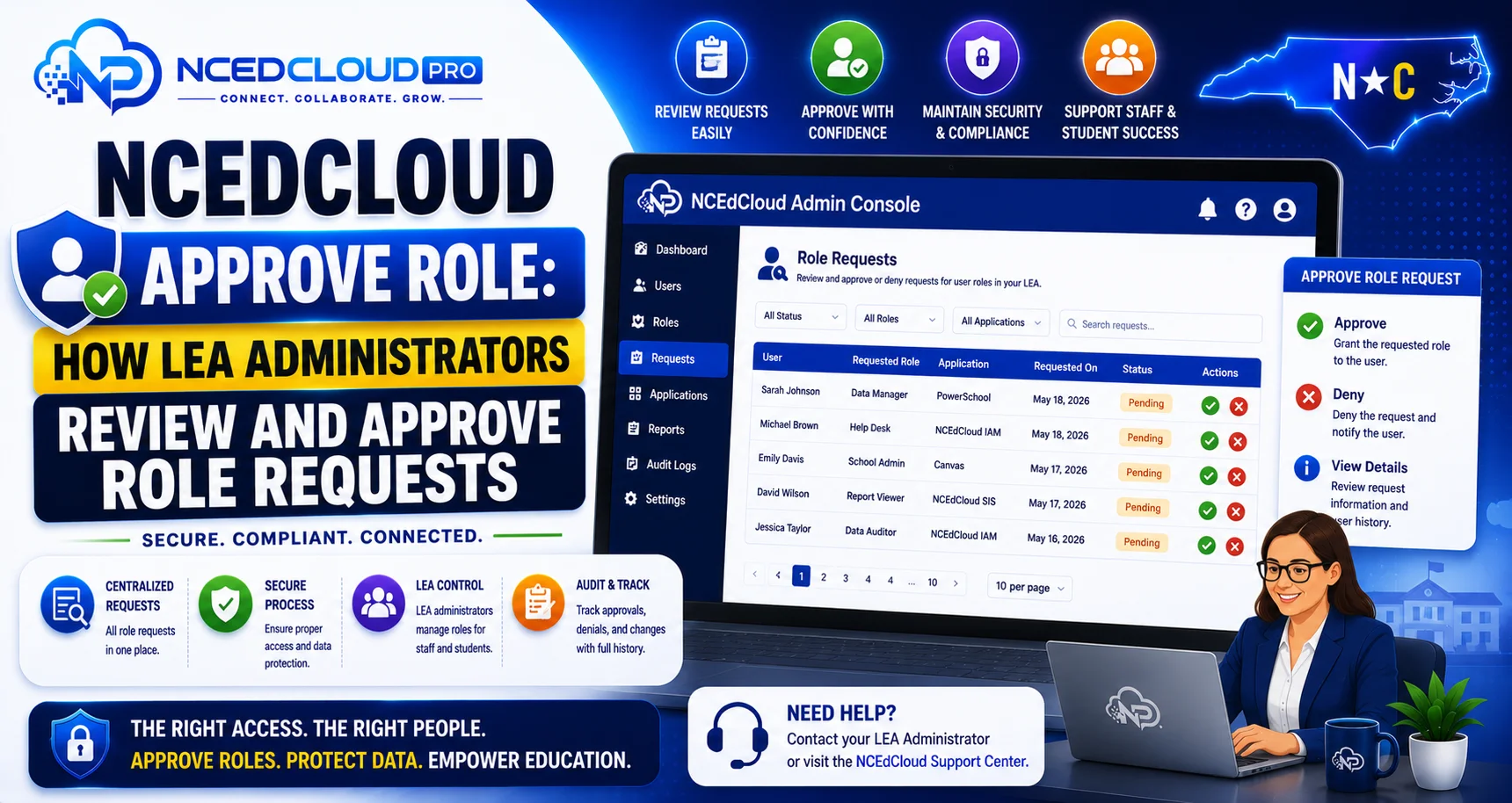
The NCEdCloud approve role process is the step where an LEA Administrator reviews a pending admin role request submitted by a staff member and either grants or denies the requested access. RapidIdentity, the platform behind NCEdCloud, automatically routes role requests to the appropriate approver queue.
Learn More → NCEdCloud Request Role Guide
For background on the platform itself, see our NCEdCloud overview. This applies across every North Carolina LEA and charter school using NCEdCloud, part of a statewide system serving roughly 2.5 million student and staff accounts across more than 300 LEAs.
Learn More → NCEdCloud Revoke Role Guide
The most important thing to know is that only users with the LEA Administrator role can approve role requests. Help desk staff and data auditors cannot approve requests even if they receive a notification about them. For the full breakdown of what LEA Administrators can do, see our LEA Administrator guide.
How to Find and Review Pending Role Requests?
- Log in to my.ncedcloud.org with your LEA Administrator credentials.
- On your dashboard, open the “Requests” or “Approvals” module.
- The pending requests queue shows all outstanding role requests submitted by staff in your LEA.
- Click a pending request to view the details: requester’s name, role requested, school scope (if applicable), and any justification note.
- Review the request against your district’s role assignment policy.
- Select “Approve” or “Deny.”
- Add an optional note explaining the decision if you are denying.
- Save the decision. The requester’s account is updated immediately on approval.
What to Check Before Approving a Role Request?
| Check | Why It Matters |
| Is the requester still employed at the district? | Verify against current HR records |
| Does the role match the requester’s job function? | Principle of least privilege |
| Is the school scope correct (for school-scoped roles)? | Prevents access beyond what is needed |
| Has the requester completed any required training? | Some districts require IT onboarding before granting help desk roles |
| Does the district already have enough people with this role? | Avoid over-provisioning high-privilege roles |
Learn More → NCEdCloud LEA Help Desk Role Guide
Approving vs. Directly Assigning Roles
LEA Administrators can also assign roles directly from the admin console without going through the request workflow. This is useful for new hires whose Requests module tile may not yet appear on their dashboard, or for urgent access needs. Direct assignment and request-based approval produce the same result: the role is active on the account immediately.
To assign a role directly:
- Navigate to the user account in the admin console.
- Open the Roles or Permissions section.
- Add the appropriate role.
- The role is active immediately.
Learn More → NCEdCloud LEA Data Auditor Role Guide
Notifying Requesters of Approval Decisions
NCEdCloud sends a system notification to the requester when a decision is made. Some districts also configure email notifications. Regardless of system notifications, it is good practice for the LEA Administrator or their designee to follow up directly with the requester, especially for denials, to explain the decision and suggest next steps if the request needs to be resubmitted.
Frequently Asked Questions
Can more than one LEA Administrator approve role requests?
Yes. Any user with the LEA Administrator role can approve role requests. Districts with multiple LEA Administrators share the approval queue, and any one of them can process a pending request.
What happens if I accidentally approve the wrong role for a user?
Disable the affected account immediately if there’s any security concern, and start the Revoke Role process to remove the incorrect role. Note that removing another user’s privileged role specifically may require a support ticket with Identity Automation rather than a simple in-platform revoke; see our Revoke Role guide for the full process. Acting quickly limits the window of unintended access.
How do I deny a role request without locking the user out of NCEdCloud?
Denying a role request only prevents the requested elevated access. It does not affect the user’s standard account access. The user continues to log in normally. A denied request removes only the specific role from consideration. Their existing account and current roles are unchanged.
Can I set an expiry date on an approved role?
This depends on your district’s NCEdCloud configuration. Some RapidIdentity deployments support time-limited role assignments. If your district needs temporary role access for a substitute, a contractor, or a seasonal staff member, ask your Identity Automation contact or NCDPI support whether role expiry can be configured.
Where can I see a log of all role approvals I have made?
Audit logs in the NCEdCloud admin console record role changes, including approvals and denials. Access the audit log from the admin console navigation. If you cannot find it, contact your NCDPI support contact for assistance in locating the audit trail in your district’s configuration.
Disclaimer Note: NCEdCloud, RapidIdentity, and Identity Automation are trademarks of their respective owners. NCEdCloudPro.com is not affiliated with or endorsed by NCDPI, NCEdCloud, MCNC, or Identity Automation. Read our full disclaimer.