NCEdCloud Revoke Role — How to Remove Admin Roles From User Accounts
What is the NCEdCloud Revoke Role Process?
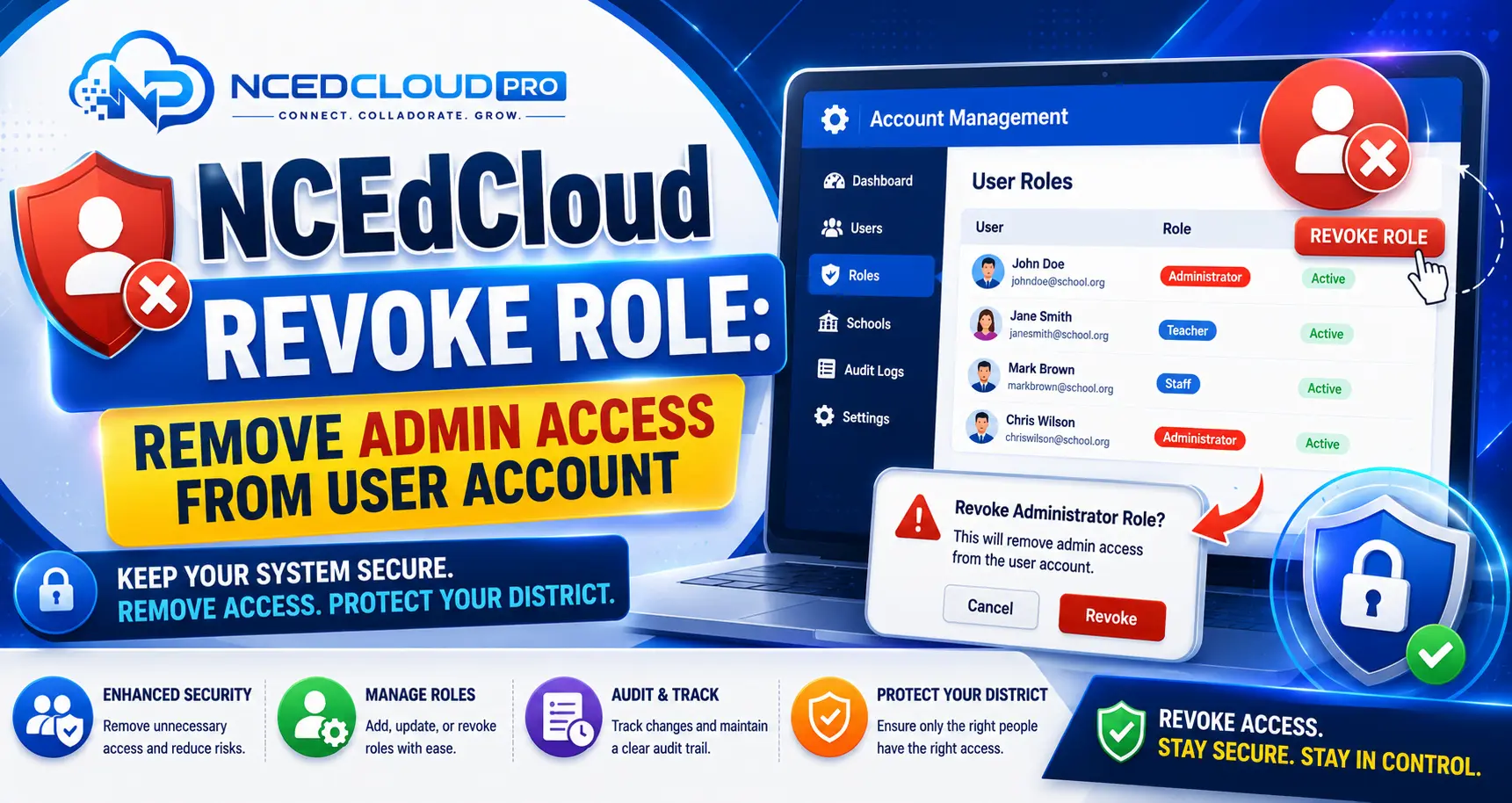
NCEdCloud revoke role is the action an LEA Administrator takes to remove an administrative permission from a user’s account. For example, removing the School Help Desk role from a staff member who has transferred to a different school or left the district. The user’s standard NCEdCloud account and login remain active. Only the elevated permission is affected. For the full breakdown of what LEA Administrators can and can’t do directly, see our LEA Administrator guide.
The most important thing to know is that “revoking your own role, or disabling an account outright, is immediate and self-service,” but “removing another user’s privileged role specifically is different”.
In most configurations, that action requires a support ticket with Identity Automation rather than a simple in-platform revoke button. If you need to immediately cut off someone’s access rather than just remove one specific role, disabling their account entirely is the faster, fully self-service option. See our Disable Account guide.
When to Revoke an NCEdCloud Admin Role?
Revoke admin roles in these situations:
- Staff member leaves the district or school
- Staff member changes position and no longer needs the role
- The role was assigned incorrectly
- Staff member’s access privileges need to be reduced for policy or compliance reasons.
- Annual access review identifies accounts with unneeded elevated permissions.
Regular access reviews at least once per semester are a best practice for managing admin role assignments across the LEA.
Learn More → NCEdCloud Approve Role Guide
How to Start the Revocation Process in NCEdCloud?
- Log in to my.ncedcloud.org with your LEA Administrator credentials.
- Navigate to the admin console and open User Management.
- Search for the staff member by name or username.
- Open their account profile.
- Navigate to the Roles or Permissions section.
- If the platform allows a direct in-console removal for the role in question, use it and confirm the removal.
- If a direct removal option isn’t available for that role, submit a support ticket to Identity
- Automation requesting the role be removed, referencing the account and role in question.
- Verify the change once processed by re-opening the user’s profile and confirming the role no longer appears.
Which path applies can vary by district configuration, so if you’re unsure whether a given role supports direct removal, check with your LEA Administrator peer group or NCDPI support before assuming it’s instant.
Learn More → NCEdCloud Request Role Guide
NCEdCloud Revoke Role vs. Disable Account
| Action | What it Does | When to Use |
| Revoke role | Removes elevated permission; account stays active | Staff changes position; role no longer needed |
| Disable account | Prevents all logins; account is inactive | Staff leaves the district; the account should be fully deactivated |
If you need to act immediately on a security concern, disabling the account is the faster, guaranteed self-service option. You don’t need to wait on a support ticket to cut off all access, even if fully removing a specific privileged role afterward takes a bit longer.
Read More About → NCEdCloud Data Files and Sync
Frequently Asked Questions
Does revoking an admin role in NCEdCloud log the user out immediately?
Role changes take effect at the system level once processed, but the user’s active session may continue until it expires or they log out. For security-sensitive role removals, notify the user or ask them to log out and back in so the session refreshes with the updated permissions.
Can a revoked role be re-granted later?
Yes. Role revocation is reversible. The staff member can resubmit a role request through the Requests module, or the LEA Administrator can re-assign the role directly from the admin console if that role supports direct assignment. Previous approval history does not carry over — the new assignment is treated as fresh.
Who can revoke admin roles in NCEdCloud?
Only LEA Administrators can initiate role revocation. Help desk staff and data auditors cannot modify role assignments on other accounts. If the LEA Administrator account itself needs to be modified, another LEA Administrator must make the change, or NCDPI if there’s only one LEA Administrator on the account.
What happens to work done by a user after their role is revoked?
Revoking a role does not delete or modify any data the user created or modified while they held the role. Password resets, role approvals, and account changes they performed are preserved in the system. The revocation only affects future access.
Should I revoke roles before or after deactivating an account for a departing employee?
Since disabling the account is the immediate, guaranteed action, disable the account first if the departure is urgent, then follow up on formally removing the specific role for your audit records. Both steps should be completed on or before the employee’s last day.
Disclaimer Note: NCEdCloud, RapidIdentity, and Identity Automation are trademarks of their respective owners. NCEdCloudPro.com is not affiliated with or endorsed by NCDPI, NCEdCloud, MCNC, or Identity Automation. Read our full disclaimer.