NCEdCloud App Missing From Dashboard — Why it Happens and How to Fix it
Why Do NCEdCloud Apps Go Missing?
An NCEdCloud app missing from your dashboard or may never appear in the first place because NCEdCloud assigns tiles based on your role, school assignment, and district license data. If any of those three things change or are incomplete, the tile vanishes or fails to provision.
NCDPI’s RapidIdentity platform controls application assignment through provisioning rules configured by LEA Administrators, and this applies consistently across all North Carolina LEAs and charter schools on the platform.
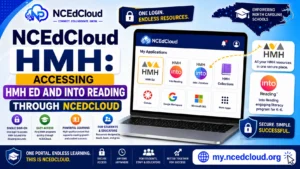
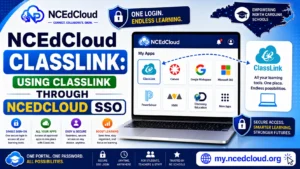
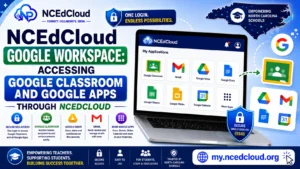
The most important thing to know is that a missing app tile does not mean you have been removed from the program. It almost always means an account attribute does not match the provisioning rule for that application. See our NCEdCloud Applications guide for the full dashboard overview.
The Most Common Causes of a Missing App Tile
| Cause | Who to Contact | How Long to Fix |
| Account sync not yet complete | Wait and check again | 24 to 48 hours |
| Role assignment incorrect in the source system | LEA technology coordinator | 1 to 2 business days |
| School assignment missing or wrong | HR or registrar | 1 to 2 business days |
| Application not licensed by your district | Technology coordinator | Depends on licensing |
| Browser cache showing stale dashboard | Nobody — fix it yourself | Minutes |
| Application deprovisioned by LEA admin | LEA administrator | Varies |
This applies to any application tile, including third-party rostering layers like Clever if your district uses one.
How to Troubleshoot a Missing App Tile?
- Clear your browser cache and reload the NCEdCloud dashboard. Cached pages sometimes show an outdated tile list.
- Log out completely and log back in. A fresh session pulls the current application list from the server.
- Try an incognito or private browsing window. If the tile appears there, the issue is a browser cache problem.
- Wait 24 to 48 hours after any account change, new hire, or start of the year. Provisioning runs on scheduled syncs.
- Check whether classmates or colleagues have the same tile. If nobody in your role has it, it may be a district licensing issue. If you are missing it, the problem is with your specific account.
- Contact your school’s help desk with your NCEdCloud username and the name of the missing application.
Application Tiles vs. Application Access Issues
A missing tile is different from a tile that appears but throws an error when clicked.
| Symptom | Type of Problem |
| Tile never appears on the dashboard | Provisioning or assignment issue |
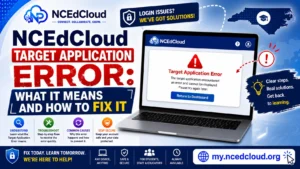
| Tile appears but shows an error on click | SSO configuration issue — see our Target Application Error guide |
| Tile appears and app loads, but shows wrong data | Account attribute mismatch |
| Tile appeared before but disappeared | Role or school assignment changed |
If your issue matches the “shows an error on click” row, that’s a different, more specific problem than a missing tile. For broader login problems beyond a single app, see our full NCEdCloud troubleshooting guide.
Learn More About → NCEdCloud SSO Guide
Frequently Asked Questions
Why do some students in my class have an app tile I do not have?
Application provisioning rules can be grade-level or role-specific. If another student has a tile you do not, your account may have a different grade level or role value than theirs. Contact your IT coordinator and ask them to compare account attributes.
A new app was just added to NCEdCloud at my district, but I do not see the tile. What should I do?
New application integrations require provisioning rules to be configured by the LEA Administrator. After setup, the tiles are pushed to user accounts during the next sync. Wait 24 to 48 hours after you were told the app was added. If you still do not see it, contact your LEA help desk.
My Canvas tile disappeared after I transferred schools. Why?
When you transfer schools, your school assignment in the source system changes. If the Canvas provisioning rule is school-specific, the old tile is removed, and a new one must be provisioned for your new school assignment. Contact your new school’s technology coordinator after a transfer to ensure your application assignments are updated.
I claimed my account, but my dashboard only shows two tiles. Is that normal?
Some accounts provision a minimal set of tiles initially and add more as sync data becomes available. If you are newly claimed, wait 24 to 48 hours and log out and back in to refresh. If tiles are still missing after 48 hours, contact your school’s technology coordinator.
Could you add a specific app to my dashboard?
You cannot add apps yourself. Application access is controlled by LEA Administrators and school IT coordinators based on role assignments and district licensing. Submit a request to your technology coordinator if you need access to a specific application.
Disclaimer Note: NCEdCloud, RapidIdentity, and Identity Automation are trademarks of their respective owners. NCEdCloudPro.com is not affiliated with or endorsed by NCDPI, NCEdCloud, MCNC, or Identity Automation. Read our full disclaimer.