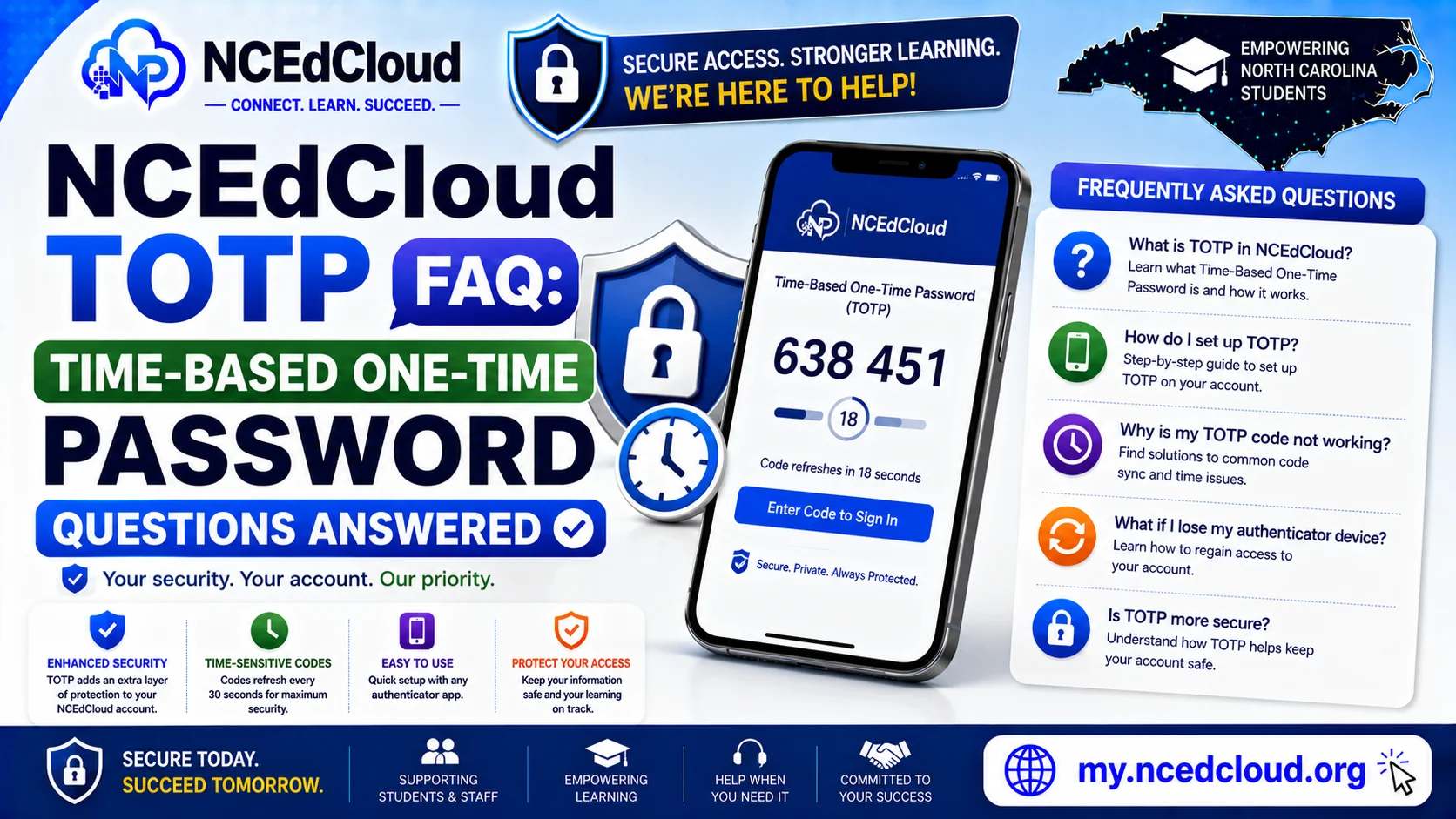
NCEdCloud TOTP FAQ — Time-Based One-Time Password Questions Answered
What is NCEdCloud TOTP?
TOTP stands for Time-Based One-Time Password. NCEdCloud TOTP is the MFA method that generates a 6-digit code in an authenticator app that refreshes every 30 seconds. NCEdCloud supports TOTP as one of its multi-factor authentication options alongside WebAuthn hardware keys. See our full MFA Setup guide for the complete process.
As of July 1, 2026, MFA is mandatory statewide for all NCEdCloud employees, not just those with privileged roles. TOTP codes are time-sensitive. A code more than 30 seconds old will fail, so enter it as soon as it appears.
Which Apps Are Officially Supported for NCEdCloud TOTP?
| App | Platform | Cost | Notes |
| Google Authenticator | iOS, Android | Free | Simple, no account required |
| RapidIdentity Authenticator | iOS, Android | Free | Built by Identity Automation, the platform behind NCEdCloud |
| Authy | iOS, Android, desktop | Free | Cloud backup, multi-device sync |
| Authy Desktop + GAuth Chrome extension | Desktop / Chrome browser | Free | Recommended combination for Chromebook users without a separate phone |
Stick to this officially supported list. Other authenticator apps may technically generate valid TOTP codes, but only these are confirmed supported by NCDPI’s configuration.
Learn More About → NCEdCloud WebAuthn Enrollment Guide
How to Set Up TOTP for NCEdCloud?
- Log in to NCEdCloud at my.ncedcloud.org.
- Go to Account Settings and select “MFA” or “Two-Factor Authentication.”
- Choose the TOTP option (may be labeled “Authenticator App”).
- A QR code appears on screen. Open your authenticator app.
- In the app, tap the “+” or “Add Account” button.
- Choose “Scan QR code” and point your camera at the NCEdCloud QR code.
- The app adds an NCEdCloud entry and begins generating 6-digit codes.
- Enter the current 6-digit code on the NCEdCloud setup screen to verify enrollment.
- Save your backup codes if the system offers them. Store them securely offline.
How TOTP Works at Login After Setup
- Enter your username and password on the NCEdCloud login page.
- If your credentials are correct, a second screen asks for your authentication code.
- Open your authenticator app and read the current 6-digit code for NCEdCloud.
- Enter the code before it rotates (codes refresh every 30 seconds).
- Click Verify or Submit.
- The dashboard loads.
Complete Guide About → NCEdCloud Password Reset
Common TOTP Problems and Fixes
| Problem | Cause | Fix |
| Code rejected immediately | Code expired mid-entry | Wait for the next code and enter it right away |
| Code always rejected | Device clock out of sync | Sync your phone’s time automatically in Settings |
| Lost phone with authenticator | Device unavailable | Use backup codes or contact the LEA help desk |
| Accidentally deleted the app | App removed | Re-enroll TOTP from Account Settings or contact the help desk |
| QR code not scanning | Camera or lighting issue | Use manual entry with the secret key instead |
Full Guide About → NCEdCloud Not Working
Frequently Asked Questions
Why does my NCEdCloud TOTP code keep saying it is invalid?
The most common cause is a clock sync issue on your phone. TOTP codes are calculated using the current time, so if your device clock is off, the code won’t match what NCEdCloud expects. Enable automatic time sync in your phone’s date and time settings.
Can I use TOTP on a Chromebook?
Yes. Use Authy Desktop with the GAuth Chrome extension, the officially supported combination for browser-based TOTP. It works the same way as a phone app. Scan the QR code during setup, and the extension generates codes in your browser.
What happens if I get a new phone?
Re-enroll TOTP. Go to NCEdCloud Account Settings, remove the old enrollment, and scan the QR code with your new phone’s authenticator app. If you can’t log in to do this because MFA is required, contact your LEA help desk to assist with re-enrollment.
Are TOTP codes specific to NCEdCloud?
Yes. Each service using TOTP generates its own QR code during setup. Your NCEdCloud codes are separate from codes for other services like Gmail or Outlook. Your authenticator app stores and labels them all separately.
Does NCEdCloud require TOTP for all users?
MFA via TOTP or WebAuthn is mandatory statewide for all NCEdCloud employee accounts as of July 1, 2026, not optional at the district’s discretion. It has been mandatory for privileged roles like LEA Administrator since 2019.
Disclaimer Note: NCEdCloud, RapidIdentity, and Identity Automation are trademarks of their respective owners. NCEdCloudPro.com is not affiliated with or endorsed by NCDPI, NCEdCloud, MCNC, or Identity Automation. Read our full disclaimer.