NCEdCloud Password Expired — What to Do When Your Password Stops Working
Understanding the NCEdCloud Password Expired
If your NCEdCloud password has expired, you can regenerate it easily. NCEdCloud enforces separate password expiry rules for staff and students. See the table below for understanding:
| Account Type | Expiry Period | Warning Shown | Who Can Reset |
| Staff | 90 days | 10 days before expiry | Self-service or help desk |
| Student | No automatic expiry (varies by LEA) | Varies | Help desk or LEA admin |
| LEA Admin | 90 days | 10 days before expiry | Self-service or LEA admin |
Staff accounts begin showing a warning banner at the 10-day mark. You can dismiss it and continue working, but the closer you get to day 90, the more important it is to change the password before it expires. To learn more, read our complete NCEdCloud Password Reset guide.
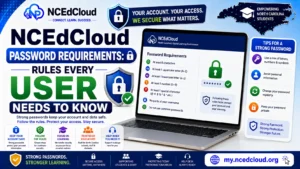
Once expired, you can’t log in until you complete a reset. See our full Password Requirements guide for the complexity rules your new password must meet.
What Happens When Your Password Expires?
When you attempt to log in after expiry, NCEdCloud doesn’t take you to the dashboard. Instead, it shows an expired password screen prompting you to change your password before continuing. See our complete Change Password guide to learn more.
You must enter your current (expired) password plus a new password meeting policy. If you know your current password, you can complete this reset directly on that screen without any help desk contact.
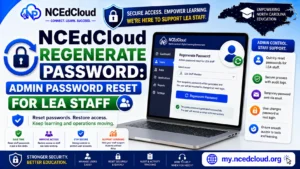
If you’ve forgotten your current password in addition to it being expired, the process requires an extra step. See the Forgot Password section below. Also, learn more in our Regenerate Password guide.
How to Reset an Expired NCEdCloud Password?
- Navigate to my.ncedcloud.org and attempt to log in with your username and current password.
- The system detects the expiry and redirects you to the password change screen automatically.
- In the “Current Password” field, enter the password that just expired.
- In the “New Password” field, enter a password meeting policy: 8 to 16 characters, at least one uppercase letter, one lowercase letter, and one number.
- In the “Confirm New Password” field, type the new password again.
- Click Submit or Save. The system confirms the change and takes you to the dashboard.
How to Reset an Expired Password You Have Also Forgotten?
If you can’t remember the expired password, you can’t use the expiry change screen since it requires the current password for verification. Instead:
- Go to my.ncedcloud.org.
- Click “Forgot Password” on the login page.
- Enter your username and complete the challenge question verification. See our full Forgot Password guide.
- Create a new password on the confirmation screen.
If you don’t have challenge questions set up, contact your LEA help desk. A help desk administrator can reset your password from the admin panel without needing your current password.
How to Avoid Future Expiry Problems?
The most effective way to avoid an expired password disruption is to change your password proactively during the 10-day warning window. Log in to NCEdCloud, go to your account settings, and use the change password function while you still know your current password. This restarts the 90-day clock. Set a personal reminder 80 to 85 days after your last password change.
Frequently Asked Questions
How long does the NCEdCloud password expiration period last before my account is deactivated?
NCEdCloud doesn’t immediately deactivate accounts at expiry. The password stops working for login until you complete a reset. Some LEAs configure additional inactivity rules, so contact your LEA tech coordinator if you’ve been away for an extended period.
Do student passwords expire in NCEdCloud?
Student passwords don’t follow the same 90-day cycle as staff. Policies vary by LEA, and many districts don’t apply automatic expiry to student accounts.
Will I lose my data if my NCEdCloud password expires?
No. Password expiry doesn’t delete or affect your data. It only prevents login until you complete the reset.
Can I use the same password again after it expires?
NCEdCloud enforces a password reuse restriction. Typically, the last 5 to 10 passwords are determined by LEA policy.
Does the 90-day clock reset when an admin resets my password?
Yes. Any password reset, whether self-service or by a help desk admin, restarts the 90-day expiry clock from the reset date.
Disclaimer Note: NCEdCloud, RapidIdentity, and Identity Automation are trademarks of their respective owners. NCEdCloudPro.com is not affiliated with or endorsed by NCDPI, NCEdCloud, MCNC, or Identity Automation. Read our full disclaimer.