NCEdCloud Account Locked — How to Unlock Your Account
NCEdCloud Account Locked — Causes and Fixes
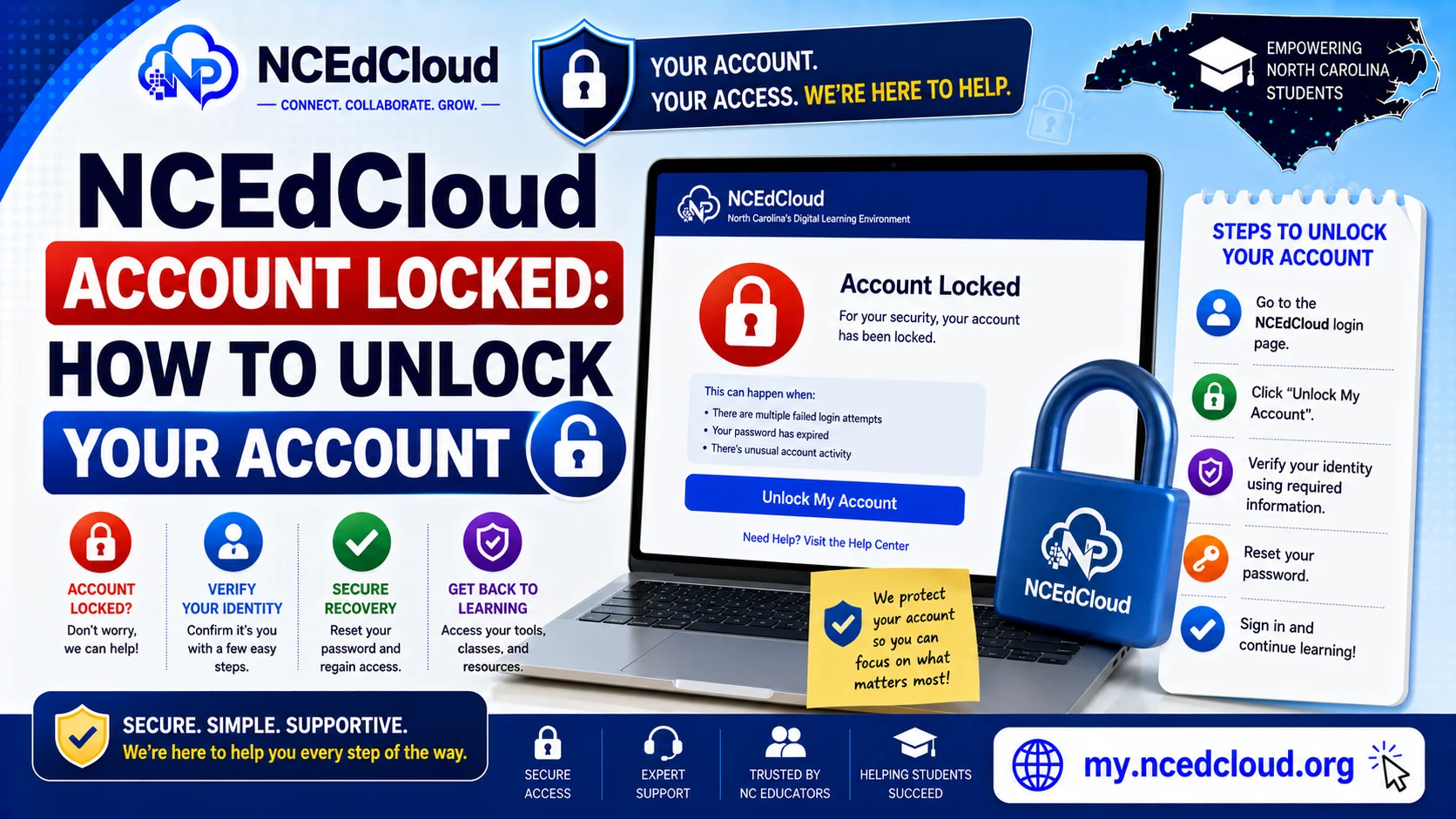
An NCEdCloud account locks after a set number of consecutive failed login attempts. NCDPI’s RapidIdentity platform triggers the lockout as a security measure to block unauthorized access attempts.
The lockout threshold is typically 5 to 10 failed attempts, though the exact number is configurable by each LEA. Learn more in our NCEdCloud Student guide.
The lock applies across every North Carolina LEA and charter school using the NCEdCloud platform, more than 300 in total. See our full NCEdCloud Password Reset guide for the broader recovery picture.
Most account locks are temporary. Either they lift automatically after a waiting period or a help desk staff member can unlock the account immediately from the admin console.
How to Tell Your Account is Locked?
When you attempt to log in to a locked account, NCEdCloud displays an error message rather than taking you to the dashboard. Common messages include:
- “Your account has been locked”
- “Account temporarily suspended”
- “Too many failed login attempts”
- “Invalid Credentials”
(sometimes shown for locked accounts in addition to a wrong password)
If you see one of these messages and are confident your username and password are correct, the account is likely locked.
How to Unlock an NCEdCloud Account?
| Method | Who Can Do It | How Long It Takes |
| Wait for the automatic unlock | User | Typically, 15 to 30 minutes (LEA-configured) |
| Self-service Forgot Password | User (if challenge questions are set up) | Immediately after completing the reset |
| School Help Desk unlock | Help desk staff | Immediate |
| LEA Administrator unlock | LEA Administrator | Immediate |
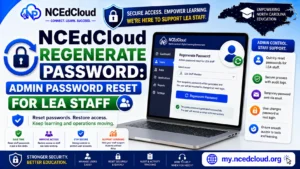
To request an admin unlock:
- Contact your school’s help desk, media specialist, or technology coordinator.
- Provide your full name and student or employee ID number.
- Ask them to unlock your account and reset your password if you’ve forgotten it.
- They’ll use the admin console to clear the lock flag on your account.
- Attempt to log in again after they confirm the unlock.
Learn More About → NCEdCloud LEA Administrator Role
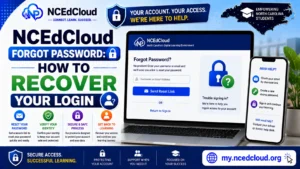
How to Unlock Your Own Account Using Forgot Password?
If your account is locked because of too many failed login attempts, but you do know your password, you may be able to bypass the lock using the Forgot Password flow. See our full Forgot Password guide for every step:
- Go to my.ncedcloud.org.
- Click “Forgot Password.”
- Enter your username.
- Answer your challenge questions.
- Set a new password.
- The password reset process typically clears the lock at the same time.
This method only works if you have challenge questions set up and remember the answers. Read our NCEdCloud Not Working guide if you face any issues.
Preventing Future Account Lockouts
The most common cause of a lockout is typing the wrong password multiple times. These habits reduce lockout risk:
- Don’t type quickly when entering credentials. One careful attempt beats three fast wrong ones.
- Clear the username and password fields fully before retyping.
- Check Caps Lock before entering your password.
- If you’re not sure of your password, use Forgot Password on the first attempt rather than guessing.
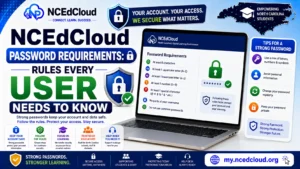
- Change your password before it expires so you always know the current value. See our full Password Requirements guide.
Frequently Asked Questions
How long does an NCEdCloud account stay locked?
The lockout duration is set by LEA policy. Many districts configure a 15-to 30-minute automatic unlock. If your account is still locked after 30 minutes, contact your school’s help desk for a manual unlock.
Does a locked NCEdCloud account delete my data?
No. A locked account isn’t deleted or modified. All your applications, files, and settings remain intact. The lock only prevents login until it’s cleared.
Can I unlock my own NCEdCloud account?
You can attempt the self-service unlock using the Forgot Password flow, which may clear the lock as part of the password reset. If that’s not available, you need a help desk staff member or administrator to unlock the account from the admin console.
My account keeps locking every time I log in. What is wrong?
Repeated lockouts often indicate a device or browser is automatically submitting saved incorrect credentials. Check your browser’s saved passwords and update or delete any stored NCEdCloud credentials. Also check if you’re logged in to NCEdCloud on another device sending incorrect authentication requests.
Who unlocks accounts for students versus staff?
Both students and staff can have their accounts unlocked by the School Help Desk, LEA Help Desk, or LEA Administrator. For students at the school level, a teacher or media specialist with a help desk role can also perform this action.
Disclaimer Note: NCEdCloud, RapidIdentity, and Identity Automation are trademarks of their respective owners. NCEdCloudPro.com is not affiliated with or endorsed by NCDPI, NCEdCloud, MCNC, or Identity Automation. Read our full disclaimer.