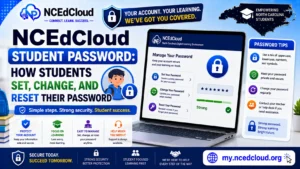
NCEdCloud Change Password — How to Update Your Password While Logged In
What is the NCEdCloud Change Password Feature?
The NCEdCloud change password feature allows any active user to update their password while still logged in to their account. Changing your password while you know your current one is the simplest path: no challenge questions, no help desk contact, no lockout risk. NCDPI’s RapidIdentity platform provides this option in the account settings area of the dashboard. See our full NCEdCloud Password Reset guide for the complete process of every recovery method.
This applies to all users: students, teachers, and administrators. Changing your password proactively before the 90-day expiry is the best way to avoid being locked out at a bad time. Read our NCEdCloud Account Locked guide for account recovery.
When to Use Change Password vs. Forgot Password
| Situation | Correct Tool | Location |
| Logged in, know current password | Change Password | Account settings in the dashboard |
| Locked out, know current password | Forgot Password | Login page |
| Don’t know the current password | Forgot Password | Login page |
| Password has expired | Forced change at login | Login screen |
| Admin resetting for another user | Admin password reset | Admin console |
Use the Change Password route when you’re already authenticated. It’s faster and doesn’t require challenge question verification. Read our NCEdCloud Forgot Password guide for more.
How to Change Your NCEdCloud Password While Logged in?
- Log in to NCEdCloud at my.ncedcloud.org with your username and current password.
- After the dashboard loads, click your name or account icon in the upper right corner.
- Select “Account Settings” or “Profile” from the dropdown menu.
- Locate the “Change Password” option and click it.
- In the “Current Password” field, enter the password you used to log in.
- In the “New Password” field, enter a password meeting NCEdCloud requirements: 8 to 16 characters, at least one uppercase letter, at least one lowercase letter, and at least one number.
- In the “Confirm New Password” field, type the new password again exactly.
- Click Save or Submit.
- The system confirms the change. Your new password is active immediately.
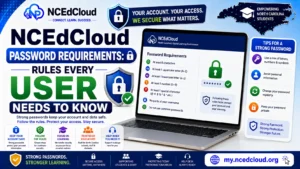
Password Requirements for the New Password
| Requirement | Rule |
| Minimum length | 8 characters |
| Maximum length | 16 characters |
| Uppercase letters | At least 1 required |
| Lowercase letters | At least 1 required |
| Numbers | At least 1 required |
| Special characters | Allowed but not required |
| Reuse restriction | Cannot match recent previous passwords |
Passwords not meeting these requirements are rejected at submission. The error message identifies which rule was violated. See our full Password Requirements guide for a complete breakdown.
After You Change Your Password
Your new password is active immediately. Any active sessions on other devices will require you to sign in again with the new password. If you use any district-configured SSO shortcut, update those saved credentials after changing your password. If you have MFA configured as mandatory statewide for staff as of July 1, 2026. Read our full NCEdCloud MFA Setup guide to learn more.
Your enrollment remains in place. You’ve only changed the password, not the authentication method. Set a reminder to change your password again before the next 90-day expiry.
Frequently Asked Questions
Can I change my NCEdCloud password without knowing my current password?
No. The in-dashboard change password flow requires your current password. If you don’t know it, use the Forgot Password link on the login page instead.
How often does NCEdCloud require a password change?
Staff and administrator accounts are subject to a 90-day expiry cycle. NCEdCloud shows a warning banner 10 days before expiry. Student password expiry policies vary by LEA. Read our NCEdCloud Password Expired guide to learn more.
My new password was rejected. What does that mean?
The most common reasons are: shorter than 8 characters, missing an uppercase letter or a number, or matching a previous password. Review the requirements on the change password screen.
Will changing my password log me out of NCEdCloud?
Changing your password while logged in typically doesn’t log you out of your current session. Other active sessions on other devices or browsers will require sign-in with the new password.
Does my password change affect my connected app access?
No. NCEdCloud SSO passes your identity to connected apps; the password change itself doesn’t affect app access. If an app asks you to log in separately after a password change, it doesn’t use NCEdCloud SSO. Contact your IT department.
Disclaimer Note: NCEdCloud, RapidIdentity, and Identity Automation are trademarks of their respective owners. NCEdCloudPro.com is not affiliated with or endorsed by NCDPI, NCEdCloud, MCNC, or Identity Automation. Read our full disclaimer.