NCEdCloud New Staff Onboarding — Teacher And Employee Setup Guide
What is NCEdCloud New Staff Onboarding?
NCEdCloud new staff onboarding is a complete setup sequence for newly hired teachers and employees in North Carolina public schools to activate their district identity account and access all job-relevant applications through the NCEdCloud single sign-on platform.
NCDPI provisions staff accounts through Home Base, the statewide educator management system fed by district HR records. This process affects every new hire at any NC public school, charter school, or LEA central office. See our Claim My Account guide for the general claiming process this onboarding builds on.
The most important thing to know is that your account will not be ready until 24 to 48 hours after your HR department enters your hire record. Starting before that window guarantees a failed claim attempt.
The Staff Account Provisioning Chain
New staff accounts in NCEdCloud are not created manually by IT staff. They are generated automatically through a data sync chain:
- Your district HR office records your employment in their personnel system.
- That personnel data syncs to Home Base, NCDPI’s educator credentialing and workforce platform.
- Home Base syncs with NCEdCloud on a regular schedule.
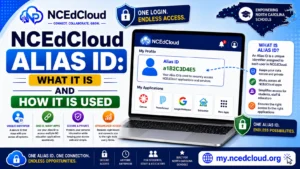
- NCEdCloud creates your account and assigns your Username (State UID).
- Your HR office, principal, or building IT contact provides you with your Username.
This process is managed on business days. A hire recorded on Friday may not produce an NCEdCloud account until the following Monday or Tuesday.
Learn More About → NCEdCloud Alias ID
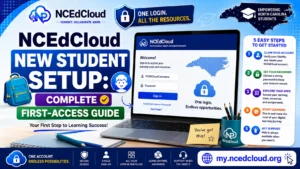
New Staff Setup — Step by Step
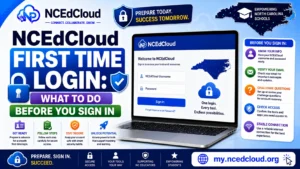
- Confirm with your HR office or principal that your hire record has been entered and that at least 24 hours have passed.
- Obtain your Username. For most NC districts, this is your employee ID number found on your hire paperwork.
- Open Chrome on any device.
- Go to my.ncedcloud.org.
- Click “Claim My Account” below the login form.
- Enter your employee ID as your Username.
- Enter your date of birth in MM/DD/YYYY format.
- Click Next.
- Create a password: at least 8 characters, one uppercase letter, one lowercase letter, one number. Special characters are allowed but not required by the base policy. Check your screen for any district-specific rules.
- Confirm the password.
- Set up your challenge questions; you’ll answer five or more. Choose memorable answers and write them down or store them securely.
- Click Finish.
- Log in with your username and new password to verify access.
- Review your dashboard for required application tiles.
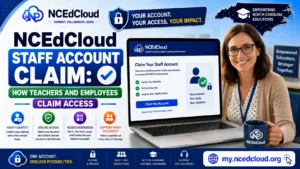
Learn More → NCEdCloud Staff Account Claim Guide
First Login Checklist for New Staff
After your first successful login, complete these steps before your first day with students:
- Verify your full username and note it for future reference
- Confirm application tiles for your core tools are present (PowerSchool, Schoology, Canvas, or whatever your district uses)
- Complete MFA enrollment — this is mandatory statewide for all employees as of July 1, 2026, so expect a prompt on first login. See our MFA Setup guide for the officially supported apps.
- Contact IT if expected applications are missing after 24 hours
- Change your password from any default or temporary value if one was assigned
Staff Application Access
Staff application tiles are assigned based on your role and school assignment in the data system. A teacher sees different tiles than a counselor, a registrar, or a district administrator. If your dashboard is missing a tool your job requires, the most likely causes are:
- Your role code in Home Base does not match the role requirement for that application.
- The application was not included in your district’s NCEdCloud configuration.
- Your account sync has not yet completed for that specific application.
For missing applications, contact your school’s technology coordinator with your NCEdCloud username and the name of the missing application.
What New Staff Commonly Need Help With
- Account not found on first claim attempt — wait the full 48-hour sync window.
- Password rejected during claiming — make sure it meets all complexity rules.
- MFA not set up before the deadline — complete enrollment in account settings immediately after first login.
- Missing application tiles after first login — wait 24 hours, then contact IT if still missing.
Frequently Asked Questions
How long does it take for a new teacher’s NCEdCloud account to be ready?
Expect 24 to 48 business hours after your district HR office enters your hire record. If you are hired on a Monday and need access by Wednesday, confirm with HR that your record was entered on Monday morning.
What is the Username for a new teacher in NCEdCloud?
In most North Carolina districts, it’s the new staff member’s employee ID number, which appears on your offer letter, pay stub, or employee badge.
What applications should appear on a new teacher’s dashboard?
This varies by district, but most NC teachers see tiles for their SIS (typically PowerSchool), their LMS (Canvas or Schoology), and any instructional platforms their district has licensed.
My first day is tomorrow, and my NCEdCloud account is still not ready. What should I do?
Contact your principal or district HR office immediately and confirm that your hire record was entered into the personnel system. Some districts can expedite account creation when there is a start-date urgency.
Do I need to set up MFA right away?
Yes. As of July 1, 2026, MFA is mandatory statewide for all NCEdCloud employees. You will typically see a prompt to enroll during or shortly after your first login. You may be locked out until enrollment is complete, so complete this before the deadline shown.
Disclaimer Note: NCEdCloud, RapidIdentity, and Identity Automation are trademarks of their respective owners. NCEdCloudPro.com is not affiliated with or endorsed by NCDPI, NCEdCloud, MCNC, or Identity Automation. Read our full disclaimer.