NCEdCloud Account Claiming Issues — How to Fix Every Error
What Are NCEdCloud Account Claiming Issues?
NCEdCloud account claiming issues are errors and failures that prevent students or staff from completing the one-time account activation process required before first login. The NCEdCloud platform serves roughly 2.5 million student and staff accounts across more than 300 North Carolina LEAs, including charter schools, and claiming is the most common point where new users run into problems.
This affects any student or employee trying to activate a new account. Knowing which error message you are seeing is the fastest way to find the right fix. See our Claim My Account guide for a full walkthrough of the process itself.
Learn More About → NCEdCloud First Time Login
The Most Common Claiming Errors
“Account Not Found”
This is the most common error. It means the system cannot match your Username (State UID number) and date of birth to any account in the database.
Causes and fixes:
- Typo in the Username. Check each digit or character carefully. Leading zeros are often dropped by mistake.
- Account not yet synced. If you enrolled or were hired recently, wait 24 to 48 hours and try again.
- Wrong identifier used. Confirm with your teacher or HR office that the number you have is the correct one for NCEdCloud, not a different system.
- Date of birth entered incorrectly. Make sure you are using MM/DD/YYYY, not a different format.
“Account Already Claimed”
This error means the account has already been activated.
Causes and fixes:
- You claimed it before and forgot. Try the “Forgot Password” option on the main login page. See our Password Reset guide to learn more.
- Someone else claimed it. This is rare but can happen with data errors. Contact IT immediately.
- A school administrator completed the setup on your behalf. Ask your teacher or IT staff what your username is and use “Forgot Password” to set a new password.
“Password Rejected During Claiming”
Your password does not meet the complexity rules: at least 8 characters, one uppercase letter, one lowercase letter, and one number. Special characters are allowed but not required by the base policy, though your specific district may add stricter rules on top of it, so check the exact requirements shown on your screen.
Your password also cannot contain your name, username, or parts of your Username identifier. Try a completely different password structure if repeated attempts fail.
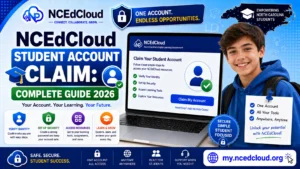
Full Guide About → NCEdCloud Student Account Claim
“Challenge Questions Not Saving”
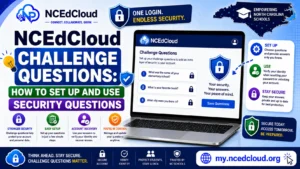
The challenge question form (you’ll set up five or more during claiming) is completed, but an error appears, or the page reloads without saving.
Causes and fixes:
- Browser issue. Switch to Google Chrome if you are using another browser. Safari on iPads is a known problem for this step.
- Slow connection. The form submits data to the server. A dropped connection mid-submit can cause this. Try on a wired connection or school Wi-Fi.
- Session timeout. If you spent too long on the password screen, the session may have expired before you reached the questions. Start the claiming process again.
Complete Guide About → NCEdCloud Challenge Questions Setup and Use
“Browser and Page Load Problems”
Some users see a blank page, a loading spinner that never stops, or a form that will not submit.
Fixes:
- Clear your browser cache and cookies for the NCEdCloud domain, then reload.
- Disable browser extensions, especially ad blockers and privacy blockers, which can interfere with form submissions.
- Try a different browser or device.
- Avoid using private or incognito mode, which blocks cookies needed for the session.
Error Comparison Table
| Error Message | Most Likely Cause | First Step to Fix |
| Account Not Found | Typo or sync delay | Check your Username; wait 24-48 hrs |
| Account Already Claimed | Previously activated | Use Forgot Password |
| Password Does Not Meet Requirements | Missing complexity element | Add uppercase, lowercase, and a number |
| Questions Not Saved | Browser or timeout issue | Switch to Chrome, retry |
| Page Not Loading | Extension or cache issue | Clear cache, disable extensions |
When to Contact the Help Desk?
To resolve NCEdCloud account claiming issues, read the NCEdCloud IAM Service official documentation. If not resolved, contact your school or district IT help desk if:
- You have tried the fixes above and still cannot claim
- Your Username consistently returns “Account Not Found” after 48 hours
- You suspect your account was claimed by someone else
- Your account is locked after too many failed attempts
- You are a staff member, and HR confirmed your hire record was entered more than two business days ago
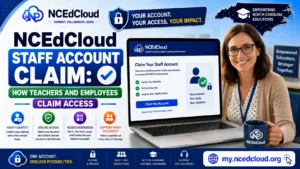
Read More About → NCEdCloud Staff Account Claim
Frequently Asked Questions
Why does NCEdCloud say my account is not found when I have my Username?
The most common reasons are a typo, a date of birth entered in the wrong format, or an account that has not finished syncing yet. Check each field carefully, confirm the correct identifier with your teacher or HR office, and try again after 24 to 48 hours if you were recently enrolled or hired.
What does “account already claimed” mean in NCEdCloud?
It means the account was already activated. It does not mean someone hacked your account. Either you did it before and forgot, a school admin set it up for you, or there was a data error. Use the “Forgot Password” link to regain access, or contact your IT department if you believe something is wrong.
How many times can I try to claim before getting locked out?
NCEdCloud does not publish an exact lockout threshold, but repeated failed attempts can temporarily restrict access. Avoid guessing. Confirm your Username and date of birth before each attempt. If you are locked out, your school IT department can unlock the account.
The claiming page spins and never loads. What should I do?
Clear your browser cache and cookies, then reload the page. Turn off any browser extensions such as ad blockers or privacy shields. Try a different browser (Chrome is recommended). If the problem persists, try a different device or network.
Can a student claim an account on a phone?
Yes, but problems are more common on mobile. Chrome on Android works reasonably well. Safari on older iPhones and iPads can cause the challenge question form to fail. If a phone causes issues, use a school computer or laptop instead.
Disclaimer Note: NCEdCloud, RapidIdentity, and Identity Automation are trademarks of their respective owners. NCEdCloudPro.com is not affiliated with or endorsed by NCDPI, NCEdCloud, MCNC, or Identity Automation. Read our full disclaimer.