NCEdCloud First Time Login — What to Do Before You Sign in
What is NCEdCloud First Time Login?
NCEdCloud first time login is the process every new North Carolina public school user completes to activate their account and access school applications. The North Carolina Department of Public Instruction manages NCEdCloud as the statewide identity platform for K-12 students and staff, serving roughly 2.5 million accounts across more than 300 North Carolina LEAs, including charter schools.
Before you can sign in for the first time, you must complete a one-time account claim using your Username (State UID number) provided by your school. Read our full Claim My Account guide for the complete process.
Before You Log in — What You Need
You cannot sign in to NCEdCloud without first claiming your account. Logging in with an unclaimed account will fail. Gather the following before you start:
- Your Username (State UID number), provided by your teacher, school secretary, or IT department
- A device with an internet browser (Chrome recommended)
- Your date of birth (used to verify your identity during claiming)
- A quiet moment — the process takes about five minutes
Students in grades PK-5 typically use a QR badge system instead and do not go through this process. If your school gave you a badge with a QR code, ask your teacher for help instead.
Read More About → NCEdCloud PK-5 Login & QR Badge Access
Where to Go to Start
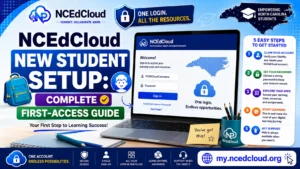
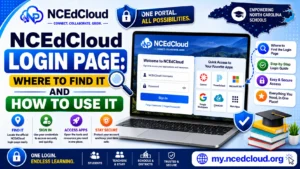
- Open a web browser and go to my.ncedcloud.org.
- Look for the “Claim My Account” option below the sign-in form. Do not attempt to sign in yet.
- Clicking Sign in before claiming will result in an error.
Learn More About → NCEdCloud Student Account Claim
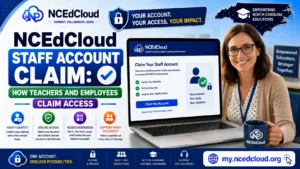
How to Claim Your Account: Step by Step
- Go to my.ncedcloud.org in your browser.
- Click “Claim My Account” below the sign-in form.
- Enter your Username exactly as it appears on your printed sheet or email.
- Enter your date of birth in the format provided (MM/DD/YYYY).
- Click Next. The system will locate your account.
- Create a new password. Passwords must be at least 8 characters and include an uppercase letter, a lowercase letter, and a number. Special characters are allowed but not required.
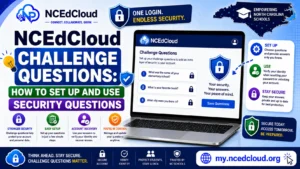
- Set up your challenge questions; you’ll answer five or more, and should write down what you choose somewhere safe.
- Click Finish to complete the claim.
- You will see a confirmation screen. Your account is now active.
Complete Guide About → NCEdCloud Challenge Questions Setup
Setting Your Password
Your password must meet NCEdCloud’s complexity requirements. A password that is too short or has no numbers will be rejected. A rejected password is one of the most common issues first-time users run into.
Use a password that is:
- At least 8 characters long
- Contains at least one uppercase letter
- Contains at least one lowercase letter
- Contains at least one number
Do not use your name, Username, or student ID as your password. Do not share your password with anyone, including friends. See our full NCEdCloud MFA Setup guide to learn more.
What You Will See After Your First Login
After you claim your account and log in for the first time, you will land on the NCEdCloud dashboard. This dashboard displays application tiles for each program your school has assigned to your account. See our NCEdCloud Applications guide for a look at the full tools list.
Not all apps appear immediately. Some applications take up to 24 hours to populate after your account is first activated. If your dashboard looks empty, wait until the next school day and log in again.
What to Do if Something Goes Wrong
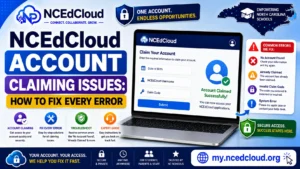
If your Username is not found, double-check that you entered it correctly. If you get an “account already claimed” error, your account may have been set up by a school administrator. Try logging in directly using your username. If your password is rejected during claiming, review the complexity requirements and try again. If none of these steps work, contact your school’s help desk. Our full troubleshooting guide covers more scenarios.
Frequently Asked Questions
What is my Username for NCEdCloud?
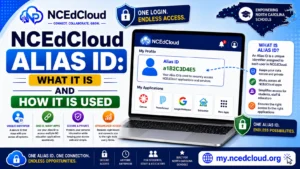
Your Username is your State UID number, a code your school gives you to activate your NCEdCloud account for the first time. You use it during claiming and afterward at every login.
Can I log in to NCEdCloud without claiming my account first?
No. If you try to sign in before claiming your account, you will receive an error. The claim step creates your password and security questions, which NCEdCloud requires before granting access.
What happens if I forget my password right after setting it?
Go to my.ncedcloud.org and click “Forgot Password.” You will be asked to answer your challenge questions. If you did not set challenge questions during claiming, contact your school’s IT help desk.
How long does it take for apps to appear on my dashboard?
Most apps appear within a few minutes of your first login. Some district-managed applications can take up to 24 hours to sync.
My account says it’s already been claimed. What does that mean?
It means someone has already completed the claiming process for that account. If it was not you, contact your school’s IT department immediately. If you previously claimed it and forgot your password, use the “Forgot Password” option.
Disclaimer Note: NCEdCloud, RapidIdentity, and Identity Automation are trademarks of their respective owners. NCEdCloudPro.com is not affiliated with or endorsed by NCDPI, NCEdCloud, MCNC, or Identity Automation. Read our full disclaimer.