NCEdCloud Student Account Claim — Complete Walkthrough
What is the NCEdCloud Student Account Claim?
The NCEdCloud student account claim is a one-time process that activates a student’s North Carolina public school digital identity and unlocks access to all assigned learning applications. NCDPI provisions student accounts through PowerSchool enrollment data, which means your account exists in the system before you ever touch it. See our complete Claim My Account Guide for the broader process this page walks through in detail.
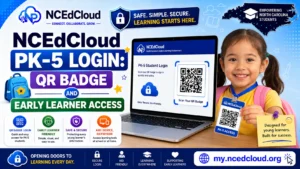
This process is available to students in grades 6-12 who choose to self-claim. It does not apply to students in PK-5, whose login is handled through QR badges or teacher-assisted access instead (see our PK-5 Login guide). The most important thing to know is that claiming must happen before any eligible student can sign in, and it only takes about five minutes when you have your Username ready.
What Students Need Before Claiming
Before starting the claim process, make sure you have:
- Your Username (usually your student ID number, printed on a sheet from your teacher or school office)
- Your date of birth
- A web browser on a computer, tablet, or phone
- About five minutes of uninterrupted time
If you’re in grade 6 or above, follow these steps in the official documentation.
Step-by-Step Student Claiming Walkthrough
- Open a browser on your device. Chrome works best.
- Go to my.ncedcloud.org.
- Look for the “Claim My Account” link, usually below the username and password fields.
- Click “Claim My Account.”
- On the claiming screen, type your Username in the first field, exactly as given to you.
- Enter your date of birth. Use the MM/DD/YYYY format unless the form uses a calendar picker.
- Click Submit or Next.
- The system will find your account and ask you to create a password. Your password must be at least 8 characters and include uppercase letters, lowercase letters, and a number.
- Type your new password in the first password field.
- Type the same password again in the confirm field.
- Click Next or Continue.
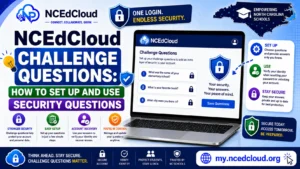
- You will now be asked to set up challenge questions. Select five or more from the dropdown menus and type your answers.
- Click Finish.
- You will see a success screen. Your account is now claimed and active.
- Click the login button or go back to the NCEdCloud main login page and sign in with your new username and password.
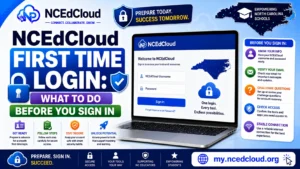
Complete Guide About → NCEdCloud First Time Login
What the Claim Screen Looks Like
The claiming screen is a clean, simple form. It typically has two fields at the start: one for your Username and one for your date of birth. After you submit, it moves to a password creation screen with two fields.
The next screen shows the challenge questions, with a progress bar or step indicator at the top showing where you are in the process. If you do not see this layout, make sure you clicked “Claim My Account” and not “Sign In.”
Who Can Self-Claim
Students in grades 6 through 12 can claim their own accounts using their Username as students (Pupil Number). Students in PK through grade 5 cannot self-claim under any circumstance. Student login is handled entirely through a QR badge or teacher-managed process instead. If you’re unsure which process applies to you, ask your teacher.
Troubleshooting Claim Errors
If you see “Account Not Found,” check your Username for typos. Leading zeros matter for numeric IDs. If the system says your account is already claimed, try signing in directly. You may have claimed your account before and forgotten.
If your password is rejected, re-read the complexity requirements and try a different password. If the challenge questions freeze or do not save, try a different browser. Safari on older iPad models sometimes causes form submission issues with NCEdCloud. Read our Account Claiming Issues guide for more fixes.
Frequently Asked Questions
Where do I find my NCEdCloud Username as a student?
Your teacher or school secretary provides it. It is usually printed on a sheet handed out at the start of the year or sent home in enrollment paperwork, and in most districts, it’s your student ID number.
What if the NCEdCloud claim page says my account is not found?
Double-check your Username for typos or extra spaces. If it still fails, your enrollment may not have synced yet. Wait 24 hours after enrollment and try again.
Can I claim my NCEdCloud account on a phone or tablet?
Yes. The claiming process works on mobile browsers. Use Chrome on Android or Chrome/Safari on iOS. If the form does not submit correctly, try switching to a desktop or laptop.
How do I know which username to use after claiming?
The success screen at the end of claiming usually shows your username. If you did not write it down, your teacher or IT department can look it up.
What if I make a mistake during the claim process?
As long as you see a success screen, your account was created. If you later can’t remember your challenge answers, contact your school IT department to have them reset.
Disclaimer Note: NCEdCloud, RapidIdentity, and Identity Automation are trademarks of their respective owners. NCEdCloudPro.com is not affiliated with or endorsed by NCDPI, NCEdCloud, MCNC, or Identity Automation. Read our full disclaimer.