NCEdCloud SSO — What Single Sign-On is and Why it Matters for NC Schools
What is NCEdCloud SSO?
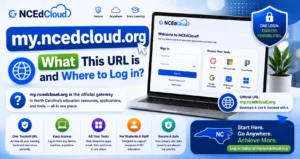
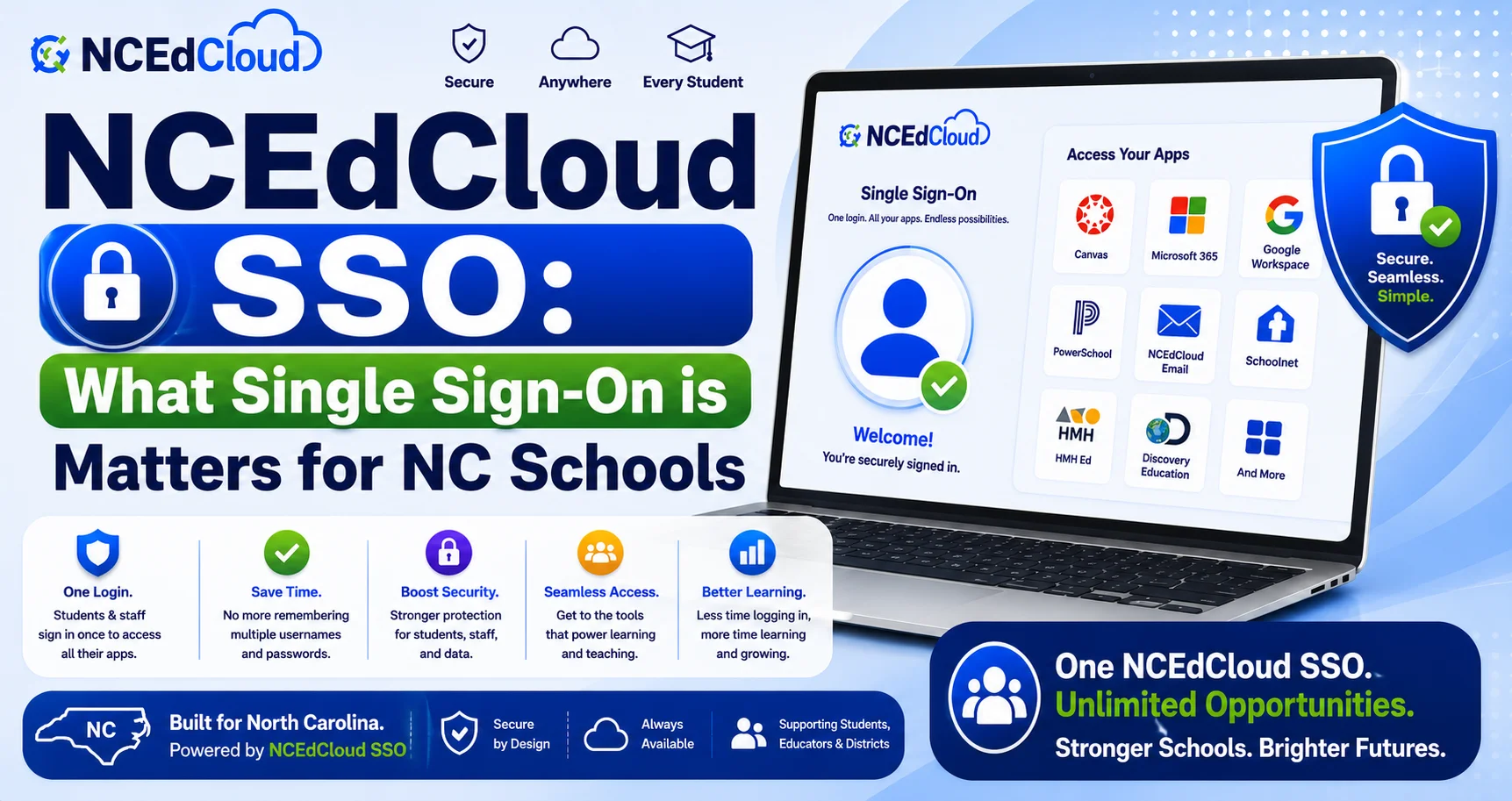
NCEdCloud SSO (Single Sign-On) is the authentication system that allows every North Carolina public school user to log in once at my.ncedcloud.org and then access all their educational applications without entering another username or password. NCDPI’s RapidIdentity platform manages this for students, teachers, and staff across every LEA and charter school statewide. See our full NCEdCloud Applications guide for the complete list of what NCEdCloud SSO connects to.
Why SSO Matters?
Before SSO, students and teachers had to remember separate credentials for every application: one for the gradebook, another for the LMS, another for email. NCEdCloud SSO consolidates this into a single login that securely passes your identity to each connected application. Read our complete NCEdCloud Login Guide to learn more.
Benefits include:
- Fewer passwords to remember — one login covers your entire application dashboard
- Faster access — clicking a tile takes you straight into the application
- Better security — fewer passwords means fewer opportunities for weak or reused credentials
- Centralized account management — your school can manage access to every app from one place
How NCEdCloud SSO Works
1. You log in once at my.ncedcloud.org.
2. NCEdCloud verifies your identity and, if required, your MFA code. Learn more in the MFA Setup guide.
3. When you click an application tile, NCEdCloud sends a signed identity assertion to that application.
4. The application trusts the assertion and signs you in automatically.
You never enter a separate password for the connected application. The trust relationship is handled behind the scenes using the SAML protocol. See our my.ncedcloud.org explained guide to learn more.
What SSO Does Not Do?
NCEdCloud SSO doesn’t store or share your actual password with connected applications. Only a signed identity token. It also doesn’t automatically grant access to every application. You only see tiles for apps your school or district has specifically assigned to your account.
Learn More About → NCEdCloud Not Working
Frequently Asked Questions
Do I need to log in separately to Canvas or PowerSchool if I use NCEdCloud?
No. Once you log in to NCEdCloud, clicking the Canvas or PowerSchool tile automatically signs you in through SSO. You don’t need separate credentials for these applications.
Is my password shared with any application I access through NCEdCloud?
No. NCEdCloud passes a signed identity assertion, not your actual password. Applications never see your NCEdCloud password directly.
Why does an app still ask me to log in separately even though I used NCEdCloud?
Some applications aren’t yet configured for SSO by your LEA Administrator, or only use SSO for initial account setup. Contact your school’s technology coordinator if this happens consistently.
Does SSO work the same for students and staff?
Yes, the underlying mechanism is identical. What differs is which applications each account type is assigned, based on role.
What happens to my SSO session if I close my browser?
Your NCEdCloud session typically ends when you close the browser or after a period of inactivity, depending on your district’s session timeout settings. You’ll need to log back in to access your applications again.
Disclaimer Note: NCEdCloud, RapidIdentity, and Identity Automation are trademarks of their respective owners. NCEdCloudPro.com is not affiliated with or endorsed by NCDPI, NCEdCloud, MCNC, or Identity Automation. Read our full disclaimer.