NCEdCloud Canvas — How to Access Canvas LMS Through NCEdCloud SSO
How Does NCEdCloud Connect to Canvas?
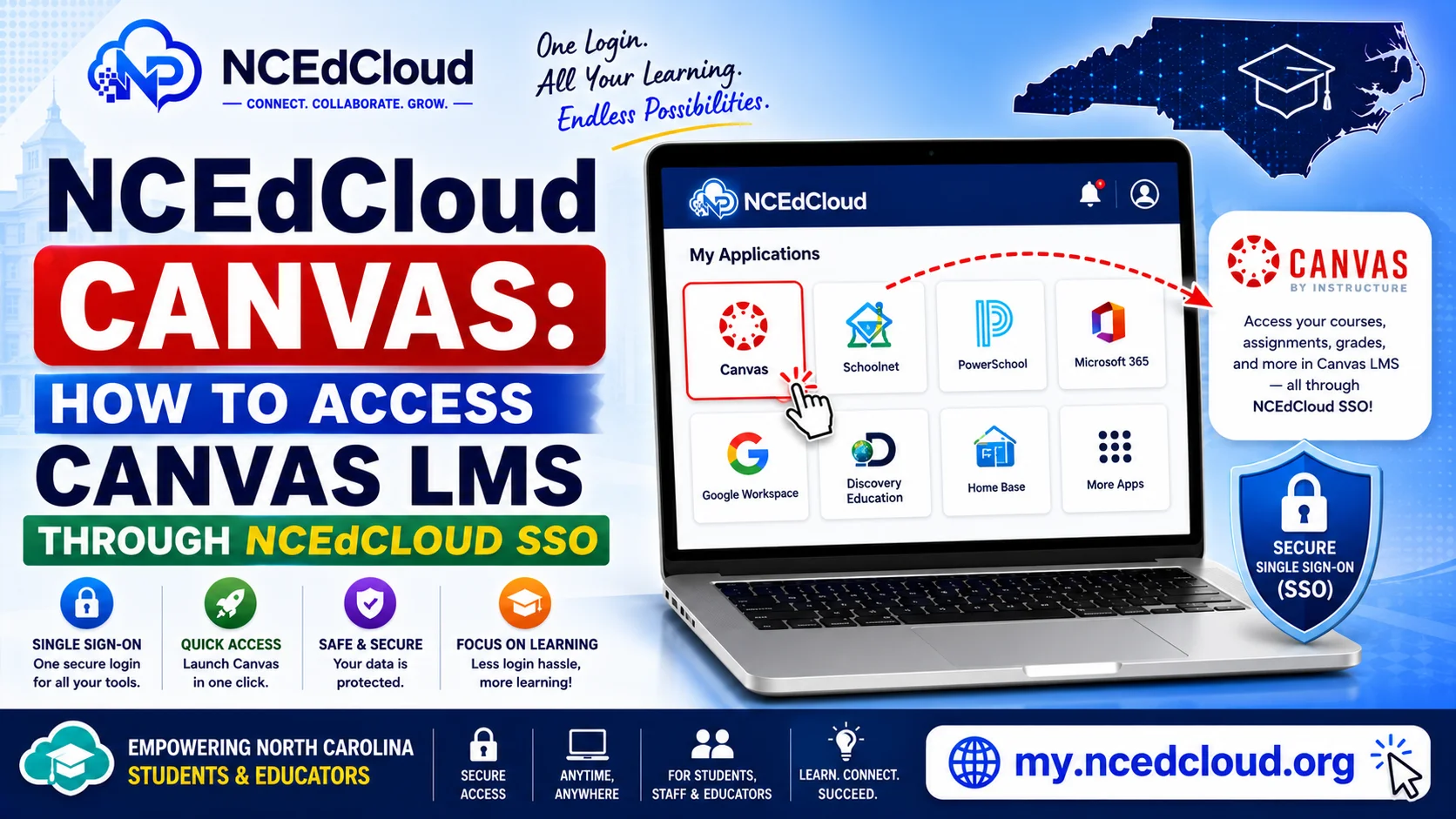
NCEdCloud Canvas is a learning management system used by many North Carolina school districts. When your district has licensed Canvas and configured it within NCEdCloud, a Canvas tile appears on your dashboard. Clicking it launches Canvas without asking for a separate username or password.
NCDPI’s RapidIdentity platform automatically handles the SAML 2.0 authentication handoff between NCEdCloud and Canvas. This applies to students, teachers, and staff in any NC district that uses both NCEdCloud and Canvas. See our NCEdCloud Applications guide for how tile-based access works generally.
The most important thing to know is that Canvas access through NCEdCloud depends entirely on your district having set up the integration. If your district does not use Canvas, the tile will not appear.
Learn More in → NCEdCloud SSO Guide
How to Access Canvas From NCEdCloud?
- Open a browser and go to my.ncedcloud.org.
- Log in with your NCEdCloud username and password.
- On your dashboard, locate the Canvas tile. It may appear as “Canvas,” “Canvas LMS,” or your district’s branded name for the platform.
- Click the tile. NCEdCloud sends your identity to Canvas via SAML SSO.
- Canvas loads, and you are signed in automatically as your district-linked account.
You do not need to enter separate Canvas credentials when accessing it through NCEdCloud.
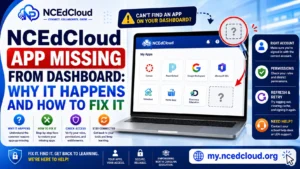
Why Your Canvas Tile May Be Missing
| Cause | What to Do |
| Your district does not use Canvas | Contact your school to confirm which LMS your district uses |
| Canvas is not assigned to your role | Contact your IT coordinator to request that the tile be added |
| Account sync not yet complete | Wait 24 hours after account claiming, then check again |
| Browser caching issue | Clear the browser cache and reload the dashboard |
| SSO configuration error | Contact the LEA help desk |
How to Fix Guide → NCEdCloud App Missing From Dashboard
Accessing Canvas Directly vs. Through NCEdCloud
Some districts provide a direct Canvas URL that bypasses the NCEdCloud login. If you use this direct URL, Canvas will ask for your district credentials separately. Always use the NCEdCloud tile when available. It is the recommended access method and ensures your activity is tied to your correctly provisioned account.
If you have two Canvas accounts (one from NCEdCloud, one from a direct login), your course data may be split between them. Contact your IT department to merge or consolidate accounts.
Learn More About → NCEdCloud PowerSchool Access Guide
Common Canvas SSO Issues and Fixes
| Problem | Fix |
| “You are not enrolled in any courses” | Wait for the teacher to publish the course or contact IT about enrollment sync |
| Canvas loads but shows the wrong name | Account mismatch — contact IT to resync |
| Tile clicks, but Canvas shows an error | Clear cookies, try incognito, contact the help desk |
| Canvas loads a different user’s account | Log out of all sessions, clear cookies, and log in fresh through NCEdCloud |
Learn More About → NCEdCloud Not Working Guide
Frequently Asked Questions
Does NCEdCloud give me a separate Canvas password?
No. When you access Canvas through the NCEdCloud tile, you are using SAML SSO. Canvas does not issue you a separate password in this configuration. Your NCEdCloud credentials are the only ones needed.
Can I access NCEdCloud Canvas on a phone?
Yes. Log in to my.ncedcloud.org on your phone’s browser and tap the Canvas tile. Alternatively, install the Canvas Student or Canvas Teacher app and use your district’s Canvas URL with your NCEdCloud credentials for initial setup.
My Canvas tile disappeared from my NCEdCloud dashboard. What happened?
Tiles disappear when role assignments change or when a district modifies application provisioning rules. Contact your school’s technology coordinator and ask them to verify your Canvas access assignment in NCEdCloud.
Why does Canvas show courses from last year instead of this year?
Canvas course enrollment is managed by teachers and district administrators within Canvas itself, not by NCEdCloud. NCEdCloud only handles the login. If your current courses are not showing, contact your teacher or school IT about Canvas enrollment.
I can log in to Canvas through NCEdCloud, but cannot submit assignments. Is that an NCEdCloud problem?
No. Once you are inside Canvas, all functionality — submitting assignments, viewing grades, accessing content is a Canvas issue, not an NCEdCloud issue. Contact your teacher or the Canvas support resources your district provides.
Disclaimer Note: NCEdCloud, RapidIdentity, and Identity Automation are trademarks of their respective owners. NCEdCloudPro.com is not affiliated with or endorsed by NCDPI, NCEdCloud, MCNC, or Identity Automation. Read our full disclaimer.