NCEdCloud PowerSchool — Accessing PowerSchool Through NCEdCloud SSO
How Does NCEdCloud Connect to PowerSchool?
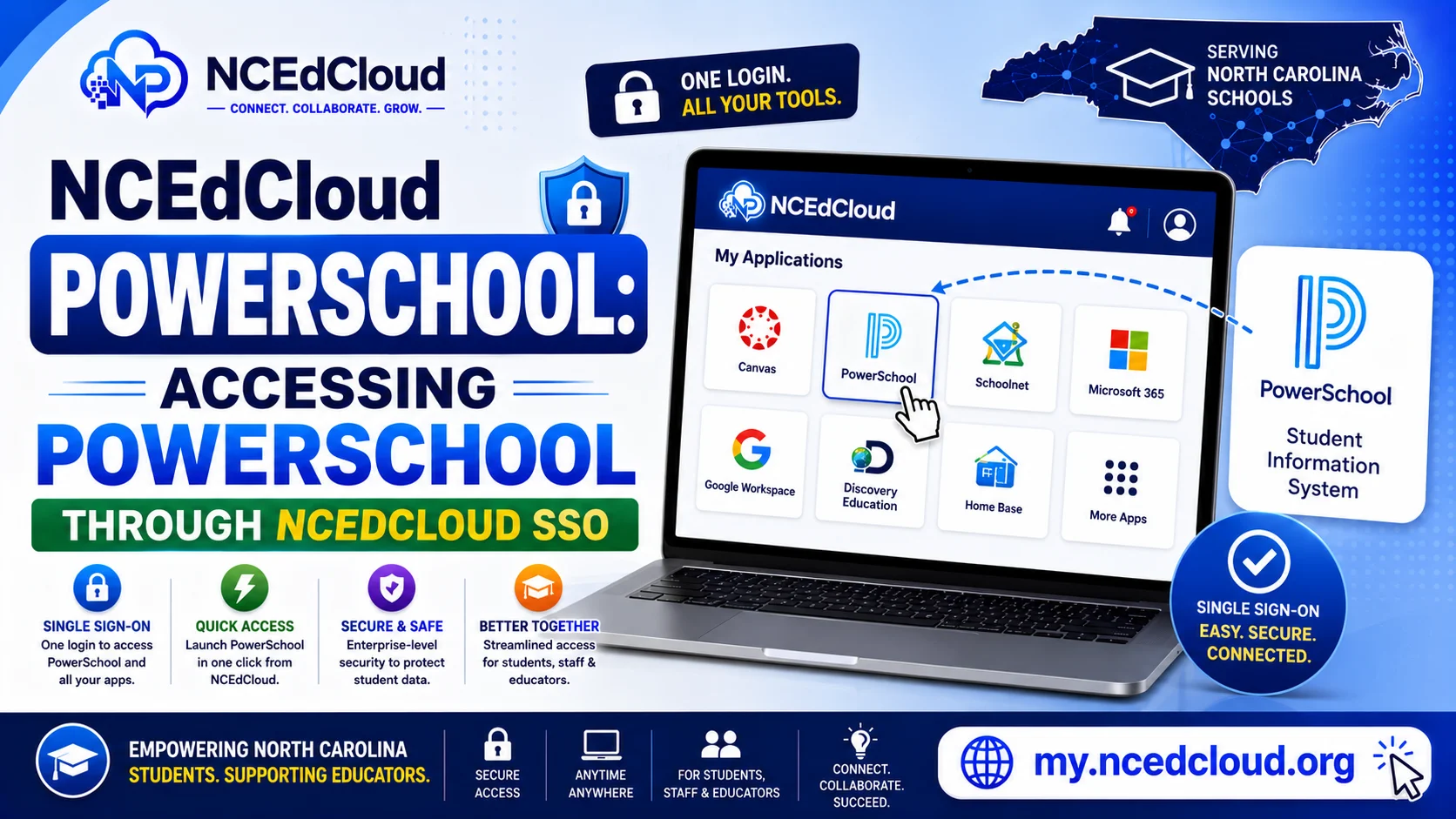
NCEdCloud PowerSchool is the student information system used by most North Carolina public school districts to manage enrollment, grades, attendance, and scheduling. When your district has configured the PowerSchool integration in NCEdCloud, a PowerSchool tile appears on your dashboard. Clicking it authenticates you into PowerSchool via SAML SSO without requiring a separate login.
NCDPI’s RapidIdentity platform is also the identity source that feeds student and staff data into PowerSchool through the Home Base data pipeline. The most important thing to know is that your NCEdCloud account and your PowerSchool account are linked. Changes in one system can affect the other. See our NCEdCloud Applications guide for the full dashboard picture.
How to Access PowerSchool Through NCEdCloud
- Log in to my.ncedcloud.org with your NCEdCloud username and password.
- On the dashboard, find the PowerSchool tile. It may be labeled “PowerSchool,” “PowerSchool SIS,” or “PowerTeacher Pro” depending on your role.
- Click the tile. NCEdCloud passes your identity to PowerSchool via SAML.
- PowerSchool opens and signs you in automatically.
Staff (teachers and administrators) typically see the PowerTeacher Pro or PowerSchool Administrator interface. Students and parents see the PowerSchool public portal with grades and attendance.
Read More → NCEdCloud Canvas Access Guide
PowerSchool Access by Role
| User Type | PowerSchool View | Tile Name (Typical) |
| Teacher | PowerTeacher Pro — gradebook and attendance | PowerSchool or PowerTeacher Pro |
| Administrator | Full SIS — enrollment, scheduling, reports | PowerSchool |
| Student | Student portal — grades, schedule, attendance | PowerSchool Student |
| Parent | Parent portal — child’s grades and attendance | PowerSchool Parent |
Parent portal access through NCEdCloud depends on whether your district has linked parent accounts to NCEdCloud. Some districts handle parent access separately outside of NCEdCloud.
Learn More → NCEdCloud LEA Administrator Overview
Why PowerSchool May Not Appear on Your Dashboard
| Cause | What to Do |
| District uses a different SIS | Confirm which SIS your district uses |
| Role not provisioned for PowerSchool access | Contact the IT coordinator to assign the tile |
| Account sync pending | Wait 24 hours after first login |
| Application provisioning error | Contact the LEA help desk |
Read More About → NCEdCloud SSO Guide
Common PowerSchool SSO Issues
| Problem | Likely Cause | Fix |
| Loads but shows wrong student data | Account mismatch between NCEdCloud and PowerSchool | Contact IT to resync identity attributes |
| Error: “User not found in PowerSchool” | Account not linked in SIS | Contact the registrar or IT to verify enrollment |
| Gradebook missing current students | Roster sync delay | Wait 24 hours or ask IT to trigger manual sync |
| Parent tile missing | Parent account not linked to NCEdCloud | Contact the school office to set up parent portal access |
Learn More About → NCEdCloud App Missing From Dashboard
Frequently Asked Questions
Can I access PowerSchool grades without going through NCEdCloud?
Yes. PowerSchool provides a direct URL for the parent and student portal. However, using the NCEdCloud tile is the recommended approach because it ensures your account identity is correctly matched. Direct access may require a separate PowerSchool password depending on how your district has configured it.
My NCEdCloud login works, but PowerSchool says my account does not exist. What is wrong?
This usually means the PowerSchool integration cannot find a matching account for your NCEdCloud identity. The data that NCEdCloud passes to PowerSchool (typically a student ID or staff ID) does not match a record in PowerSchool. Contact your IT department and ask them to verify the attribute mapping between your NCEdCloud account and PowerSchool.
Why can I see PowerSchool, but my gradebook is empty?
An empty gradebook most commonly means the roster sync from the SIS to PowerTeacher Pro has not run yet, or your courses were just set up. Wait 24 hours. If courses are still missing after that, ask your IT coordinator to trigger a manual sync.
Does PowerSchool access through NCEdCloud work on a phone?
Yes. Log in to my.ncedcloud.org on your phone’s browser and tap the PowerSchool tile. For a better mobile experience, PowerSchool also offers the PowerSchool Mobile app, but app configuration varies by district.
I am a new teacher, and my PowerSchool tile is missing. Why?
New teacher accounts require both the NCEdCloud account to be claimed and the PowerSchool role assignment to be configured by your district. If the tile is missing after 48 hours, contact your school’s technology coordinator with your NCEdCloud username and job title, and ask them to verify your PowerSchool provisioning.
Disclaimer Note: NCEdCloud, RapidIdentity, and Identity Automation are trademarks of their respective owners. NCEdCloudPro.com is not affiliated with or endorsed by NCDPI, NCEdCloud, MCNC, or Identity Automation. Read our full disclaimer.