NCEdCloud SSO Not Working — Why App Tiles Fail and How to Fix it
What Does NCEdCloud SSO Not Working Mean?
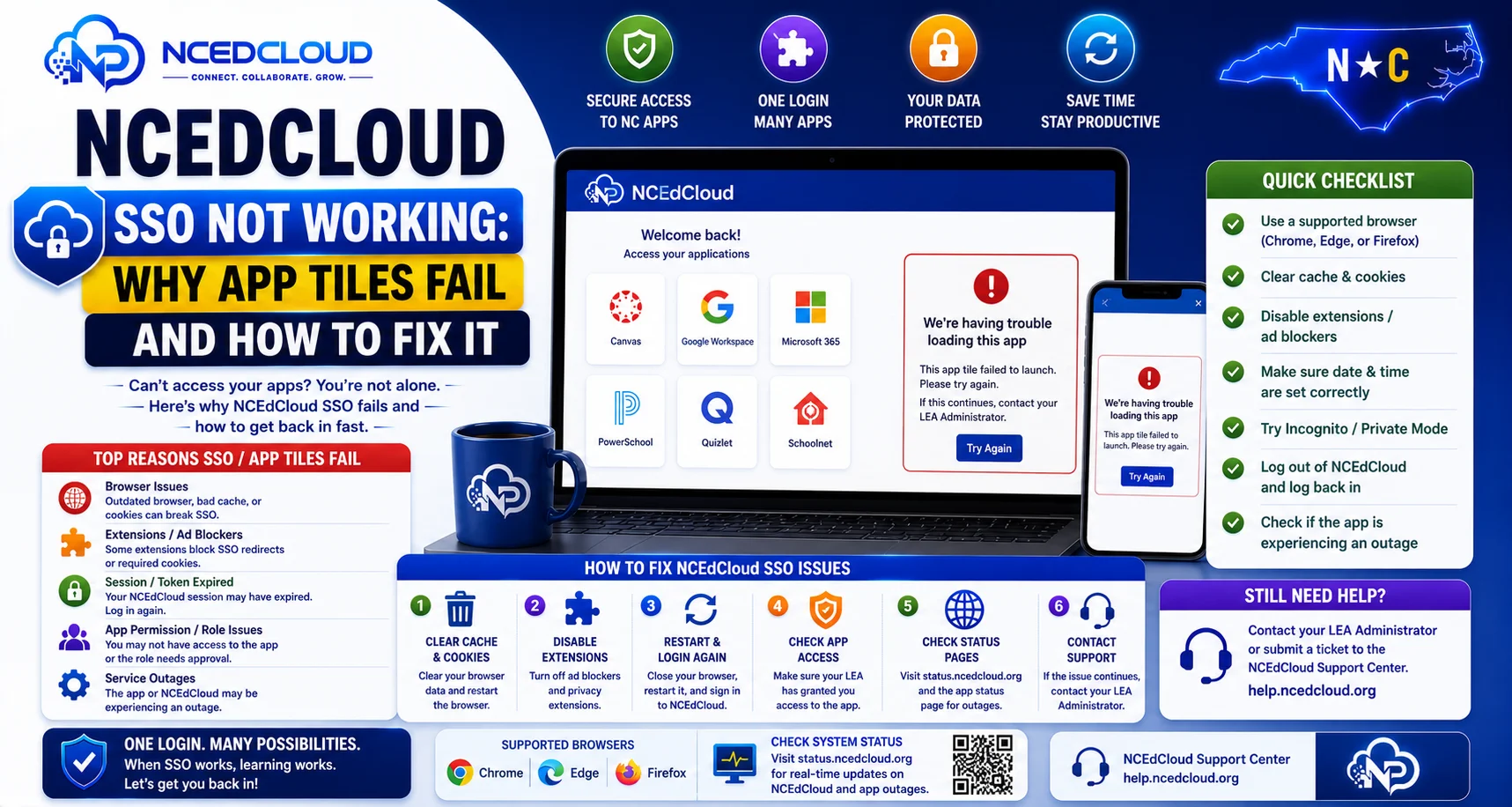
NCEdCloud SSO not working means you can log in to my.ncedcloud.org successfully, but one or more application tiles fail when you click them. The login completes, and you reach the dashboard, but clicking an app tile results in an error, a blank screen, or a separate login prompt instead of launching the application. Read our full SSO Guide for how the underlying handoff is supposed to work.
RapidIdentity processes the SSO authentication handoff, and the failure occurs somewhere in the chain between NCEdCloud and the destination application. The most important thing to know is that SSO failures after a successful dashboard login are almost always either a browser/cookie issue or a configuration problem requiring an LEA Administrator. They are not fixed by resetting your password. To learn more, see our NCEdCloud Troubleshooting Guide.
SSO Not Working vs. Other NCEdCloud Errors
| Symptom | What It Is | Fix Category |
| Cannot log in at all | Login error (not SSO) | Password or account issue |
| Login works, but the tile shows an error | SSO failure | Browser fix or admin fix |
| Login works, but the tile is missing | Provisioning issue | Contact the IT coordinator |
| Tile opens the app, but shows the wrong account | Attribute mismatch | Contact the IT coordinator |
| App asks for a separate login | SSO not configured | Contact the IT coordinator |
Browser-Side Fixes to Try First
- Log out of NCEdCloud completely and log back in. SSO tokens expire, and a fresh login generates a new valid token.
- Clear your browser cache and cookies. Stale cookies are the most common cause of SSO failures. See our full Cache Fix guide for the exact steps.
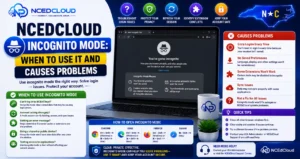
- Try an incognito window. Incognito bypasses cached data and most extensions. If the app loads in incognito, the issue is browser data or an extension.
- Disable browser extensions. Ad blockers, privacy extensions, and script blockers can interfere with the SAML token exchange. Disable them temporarily and retry.
- Switch to Chrome if you are using another browser. NCEdCloud SSO is most reliable in Chrome. Firefox and Safari can have compatibility issues with some application integrations.
- Check if third-party cookies are blocked. Some browser settings and extensions block third-party cookies, which can break the SSO redirect chain.
When it is a Configuration Problem?
If browser fixes do not resolve the issue, the problem is in the SSO configuration between NCEdCloud and the application. These require an LEA Administrator. See our full LEA Administrator guide for what this role can do:
| Problems | Admin Fix Required |
| Expired SAML certificate | Renew the certificate in NCEdCloud and application settings |
| Attribute mapping mismatch | Update attribute names to match what the application expects |
| Application callback URL changed | Update the assertion consumer service URL in NCEdCloud |
| The new school year broke SSO | Review and refresh application integration settings |
| SSO broke for all users of one app | Typically, a certificate or URL configuration issue. See our Target Application Error guide |
What to Report to Your Help Desk?
When you contact the help desk about SSO not working, include:
- Your NCEdCloud username
- The name of the application that is failing
- The exact error message or behavior (error text, blank screen, separate login page)
- Whether it worked before, and approximately when it stopped
- Whether colleagues with the same role have the same problem
Frequently Asked Questions
My NCEdCloud login works, but Canvas does not open. Is this an NCEdCloud problem?
It may be. If Canvas was working before and suddenly shows an error or prompts for a separate login, the SSO configuration may have expired or changed. Try the browser-side fixes first. If those do not help, contact your LEA Administrator to check the Canvas integration settings in NCEdCloud.
Why does SSO work for some apps but not others?
Each application has its own SSO integration configured separately. A broken integration for one app does not affect others. If only one app fails while the rest work, the problem is specific to that app’s configuration in NCEdCloud.
SSO stopped working after I changed my password. Why?
Password changes do not affect SSO configuration — your password is not passed to connected applications. However, changing your password ends your active sessions, and some browsers cache the login state that can become confused after a password change. Clear your cookies after a password change and log in fresh to resolve this.
My whole school can’t access PowerSchool through NCEdCloud. Is this a platform outage?
If SSO is failing for all users of a specific application district-wide simultaneously, it is likely a configuration issue — most commonly an expired SAML certificate or a changed application endpoint. Your LEA Administrator should contact NCDPI support and the application vendor to identify the change.
I can log in on my phone, but SSO fails on my laptop. What is different?
Browser configuration differences between devices are the most likely cause. The phone may use a different browser (Safari vs. Chrome) with fewer extensions and cleaner cookies. Clear the laptop browser cache, turn off extensions, and try incognito to isolate the issue.
Disclaimer Note: NCEdCloud, RapidIdentity, and Identity Automation are trademarks of their respective owners. NCEdCloudPro.com is not affiliated with or endorsed by NCDPI, NCEdCloud, MCNC, or Identity Automation. Read our full disclaimer.