
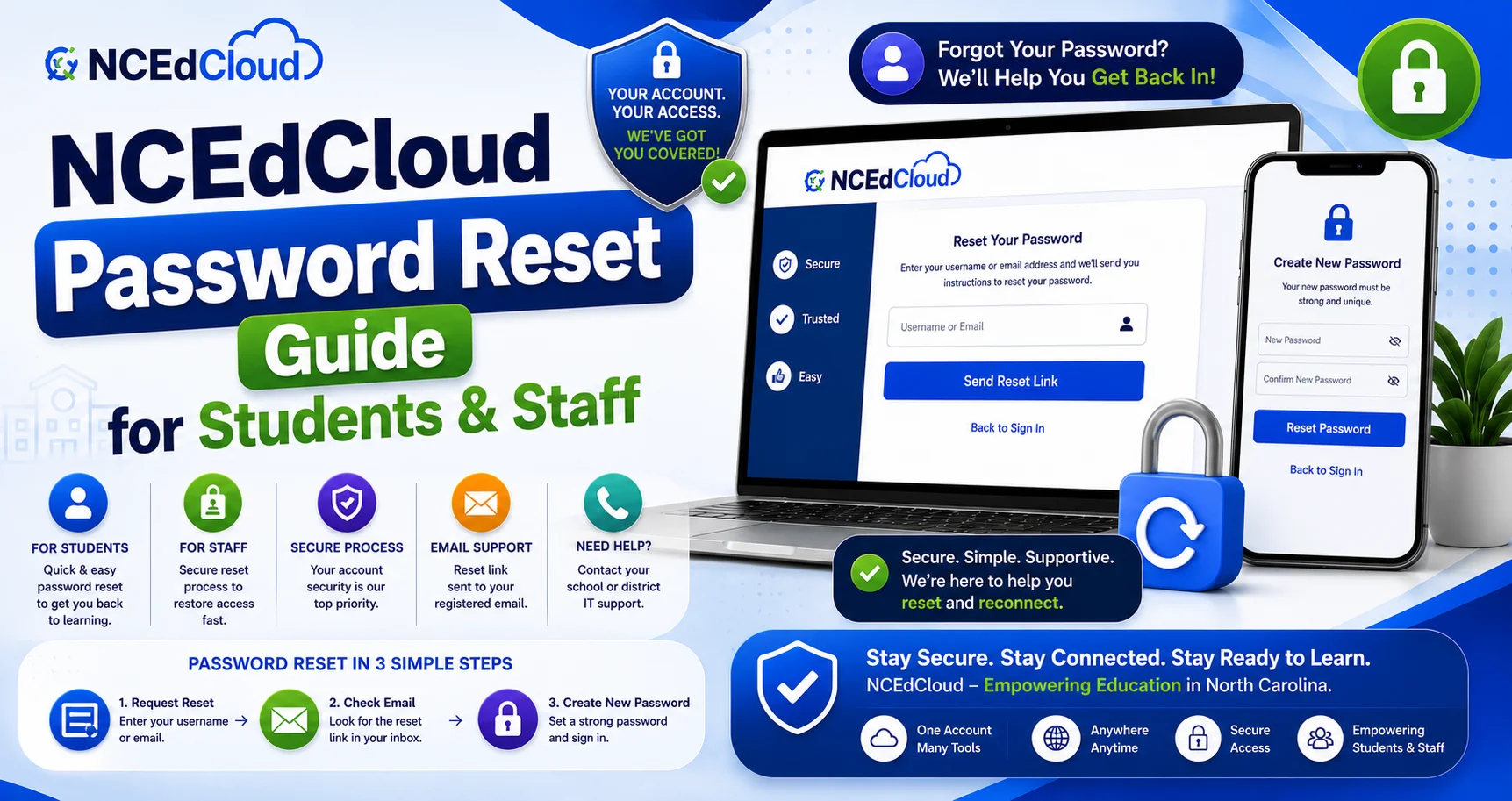
NCEdCloud Password Reset Guide for Students and Staff
NCEdCloud passwords can be reset through four methods: the self-service Forgot Password link, security challenge questions, help desk reset, and the Change Password option when you already know your current password. Staff passwords expire every 90 days, and the system sends a warning 10 days before expiration. The NCEdCloud district sets student default passwords, and students aren’t required to change theirs on a fixed schedule.
This guide covers every NCEdCloud password reset method and the exact password requirements for the platform, verified from NCEdCloud’s own IAM Service documentation.
NCEdCloud Password Policy
NCEdCloud enforces the following password requirements for all users. See our complete Password Requirements guide for the complete breakdown:
Requirement | Rule |
Minimum length | 8 characters |
Maximum length | 16 characters |
Uppercase letter | At least 1 required |
Lowercase letter | At least 1 required |
Number | At least 1 required |
Special characters | Allowed but not required |
Expiration (staff) | Every 90 days |
Expiration (student) | Set by district; typically no fixed expiry |
Warning period | 10 days before expiration for staff |
Reuse | Cannot reuse recent passwords (district-specific) |
Challenge questions at claiming | Five or more, selected from NCEdCloud’s list |
Passwords that don’t meet these rules are rejected during the reset process. Choose a password that satisfies all four core requirements: length between 8 and 16 characters, at least one uppercase letter, at least one lowercase letter, and at least one number.
Method 1: Forgot Password (Self-Service)
This method works when you can’t log in and don’t know your current password. It’s available directly from the login screen and requires your username. See our complete Forgot Password guide for every step and troubleshooting tip.
How to Reset Your NCEdCloud Password Using Forgot Password:
- Go to my.ncedcloud.org.
- Click the Forgot Password link below the Sign In button.
- Enter your NCEdCloud username and click Next. If you don’t remember it, read our Forgot Username guide first.
- Answer your security challenge questions. You set these during account claiming.
- If your answers are correct, you’re prompted to create a new password.
- Enter a new password that meets all policy requirements, confirm it, and click Save.
- Return to the NCEdCloud login page and sign in with your new password.
If you can’t answer your challenge questions, use Method 4 (help desk reset) instead.
Method 2: Security Challenge Question
Security challenge questions serve as the identity verification layer for the self-service reset flow. During account claiming, you answer five or more challenge questions from the list NCEdCloud presents. NCEdCloud uses your answers to confirm your identity before allowing a password change.
Answers aren’t case-sensitive, but they must match exactly what you entered during claiming, including spelling and spacing. If you’ve forgotten your answers, a help desk operator or LEA Administrator can reset your challenge questions alongside your password.
Method 3: Change Password (When You Know It)
If you’re already logged in or know your current password and want to update it proactively, for example before it expires, use the Change Password option inside your account settings. See our full Change Password guide for the complete walkthrough.
How to Change Your NCEdCloud Password from Inside Your Account:
- Log in at my.ncedcloud.org.
- Click your name or the gear icon in the top-right corner of the dashboard.
- Select Change Password from the menu.
- Enter your current password in the Current Password field.
- Enter your new password and confirm it.
- Click Save. The change takes effect immediately.
This method is especially useful for staff who receive the 10-day expiration warning and want to reset before being forced out of their account.
Method 4: Help Desk or Admin Reset
When self-service options fail, such as when you can’t answer challenge questions, your account is locked, or you never completed claiming, a school help desk operator or LEA Administrator can reset your password on your behalf. Read our complete Regenerate Password guide for how admins perform this.
Who can reset your password:
- School Help Desk role: can reset student passwords within their school
- LEA Help Desk role: can reset any user password within the LEA
- LEA Administrator role: can reset any user and modify account settings
- School Student Help Desk role: restricted to student password resets at the school level
To request a help desk reset, contact your school’s front office or IT department in person or by phone. Be prepared to verify your identity with a school-issued ID or student number.
Password Expiration and the 10-Day Warning
Staff passwords expire every 90 days. Starting 10 days before expiration, NCEdCloud displays a banner at the top of the dashboard each time you log in, showing how many days remain. This warning appears on login but doesn’t block access until the password actually expires. See our complete Password Expired guide for exactly what to do once that happens.
Once a password expires, further logins are blocked until the user completes a password reset, which NCEdCloud requires at the next login attempt. To avoid this, use the Change Password option (Method 3) at any point during the 10-day warning window.
Students generally aren’t subject to the 90-day expiry policy, though individual districts may configure their own expiration schedules for student accounts. NCEdCloud also gives districts a bulk tool to regenerate default student passwords by PSU, school, or grade level ahead of a new school year, which LEA Administrators can use through the platform’s Requests workflows.
Student Default Passwords
When student accounts are first provisioned, they’re assigned a default password by the district. Common default formats include:
- Date of birth in MMDDYYYY format
- Last 4 digits of the student’s ID plus a district prefix
- A district-wide temporary password communicated to students at enrollment
Default passwords must be changed during or after the account claiming process. Students can’t use a default password that doesn’t meet the 8-16 character, uppercase, lowercase, and number requirements. If the default doesn’t meet policy, the system prompts for a change immediately. Read our Student Password guide for the student-specific rules.
Contact your school’s registrar or IT office if you don’t know your default password and can’t claim your account.
Multi-Factor Authentication and Password Security
Beyond your password, NCEdCloud supports two MFA methods that add a second layer of protection: TOTP authenticator codes and WebAuthn hardware keys or biometrics. As of July 1, 2026, MFA is mandatory statewide for all employee accounts. Read our complete TOTP FAQ and WebAuthn guide for setup steps and officially supported apps and devices.
Common Password Errors and Fixes
“Password Does Not Meet Requirements”
Your chosen password is missing one or more required elements. Check that it’s 8-16 characters and includes at least one uppercase letter, one lowercase letter, and one number.
“Current Password is Incorrect”
You entered the wrong current password in the Change Password form. Try the Forgot Password method instead if you can’t recall your current password.
“Cannot Reuse a Recent Password”
NCEdCloud prevents the reuse of recent passwords. Choose a password you haven’t used before on this account.
“Account is Locked”
After too many failed login or reset attempts, the account locks. Contact your school’s help desk to unlock it. Locks typically clear automatically after 30 minutes for minor lockouts. To learn more, see our full Account Locked guide for every unlock method. If not fixed, read our troubleshooting guide for more details.
“Security Questions Not Accepted”
Check that your answers match exactly what you set during claiming, same spelling and spacing. If you still can’t verify, request a help desk reset.
Frequently Asked Questions
How do I reset my NCEdCloud password?
Go to my.ncedcloud.org, click Forgot Password, enter your username, answer your security challenge questions, and create a new password. If you can’t answer the questions, contact your school’s help desk.
How often do NCEdCloud passwords expire?
Staff passwords expire every 90 days. NCEdCloud sends a warning banner 10 days before the expiration date. Student password expiry is set per district and varies.
What are the NCEdCloud password requirements?
Passwords must be 8-16 characters and include at least one uppercase letter, one lowercase letter, and one number. Special characters are permitted but not required.
Can a teacher reset a student’s NCEdCloud password?
Not directly. Password resets require a help desk or admin role. Teachers should direct students to the school’s help desk or IT office for password resets. School Student Help Desk users can reset student passwords.
What is the NCEdCloud default password for students?
Default passwords vary by district. Common formats include the student’s date of birth (MMDDYYYY) or a district-issued temporary code. Contact your school registrar if you don’t know the default.
What happens when my NCEdCloud password expires?
When a staff password expires, further logins are blocked until you complete a reset, which NCEdCloud requires the next time you try to log in. Use the Forgot Password reset flow or contact your help desk.
How do I change my NCEdCloud password without being locked out?
Log in normally, click the gear icon or your name, and choose Change Password. Enter your current password, then your new password. Do this before your password expires to avoid a forced reset requirement.
Can I reset my NCEdCloud password from my phone?
Yes. Go to my.ncedcloud.org in Chrome or Safari on your phone. The Forgot Password link works on mobile browsers the same way it does on desktop.
Disclaimer
This page is part of NCEdCloudPro.com, an independent resource for North Carolina’s NCEdCloud platform. We are not affiliated with, endorsed by, or connected to the North Carolina Department of Public Instruction (NCDPI), official IAM Service, MCNC, or Identity Automation.
For account-specific issues, always contact your school or district Help Desk, or go directly to the official login at my.ncedcloud.org and read our full disclaimer written by Mark Albert.