NCEdCloud Mobile Login — How to Log in on a Phone or Tablet
How NCEdCloud Mobile Login Works
NCEdCloud mobile login uses the same browser-based platform as desktop. There’s no separate NCEdCloud mobile app. NCDPI’s RapidIdentity platform is fully accessible from a mobile browser, and SSO to connected applications works the same way it does on a computer. See our full NCEdCloud Login guide for the complete process shared across all devices.
How to Log in on Mobile
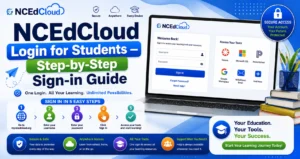
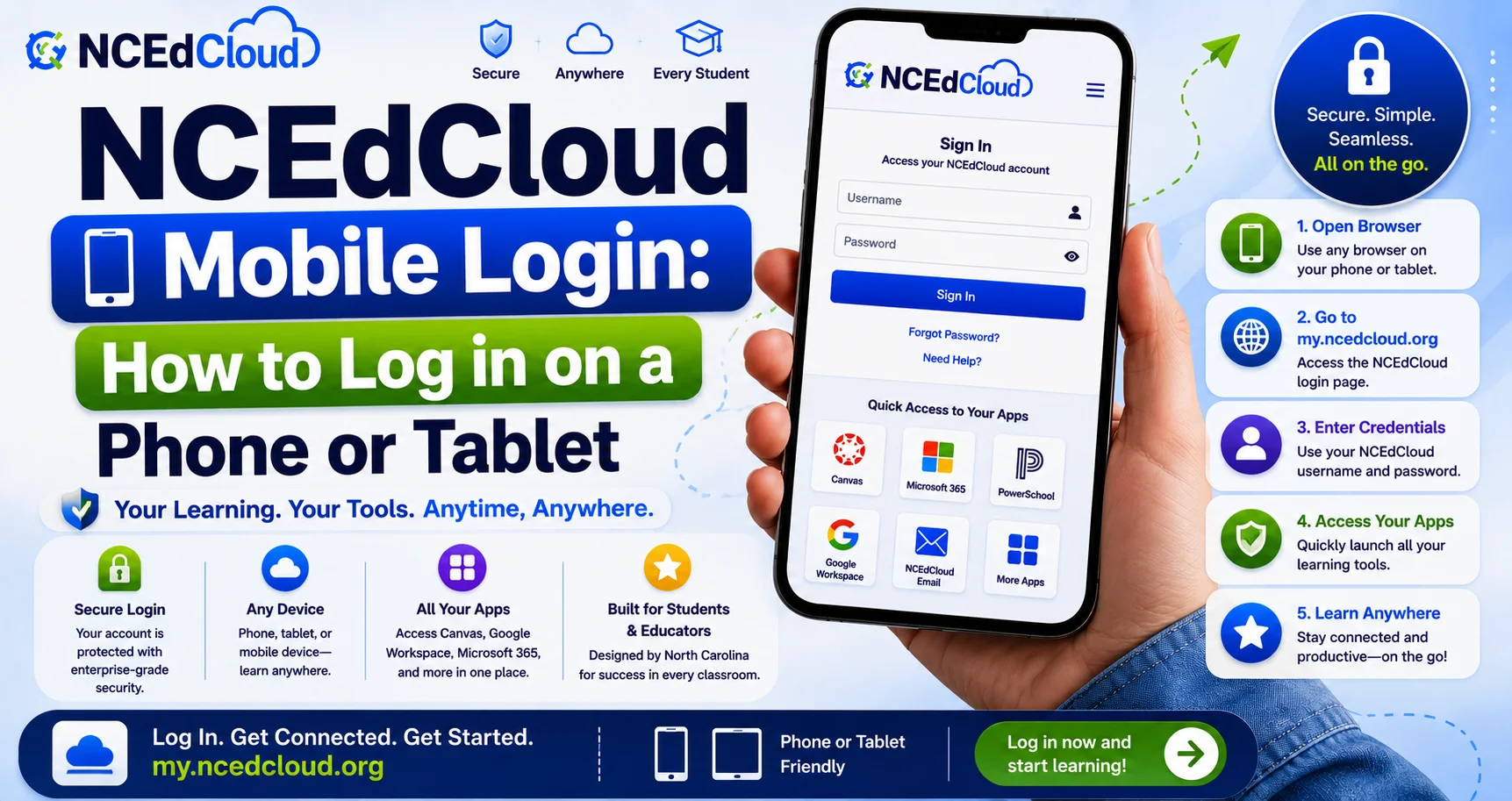
1. Open a mobile browser: Chrome is recommended on Android, and Safari or Chrome work on iOS. Read more in our NCEdCloud Chromebook Login guide.
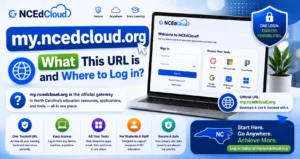
2. Go to my.ncedcloud.org.
3. Enter your username and password.
4. Tap Sign In.
5. As of July 1, 2026, MFA is mandatory statewide for all employee accounts. Complete the prompt with your authenticator app if required. Learn more in our MFA Setup guide.
6. Your dashboard loads with your assigned application tiles, sized for mobile viewing.
Learn More About → my.ncedcloud.org Guide
Mobile-Specific Tips
- Bookmark the page by adding my.ncedcloud.org to your phone’s home screen for faster access.
- Some applications work better through their own dedicated app (like Canvas Student or PowerSchool Mobile) than through the mobile browser. Check if your district recommends a specific app after SSO setup.
- Save your login state carefully on shared or family devices. Always sign out when finished.
Common NCEdCloud Mobile Login Issues
| Issue | Fix |
| Page doesn’t load properly on mobile | Try a different mobile browser; clear cache |
| MFA code entry is difficult on a small screen | Use a hardware key or authenticator app with autofill if supported |
| Application tile opens the wrong app | The tile may link to a mobile web version instead of a native app. Check for a dedicated app in your app store |
| Session logs out frequently | This is often a battery-saving or background-refresh setting on your phone; check browser settings |
Complete Guide About → NCEdCloud Not Working
Frequently Asked Questions
Is there an official NCEdCloud mobile app?
No. NCEdCloud is accessed through a mobile browser at my.ncedcloud.org. There is no dedicated NCEdCloud app in app stores.
Can I use MFA authenticator apps on the same phone I use for NCEdCloud login?
Yes, and this is the most common setup. Your authenticator app (Google Authenticator, RapidIdentity, or Authy) generates a code that you enter on the same or a different device during login.
Does NCEdCloud mobile login work on school-issued tablets?
Yes, as long as the tablet has internet access and a supported browser. Some school-managed tablets restrict browser choice or extension installation. Check with your school if you encounter restrictions.
Why does an application tile open a browser page instead of an app on my phone?
Some SSO integrations link to a mobile web version of the application rather than launching a native app. If a dedicated app exists, downloading and signing in separately (using the same credentials where supported) may give a better experience.
Is mobile access to NCEdCloud less secure than desktop?
No, the underlying security encryption, MFA, and session handling are the same regardless of device. Practicing good device security (screen lock, not saving passwords on shared devices) matters more than the device type itself.
Disclaimer Note: NCEdCloud, RapidIdentity, and Identity Automation are trademarks of their respective owners. NCEdCloudPro.com is not affiliated with or endorsed by NCDPI, NCEdCloud, MCNC, or Identity Automation. Read our full disclaimer.