NCEdCloud Staff Account Claim — How Teachers and Employees Claim Access
What is an NCEdCloud Staff Account Claim?
The NCEdCloud staff account claim is the process teachers and school employees use to activate their digital identity in the North Carolina statewide IAM platform and gain access to licensed educational applications. Staff accounts in NCEdCloud are provisioned through Home Base, the NCDPI personnel management system, which pulls employee data from district HR systems.
This process affects every new hire at any North Carolina public school, charter school, or LEA central office. The single most important thing to understand is that your account will not exist in NCEdCloud until your HR record syncs to Home Base, which can take 24 to 48 hours after your hire is entered in the district system. See our Claim My Account Guide for the general process this builds on.
How Staff Account Provisioning Works
Staff accounts follow a different path than student accounts. Students come in through PowerSchool enrollment. Staff accounts are created through a chain that starts with your district’s HR or personnel office, flows into the Home Base system, and then syncs to NCEdCloud.
The provisioning chain:
- Your district HR office enters your employment record in their personnel system.
- That data syncs to Home Base, the NCDPI educator management platform.
- Home Base pushes the record to NCEdCloud.
- NCEdCloud creates your account and assigns your Username (State UID).
- You receive your Username from your HR office, principal, or IT department.
The sync window between steps 1 and 4 is typically 24 to 48 hours on business days.
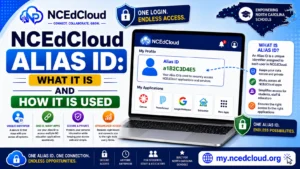
What is Your Staff Username?
For most districts, your Username is your employee ID number. The same number used on payroll documents and your employee badge. If you are unsure, contact your HR office or school principal. Since multiple failed lookup attempts can temporarily lock the process, do not attempt to guess it. See our complete NCEdCloud Alias ID Guide to learn more about this.
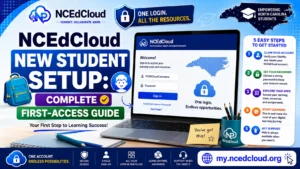
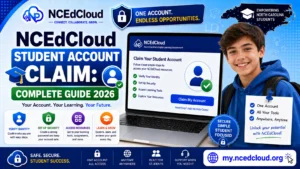
How to Claim Your Staff Account: Step by Step
Steps to follow, per official documentation:
- Wait until at least 24 hours after your hire record was entered.
- Open Chrome for the best results.
- Go to my.ncedcloud.org.
- Click “Claim My Account” below the sign-in form.
- Enter your employee ID as your Username.
- Enter your date of birth.
- Click Next.
- Create a password with complexity requirements: at least 8 characters, uppercase, lowercase, and a number. Special characters are allowed but not required.
- Confirm your password.
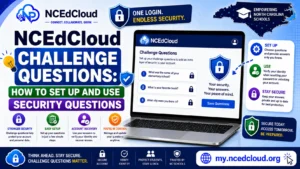
- Set up your challenge questions. Answer five or more with memorable answers.
- Click Finish.
- Log in with your new credentials to verify access.
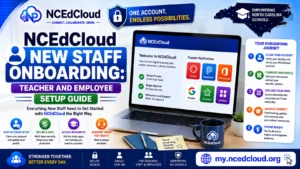
Learn More About → NCEdCloud New Staff Onboarding Setup
Staff vs. Student Claim Differences
| Feature | Staff Claim | Student Claim |
| Source system | Home Base / HR | PowerSchool |
| Identifier type | Employee ID | Student ID (Pupil Number) |
| Sync window | 24-48 hours after HR entry | 24-48 hours after enrollment |
| MFA requirement | Mandatory statewide since July 1, 2026 | Not part of the statewide mandate |
| Challenge questions required | Yes, five or more | Yes, five or more |
| Admin roles available | Yes, upon request | No |
After You Claim — First Login Checklist
When you log in for the first time as staff, you should:
- Review your dashboard application tiles and confirm your core tools are present.
- Check that your name and email appear correctly in your profile.
- Note your full NCEdCloud username.
- Complete MFA enrollment because it is mandatory statewide. So, expect a prompt during or shortly after your first login. See our complete MFA Setup Guide.
- Contact your IT department if expected applications are missing.
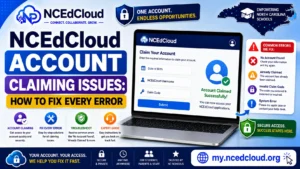
Full Guide About → NCEdcloud Account Claiming Issues
When to Contact Your Help Desk
Contact your school or district IT help desk if:
- Your account is still not found after 48 hours.
- Your employee ID is rejected as a Username.
- You cannot complete the claiming process due to technical errors.
- Your dashboard is missing applications after 24 hours of claiming.
Frequently Asked Questions
How long does it take for a new staff NCEdCloud account to be ready?
It typically takes 24 to 48 business hours after your HR department enters your hire record. If you start on a Monday, your account should be available by Wednesday at the latest.
What is the Username for a staff account in NCEdCloud?
In most North Carolina districts, it’s your employee ID number, found on your hire paperwork, pay stub, or employee badge.
How does staff claiming differ from student claiming?
The process looks similar on screen, but the back-end source is different. Student accounts come from PowerSchool and staff accounts come from Home Base. Staff accounts also require MFA enrollment and may offer access to admin-level tools.
Can I claim my staff account before my first day?
Only if your HR record has been entered into the system already. Check with your HR office to find out when your record was entered, then wait the 24-to 48-hour sync window.
What if my staff application tiles are missing after I claim?
Some role-specific applications take an additional sync cycle to appear, usually within 24 hours. If core tools are still missing after that, contact your IT department to verify your role assignment in Home Base.
Disclaimer Note: NCEdCloud, RapidIdentity, and Identity Automation are trademarks of their respective owners. NCEdCloudPro.com is not affiliated with or endorsed by NCDPI, NCEdCloud, MCNC, or Identity Automation. Read our full disclaimer.