NCEdCloud ClassLink — Using ClassLink Through NCEdCloud SSO
How Do NCEdCloud and ClassLink Work Together?
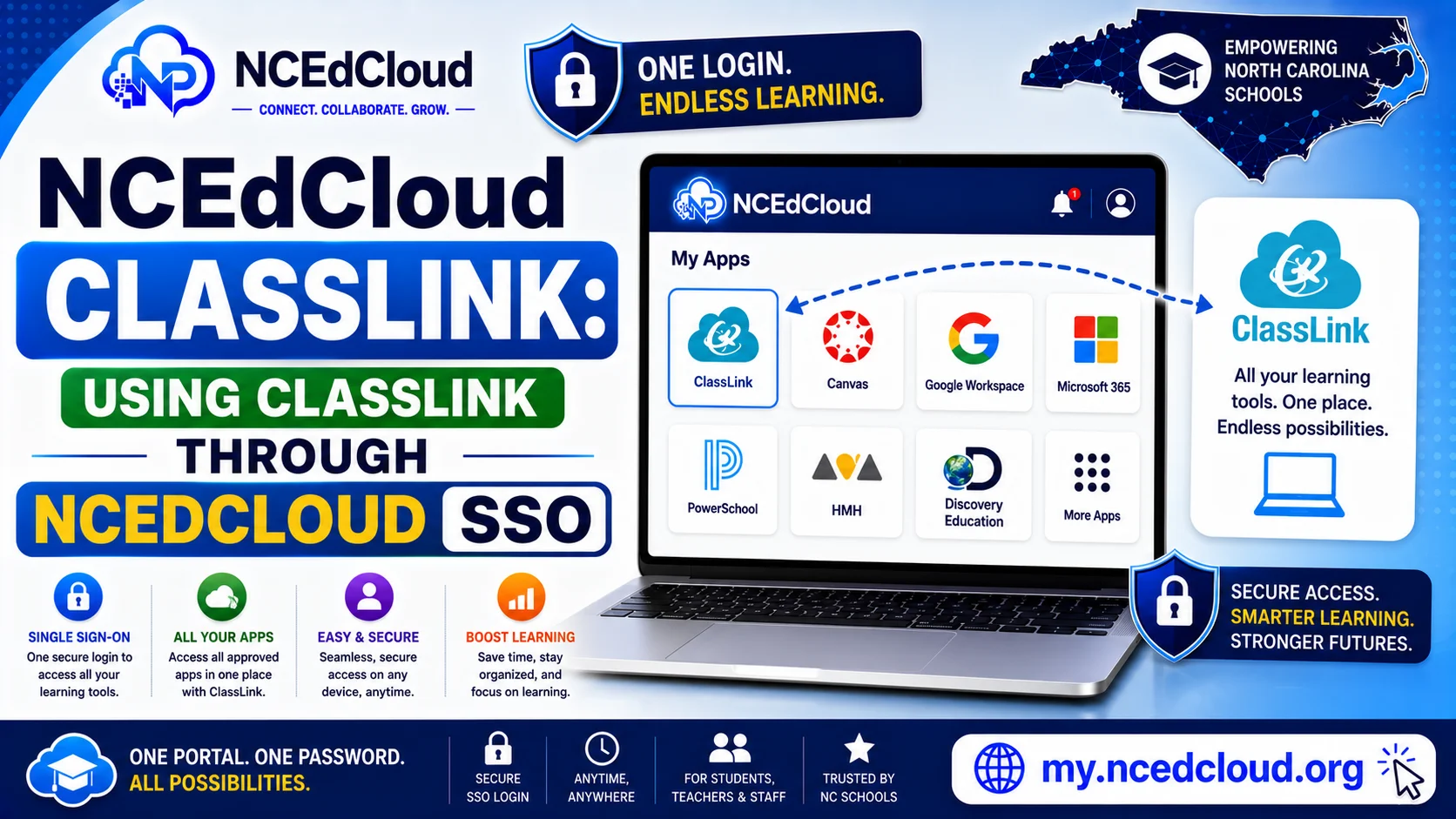
NCEdCloud ClassLink is a digital access and rostering platform that some North Carolina districts use alongside or within NCEdCloud. In districts where ClassLink is configured, it may appear as an application tile on the NCEdCloud dashboard, or it may serve as an additional single sign-on layer that NCEdCloud feeds identity data into. See our NCEdCloud Applications guide for how the standard tile-based dashboard works.
NCDPI’s RapidIdentity platform handles the initial authentication, and ClassLink receives identity attributes to provision access to its own catalog of connected applications. The most important thing to know is that ClassLink and NCEdCloud are separate products. If your district uses both, NCEdCloud is the identity source, and ClassLink is an application aggregator that sits downstream.
How to Access ClassLink Through NCEdCloud
- Log in to my.ncedcloud.org with your NCEdCloud username and password.
- On the dashboard, find the tile labeled “ClassLink” or “ClassLink LaunchPad.”
- Click the tile. NCEdCloud passes your identity to ClassLink via SAML SSO.
- ClassLink loads and displays its own application catalog, populated with tools your district has configured there.
Not all NC districts use ClassLink. If you do not see a ClassLink tile, your district uses NCEdCloud as the direct SSO provider for all its apps without ClassLink as an intermediary.
Learn More → NCEdCloud Canvas Access Guide
ClassLink vs. NCEdCloud Direct SSO
| Feature | NCEdCloud Direct | NCEdCloud + ClassLink |
| Login entry point | NCEdCloud dashboard | NCEdCloud dashboard |
| Application catalog | NCEdCloud tiles | ClassLink LaunchPad |
| Identity source | RapidIdentity | RapidIdentity (fed to ClassLink) |
| Rostering | Home Base / PowerSchool | ClassLink Roster Server |
| Who configures apps | LEA Administrator in NCEdCloud | LEA Administrator in ClassLink |
Some districts use Clever instead of or alongside ClassLink for a similar secondary rostering layer, most often for younger students. The setup differs by district. Check with your school to confirm which of the two, if either, your district uses.
Full Guide About → NCEdCloud SSO
Why ClassLink May Not Show Correct Applications
In a dual-SSO setup, application access is configured in ClassLink separately from NCEdCloud. If a tile is missing from ClassLink after logging in from NCEdCloud, the problem is in ClassLink’s provisioning rules, not in NCEdCloud itself. Contact your LEA technology coordinator and specify whether the missing tile is in NCEdCloud or in ClassLink. The fix is different for each.
Full Guide About → NCEdCloud App Missing From Dashboard
Common ClassLink SSO Issues From NCEdCloud
| Problem | Fix |
| ClassLink tile missing from NCEdCloud | Contact LEA admin to provision the ClassLink tile |
| ClassLink loads but shows an empty LaunchPad | ClassLink account not provisioned — contact IT |
| The app inside ClassLink shows an error | That is a ClassLink or app-level issue, not NCEdCloud |
| Logged out of ClassLink after the NCEdCloud session ended | Normal behavior — re-enter from NCEdCloud tile |
Read More → NCEdCloud Troubleshooting Guide
Frequently Asked Questions
Do I need a separate ClassLink account if my district uses NCEdCloud?
No. When ClassLink is integrated with NCEdCloud via SAML SSO, your NCEdCloud identity is used to access ClassLink. You do not create or manage a separate ClassLink username or password.
Why do some apps appear in ClassLink but not on my NCEdCloud dashboard?
Some districts configure certain applications exclusively through ClassLink and do not add them as direct NCEdCloud tiles. If an app is in ClassLink but not on the NCEdCloud dashboard, that is intentional — your entry point for that app is ClassLink, not NCEdCloud directly.
My ClassLink LaunchPad shows different apps than my NCEdCloud dashboard. Is that a problem?
Not necessarily. ClassLink and NCEdCloud can each display different application catalogs. Your district may configure some apps as direct NCEdCloud tiles and others through ClassLink. If you are missing a specific app from both platforms, contact your technology coordinator.
Can students use ClassLink through NCEdCloud on a Chromebook?
Yes. Log in to NCEdCloud in the Chrome browser and click the ClassLink tile. ClassLink has a Chrome extension that some districts install on managed Chromebooks to make access easier, but it is not required. The browser-based access works on any device.
Does ClassLink rostering affect my NCEdCloud application access?
ClassLink Roster Server is used for rostering applications that are configured within ClassLink. It does not affect your NCEdCloud dashboard directly. Changes to rosters in ClassLink affect what you see inside ClassLink-connected applications, not which tiles appear on your NCEdCloud dashboard.
Disclaimer Note: NCEdCloud, RapidIdentity, and Identity Automation are trademarks of their respective owners. NCEdCloudPro.com is not affiliated with or endorsed by NCDPI, NCEdCloud, MCNC, or Identity Automation. Read our full disclaimer.