NCEdCloud Google Workspace — Accessing Google Classroom and Google Apps Through NCEdCloud
How Does NCEdCloud Connect to Google Workspace?
NCEdCloud Google Workspace for Education (formerly G Suite) is one of the most common application suites licensed by NC school districts. When a district integrates Google Workspace with NCEdCloud, users can click a Google or Google Classroom tile on their dashboard and be signed into their district Google account automatically via SAML SSO. See our NCEdCloud Applications guide for the full app catalog.
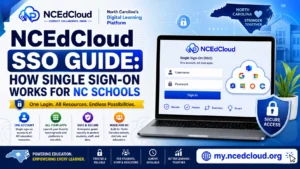
NCDPI’s RapidIdentity platform handles the identity handoff. This applies to students and staff in NC districts that use both NCEdCloud and Google Workspace. The most important thing to know is that the Google account accessed through NCEdCloud SSO is your district-issued Google account, not your personal Gmail — these two are separate.
How to Access Google Workspace Through NCEdCloud
- Log in to my.ncedcloud.org with your NCEdCloud username and password.
- On the dashboard, look for a tile labeled “Google,” “Google Workspace,” “Google Classroom,” or “Gmail.”
- Click the tile. NCEdCloud sends a SAML authentication assertion to Google.
- Your district Google account opens automatically. No separate Google sign-in required.
On a Chromebook that is enrolled in your district’s management console, you may already be signed in to Google automatically when you log into the Chromebook with your district credentials.
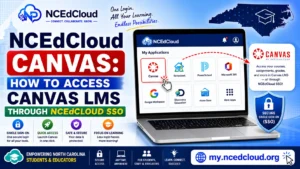
Learn More → NCEdCloud Canvas Access Guide
District Google Account vs. Personal Google Account
| Feature | District Google Account | Personal Google Account |
| Accessed through NCEdCloud | Yes | No |
| Email domain | @students.district.k12.nc.us or similar | @gmail.com |
| Controlled by | District IT department | Individual user |
| Google Drive storage quota | Set by district | 15 GB standard |
| Apps available | District-approved apps only | All Google apps |
| Accessible after graduation/leaving | Depends on district policy | Always accessible |
Always use your district account for school-related work. Using a personal Google account for assignments or communication can cause access issues and may violate district policy.
Learn More About → NCEdCloud App Missing From Dashboard
Why Google Workspace May Not Appear on Your NCEdCloud Dashboard?
| Problem | Fix |
| Clicked the tile, but my personal Gmail loaded | Sign out of personal Gmail first, then click the NCEdCloud tile |
| “This account does not exist” in Google | Contact IT — your district’s Google account may need to be created |
| Google Classroom shows no classes | The teacher needs to add you to the class, or wait for roster sync |
| Google Drive is missing district files | Log out of all Google accounts, log back in through NCEdCloud only |
Read More About → NCEdCloud Not Working Guide
Frequently Asked Questions
Can I access my district Google account without going through NCEdCloud?
Yes. You can go to google.com and sign in with your district Google email and password. However, if your district uses NCEdCloud as the identity provider, the password for direct Google login is managed through NCEdCloud or the Google Admin console. Using the NCEdCloud tile is simpler and ensures you reach the right account.
I have two Google accounts in my browser, and the wrong one keeps loading. How do I fix it?
Click on your profile picture in the top right of any Google page and select “Sign out of all accounts.” Then return to my.ncedcloud.org and click the Google tile. This ensures only your district account loads.
Why does Google Classroom show a different student than my NCEdCloud account?
This indicates an account mismatch between your NCEdCloud identity and your district Google account. Contact your IT department and provide both your NCEdCloud username and your district Google email address so they can verify the linkage.
Can students access Google Drive offline through NCEdCloud?
Once Google Drive is loaded through NCEdCloud SSO, offline access works through Google Drive’s own offline sync settings. NCEdCloud is only involved in the login step. After you are signed in, Google Drive’s offline capabilities work independently of NCEdCloud.
My district issued me both a Google account and a Microsoft 365 account. Do both show up in NCEdCloud?
Yes, if your district has configured both integrations. Many NC districts provide both platforms, and you may see tiles for Google Workspace and Microsoft 365 on the same NCEdCloud dashboard.
Disclaimer Note: NCEdCloud, RapidIdentity, and Identity Automation are trademarks of their respective owners. NCEdCloudPro.com is not affiliated with or endorsed by NCDPI, NCEdCloud, MCNC, or Identity Automation. Read our full disclaimer.