NCEdCloud Student Password — How Students Set, Change, and Reset Their Password
How NCEdCloud Student Password Works
NCEdCloud student passwords are set during account claiming and used to access the statewide SSO portal and all assigned educational applications. NCDPI’s RapidIdentity platform governs student password rules, but individual LEAs can adjust policy within that framework.
Student accounts are part of roughly 2.5 million student and staff accounts across more than 300 North Carolina LEAs, including charter schools. Read our complete Student Guide to learn more in detail.
Student password expiry and reset options depend heavily on grade level. Younger students rely on teachers or staff for resets, while middle and high school students can use self-service tools. See our full NCEdCloud Password Reset guide for the complete process.
NCEdCloud Student Password Rules
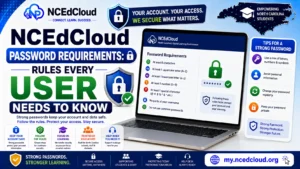
| Rule | Standard Setting |
| Minimum length | 8 characters |
| Maximum length | 16 characters |
| Uppercase required | Yes, at least 1 |
| Lowercase required | Yes, at least 1 |
| Number required | Yes, at least 1 |
| Automatic expiry | Varies by LEA; many don’t enforce a 90-day expiry for students |
| Self-service reset | Available if challenge questions are set up |
See our full Password Requirements guide for the complete platform-wide policy.
How a Student Sets a Password for the First Time?
Students set their password during initial account claiming:
- Go to my.ncedcloud.org and click “Claim My Account.”
- Enter your Username (State UID/student ID) and date of birth.
- The system prompts you to create a password: 8 to 16 characters, including at least one uppercase letter, one lowercase letter, and one number.
- Confirm the password by typing it again.
- Set up your challenge questions if prompted. Answering five or more enables self-service password reset later.
- Click Finish. Your account is now active.
Complete Guide About → NCEdCloud First Time Login
How Students Reset a Forgotten Password
| Reset Method | Who Can Use It | What Is Required |
| Forgot Password link | Any student with challenge questions set up | Username and challenge question answers |
| Teacher or staff reset | Any student, especially younger grades | The student asks the teacher or goes to the office |
| Help desk reset | Any student | Contact the school help desk with identity info |
| LEA admin reset | Any student | Escalated through school IT |
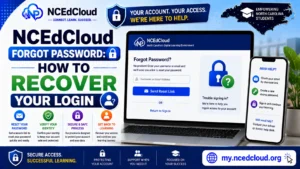
To use the self-service Forgot Password tool:
- Go to my.ncedcloud.org.
- Click “Forgot Password” below the login fields.
- Enter your NCEdCloud username.
- Answer your challenge questions.
- Create and confirm a new password.
- Log in with the new password.
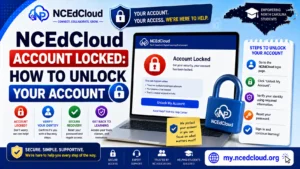
Learn More About → NCEdCloud Account Locked
PK-5 Students and Password Management
Students in kindergarten through fifth grade typically don’t manage their own passwords. Their accounts use QR badge login or teacher-managed access. See our full PK-5 Login guide.
If a PK-5 student’s account needs a password reset, the classroom teacher or school help desk staff handles it through the admin console. Parents of younger students should contact the school office rather than attempting self-service recovery.
Default Student Passwords
Some districts issue temporary default passwords to students at the start of the year rather than requiring them to claim independently. These defaults are usually tied to a student ID, date of birth, or a district-defined pattern. If your district issued a default password, change it at first login by going to Account Settings in the dashboard. To learn more, see our Student Login Guide.
Frequently Asked Questions
Do NCEdCloud student passwords expire?
Most NC districts don’t apply the 90-day automatic expiry that staff accounts follow. LEA policy varies, so contact the school help desk if a password stops working unexpectedly.
My student forgot their NCEdCloud password. What do I do?
If the student is in middle or high school with challenge questions set up, they can use the Forgot Password link. For younger students or those without challenge questions, a teacher, media specialist, or help desk staff member can reset the password through the admin console.
Can a parent reset their child’s NCEdCloud password?
Parents can’t directly access NCEdCloud admin tools. The reset must go through school or LEA staff. Contact the school office or help desk with the student’s name and ID number.
What is a good NCEdCloud password for a student?
Pick a word the student knows, capitalize the first letter, and add two digits at the end. Example: Tiger24 or Blue2026. Keep it between 8 and 16 characters with at least one uppercase letter and one number.
Why does my student’s NCEdCloud password not work even though it was just reset?
Wait 60 seconds after a reset and try again. Clear the browser cache or try incognito mode. Confirm the username is correct. Student usernames aren’t email addresses. Contact the school help desk if the problem persists.
Disclaimer Note: NCEdCloud, RapidIdentity, and Identity Automation are trademarks of their respective owners. NCEdCloudPro.com is not affiliated with or endorsed by NCDPI, NCEdCloud, MCNC, or Identity Automation. Read our full disclaimer.