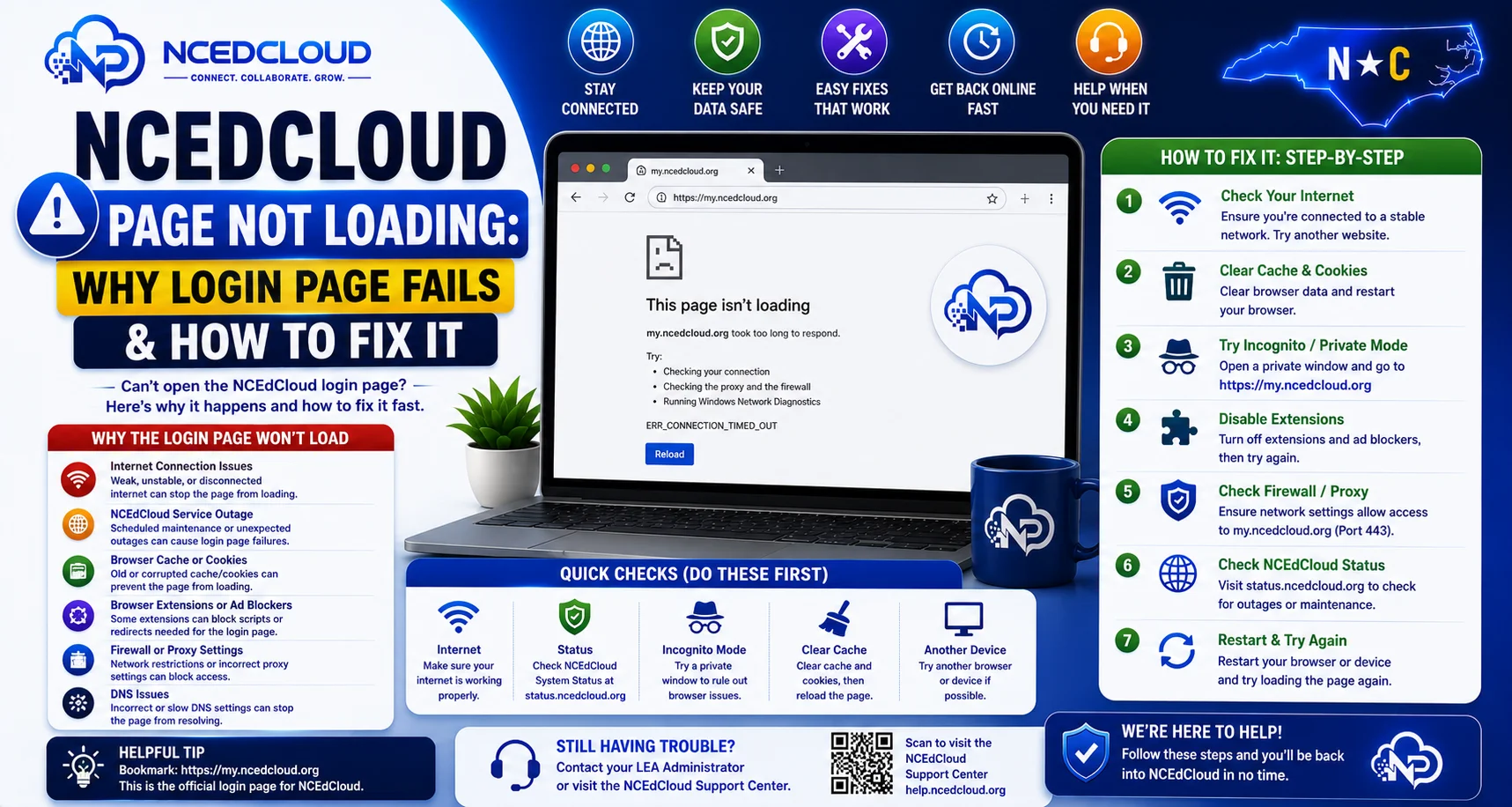
NCEdCloud Page Not Loading — Why the Login Page Fails And How to Fix it
Why Is the NCEdCloud Page Not Loading
When my.ncedcloud.org does not load at all — blank page, endless spinner, or a connection error — the problem is rarely with your NCEdCloud account. The NCEdCloud page not loading is typically a network, browser, or device issue. RapidIdentity operates on infrastructure with very high uptime. See our NCEdCloud is Down guide for how to confirm whether it’s a real outage versus a local problem.
The most important thing to know is that if you can load other websites, the problem is likely local to your browser or network connection, and can almost always be fixed in under five minutes. Read our NCEdCloud Not Working Guide to learn more in detail.
Quick Diagnostic: What You See vs. What it Means
| What You See | Most Likely Cause |
| Blank white page | JavaScript or a browser extension is blocking the page |
| Endless loading spinner | Network timeout or DNS issue |
| “This site can’t be reached” | No internet connection or DNS failure |
| “Your connection is not private” (SSL warning) | Network content filter, intercept, or captive portal |
| Page loads but shows the wrong content | Browser cache serving stale page |
| Page loads only on some devices | Device-specific browser or network issue |
How to Fix the NCEdCloud Page Not Loading?
- Check your internet connection. Open another site like google.com. If it also fails to load, the problem is your internet connection, not NCEdCloud.
- Try a different browser. Chrome is the most reliable browser for NCEdCloud. If you are using Safari or Firefox, switch to Chrome.
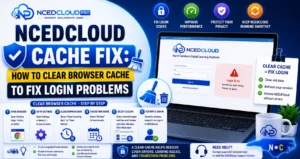
- Clear your browser cache. Stale cached data can prevent pages from loading correctly. See our Cache Fix guide for the exact steps.
- Disable browser extensions. Privacy, VPN, and ad-blocking extensions can interfere with page loading. Try disabling them one by one and reloading.
- Try an incognito window. Incognito turns off extensions and uses a fresh session state. See our full Incognito Mode guide for when this diagnostic helps and when it doesn’t.
- Restart your device. Simple but often effective — it clears DNS cache and resets network state.
- Try a different network. If you are on school Wi-Fi and the page does not load, try your phone’s hotspot. If it loads on the hotspot, the school network has a filtering or routing issue.
Learn More About → NCEdCloud Login Loop Fix Guide
“Your Connection is Not Private”
Warning on NCEdCloud
If your browser shows a security warning for my.ncedcloud.org, do not click through and enter your credentials. This warning means your browser cannot verify the site’s SSL certificate, which can indicate:
- A content filtering device on the school network is intercepting the connection
- You are on a captive portal (hotel Wi-Fi, public network) that has not been accepted yet
- A network misconfiguration or DNS poisoning
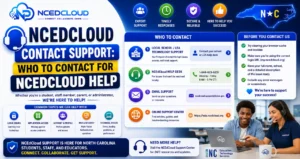
Contact your school IT department before logging in if you see this warning on a school network. On a home network, restart your router and try again. Read our Contact Support Guide for complete instructions.
NCEdCloud Page Not Loading at Start of School Year
A common pattern: my.ncedcloud.org loads fine for most of the year but fails at the start of a new school year or after summer break.
This is usually a stale cookie or a cached page from the previous year. Clear all cookies and cached data for the site, then navigate to my.ncedcloud.org directly.
Frequently Asked Questions
NCEdCloud works on my phone but not on my school laptop. Why?
The school laptop is likely subject to different browser settings, content filtering, or extension policies than your phone. The school laptop may have a content filter blocking something needed by the NCEdCloud page. Contact your school IT coordinator and describe the specific error or behavior you see.
Why does NCEdCloud load but then go blank after I enter my username?
A blank page after entering a username is often caused by a JavaScript error triggered by a browser extension or a content security policy conflict. Disable extensions, clear cache, and try an incognito window. If the blank page happens only in a specific browser, switch browsers.
Can a VPN cause NCEdCloud to not load?
Yes. Some VPNs route traffic through servers that are blocked by the school network, or that cause the browser to receive an incorrect IP for the NCEdCloud domain. Disable your VPN and try loading my.ncedcloud.org directly.
The page says “DNS_PROBE_FINISHED_NXDOMAIN.” What does that mean?
This means your device could not resolve my.ncedcloud.org to an IP address. Try restarting your router to flush its DNS cache. If the problem persists, switch your device’s DNS to a public DNS provider temporarily to verify whether your ISP’s DNS is the issue.
Is NCEdCloud down right now?
Check with your LEA help desk or ask a colleague whether they can reach the site. If multiple users cannot reach it simultaneously, there may be a platform-level issue. Contact your district IT department, which can communicate with NCDPI directly to check system status.
Disclaimer Note: NCEdCloud, RapidIdentity, and Identity Automation are trademarks of their respective owners. NCEdCloudPro.com is not affiliated with or endorsed by NCDPI, NCEdCloud, MCNC, or Identity Automation. Read our full disclaimer.