NCEdCloud Request is Invalid — How to Fix This Login Error
What is the “The Request is Invalid” Error in NCEdCloud?
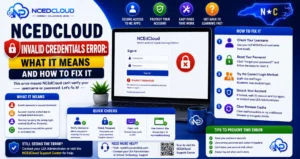
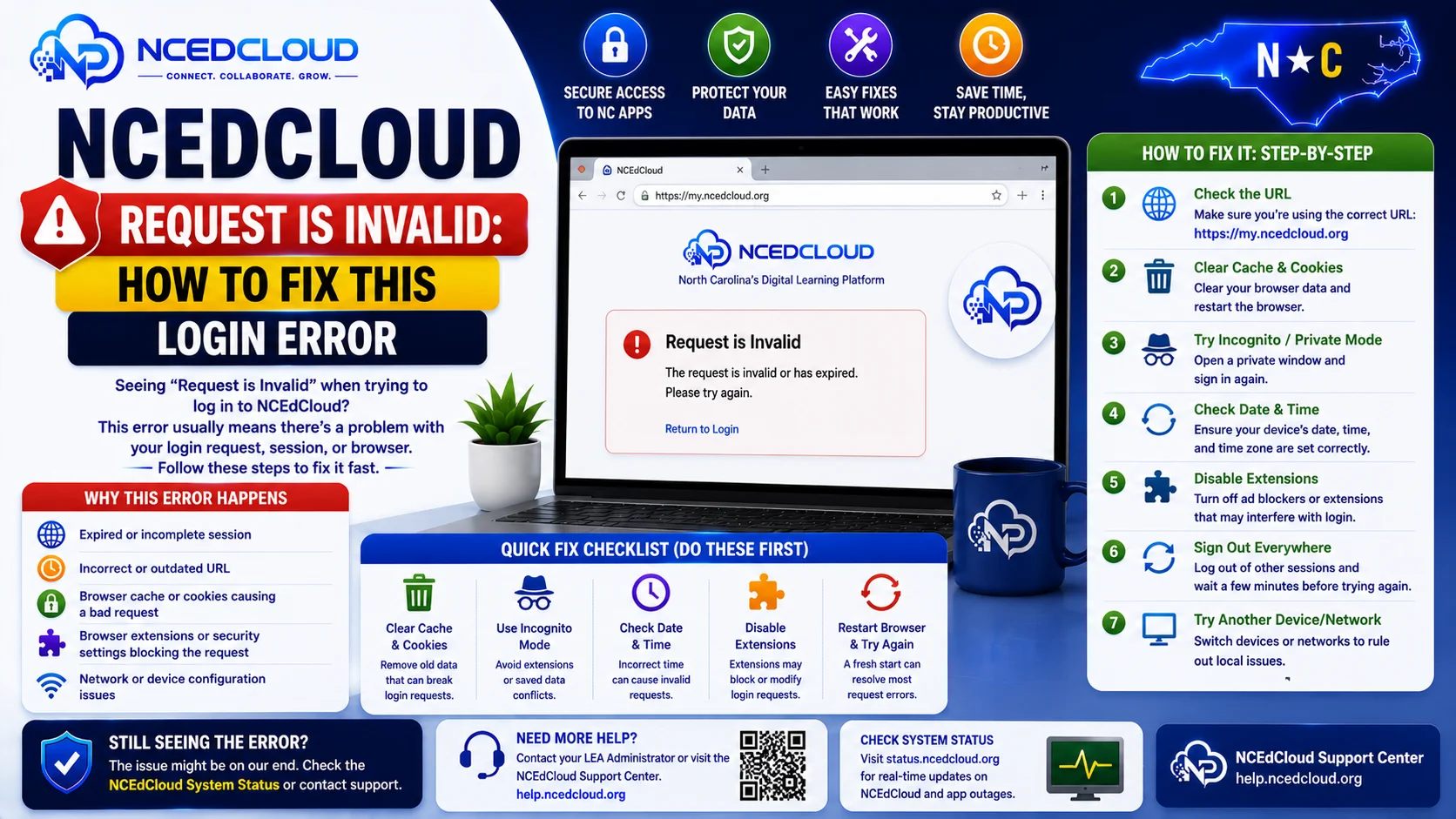
“NCEdCloud Request is Invalid” is an error message that appears on the NCEdCloud login page when something in the authentication request is malformed, expired, or not recognized by RapidIdentity. Unlike “Invalid Credentials,” this error is not caused by a wrong username or password. It occurs before credential verification, when the login request itself fails to process correctly. See our complete NCEdCloud Invalid Credentials Error guide to fix this error.
The most important thing to know is that this error almost always resolves by clearing your browser’s cookies and cached data, then navigating directly to my.ncedcloud.org, not from a bookmark or a redirect link. See our Not Working troubleshooting guide for other login errors and how they differ from this one.
What Causes “The Request is Invalid”
Causes | Why it Happens |
Stale or corrupted session cookie | Your browser has an old NCEdCloud session stored that conflicts with the new login |
Expired SAML request | You opened a login link or redirect that has timed out |
Bookmark pointing to a session URL | Bookmarks to post-login pages or redirect URLs break on new sessions |
Browser extension interfering | Privacy or security extensions are blocking the authentication token |
Time sync issue on the device | Severe clock skew on your device causes SAML validation to fail |
Redirect from an application with an invalid return URL | The app sent you to NCEdCloud with a broken callback |
Used browser back button to return to login | Navigate forward again or start fresh at my.ncedcloud.org, don’t use the back button mid-session |
Learn More About → NCEdCloud Login Loop Fix
How to Fix “The Request is Invalid” in NCEdCloud?
- Close all NCEdCloud browser tabs.
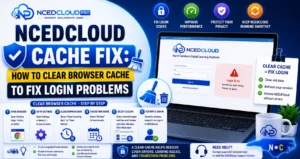
- Clear your browser’s cookies and cached data. In Chrome: Settings > Privacy and security > Clear browsing data. Check “Cookies and other site data” and “Cached images and files.” Clear for “All time.” Read our Cache Fix guide for the complete steps.
- Open a new browser tab.
- Type my.ncedcloud.org directly into the address bar. Do not use a bookmark or click an emailed link.
- Log in with your username and password normally.
- This resolves the error for the vast majority of users. If the error returns immediately, try step 7.
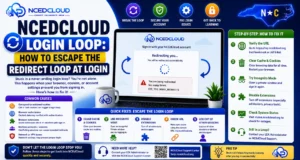
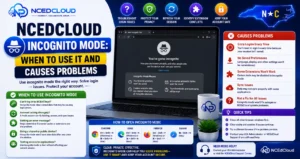
- Open an incognito or private browsing window and navigate directly to my.ncedcloud.org. If this works, the issue is stored data in your regular browser profile. See our full Incognito Mode guide for how to use this diagnostic.
If Clearing the Cache Does Not Fix it
If the error persists after clearing the cache and trying incognito, it may indicate one of these less common causes:
| Scenario | Fixes |
| The school network is caching the login page | Ask your school IT to flush the network proxy cache |
| The application redirect URL is broken | Contact the LEA Administrator to verify the application’s SSO callback URL |
| The time on your device is significantly wrong | Sync your device clock to automatic in your system settings |
| Browser extension blocking auth tokens | Disable all extensions and try again |
Preventing the Error From Recurring
- Always bookmark my.ncedcloud.org directly — not any page you land on after login.
- Do not save NCEdCloud application redirect URLs as bookmarks.
- Clear cookies if you use a shared computer before logging in.
- Keep your browser updated — outdated browsers handle session cookies less reliably.
Frequently Asked Questions
Why does “The Request Is Invalid” happen specifically after summer break?
After a long gap in use, cached session data from the previous year can conflict with new-year login flows. The fix is the same: clear cookies and type the URL directly. This is one of the most common NCEdCloud errors at the start of the school year.
Is “The Request Is Invalid” caused by a server problem at NCDPI?
Occasionally, yes. If the error is affecting all users in a district simultaneously with no recent cache activity, a server-side issue is possible. Check whether multiple users at your school see the same error. If they do, contact your LEA help desk and ask them to check the NCEdCloud system status with NCDPI.
Will deleting cookies log me out of other websites?
If you select “All time” and “All sites” when clearing cookies, yes, you will be logged out of other services. To minimize disruption, clear cookies only for my.ncedcloud.org: in Chrome, go to Settings > Privacy > Cookies > See all site data, search for ncedcloud.org, and delete just those entries.
I get “The Request is Invalid” only on my Chromebook. What is different?
On managed school Chromebooks, browser data may be synced or restricted by district policy. Try signing out of the Chromebook and back in to reset the browser state. If policy prevents cookie clearing, contact your school IT coordinator to flush the cache on your behalf.
Can a parent see “The Request is Invalid” when trying to access NCEdCloud?
Yes, if a parent has a bookmark to an NCEdCloud application URL from a previous session. The fix is identical: navigate directly to my.ncedcloud.org and log in fresh. Parent accounts follow the same session cookie behavior as student and staff accounts.
Disclaimer Note: NCEdCloud, RapidIdentity, and Identity Automation are trademarks of their respective owners. NCEdCloudPro.com is not affiliated with or endorsed by NCDPI, NCEdCloud, MCNC, or Identity Automation. Read our full disclaimer.