NCEdCloud Teachers Login — How to Sign in and Access Your Applications
How NCEdCloud Teachers’ Login Works
NCEdCloud teachers’ login is the process by which classroom teachers and instructional staff in North Carolina public schools authenticate into the statewide identity platform and access teaching tools via single sign-on. NCDPI’s RapidIdentity platform manages teacher accounts provisioned from Home Base and the district HR system. See our full NCEdCloud New Staff Onboarding guide if this is your first time setting up an account.
After one login, teachers access PowerTeacher Pro, Canvas, Google Workspace, SchoolNet, and other licensed platforms without separate credentials. New teacher accounts must be provisioned from Home Base before claiming is possible. Allow 24 to 48 hours after HR completes your hire record before attempting to claim. See our full Claim My Account guide for that process.
NCEdCloud Teachers Login: Step by Step
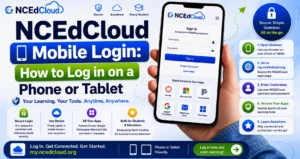
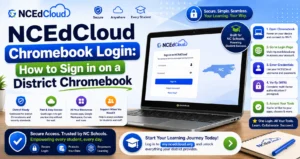
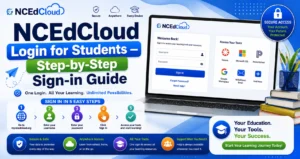
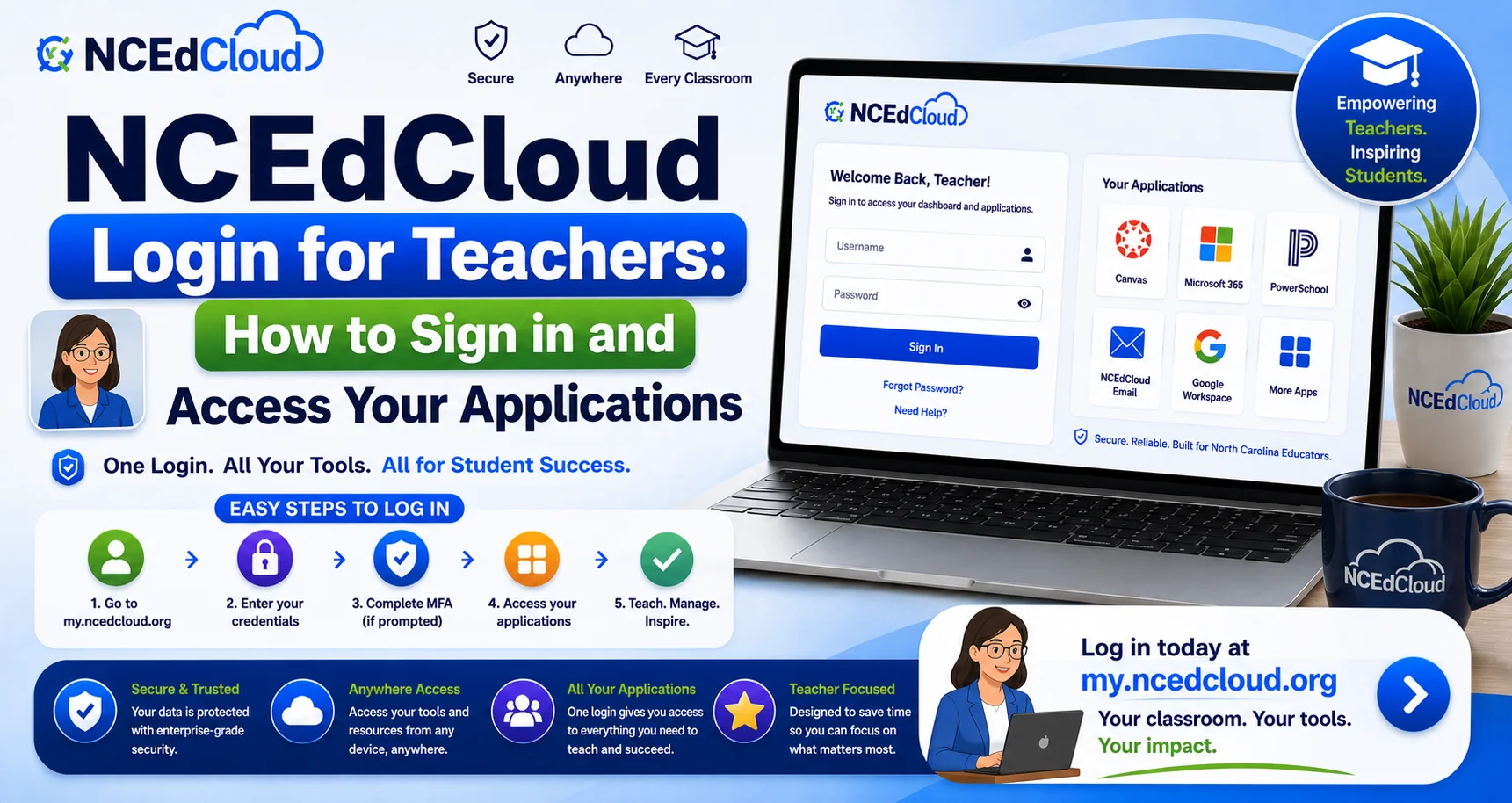
- Open Chrome on your work computer, laptop, or any device.
- Navigate to my.ncedcloud.org.
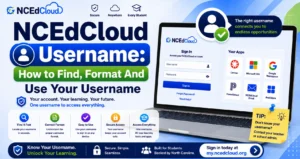
- Enter your NCEdCloud username. Staff usernames are typically formatted as an employee ID or firstname.lastname. Learn More in our NCEdCloud Username guide.
- Enter your password.
- Click Sign In.
- As of July 1, 2026, MFA is mandatory statewide for all employee accounts. Complete your second factor using Google Authenticator, RapidIdentity, or Authy.
- Your teacher dashboard loads with all assigned application tiles.
Full Guide About → NCEdCloud Login Guide
Teacher Application Tiles
| PowerTeacher Pro / PowerSchool | Gradebook, attendance, student records |
| Canvas or Schoology | Learning management system |
| Google Workspace | Gmail, Drive, Classroom |
| SchoolNet | Assessments and instructional data |
| Discovery Education | Content library and video resources |
| Amplify or HMH Ed | Curriculum platforms (if licensed) |
| mCLASS | Reading assessment (select schools) |
Read More About → NCEdCloud Applications
First-Time Teacher Login Checklist
- Confirm your username and write it down for reference.
- Verify all expected application tiles are present. Wait 24 hours if some are missing.
- Complete MFA enrollment, since this is mandatory for all staff. Go to Account Settings if you weren’t prompted automatically.
- Change your password from any default or temporary value if one was issued.
- Set up your challenge questions in Account Settings if not prompted during claiming.
- Contact your school technology coordinator if required apps are missing after 48 hours.
Read More About → NCEdCloud Staff Account Claim Guide
Common Teacher Login Issues
| Issues | Fix |
| Account not found during claiming | HR record not yet in Home Base — wait 24-48 hrs |
| Password rejected when claiming | Meet the complexity requirements shown on screen (8+ characters, upper, lower, number); a special character is allowed but not required |
| MFA prompt, but no app enrolled | Enroll in Google Authenticator, RapidIdentity, or Authy during the prompt |
| PowerSchool tile missing | Contact IT to verify role assignment in Home Base |
| Grade roster is empty in PowerSchool | Roster sync pending — wait 24 hours |
Complete Guide About → NCEdCloud Password Reset
Frequently Asked Questions
What is a teacher’s NCEdCloud username format?
Teacher usernames are generated from Home Base data. The most common format is an employee ID or firstname.lastname. Your username appears on screen after you complete account claiming. Write it down at that point.
Do teachers use the same NCEdCloud login URL as students?
Yes. All users, students, teachers, staff, and administrators log in at my.ncedcloud.org. Read our detailed my.ncedcloud.org guide.
Can I access NCEdCloud from home?
Yes. my.ncedcloud.org is accessible from any internet-connected device. Make sure you have your authenticator app or hardware key available for MFA. There’s no VPN requirement for access from home.
I haven’t set up MFA yet. What do I need to do?
Log in to my.ncedcloud.org. Since MFA is mandatory statewide for all staff, you should see an enrollment prompt if you haven’t completed it. Follow the prompt to set up Google Authenticator, RapidIdentity, or Authy.
I am a long-term substitute teacher. How do I get an NCEdCloud account?
Long-term substitutes with a formal HR record in the district system are provisioned through the same Home Base pipeline as full-time staff. Short-term or day substitutes may not receive NCEdCloud accounts. Contact your school’s principal or HR coordinator to confirm eligibility.
Disclaimer Note: NCEdCloud, RapidIdentity, and Identity Automation are trademarks of their respective owners. NCEdCloudPro.com is not affiliated with or endorsed by NCDPI, NCEdCloud, MCNC, or Identity Automation. Read our full disclaimer.