NCEdCloud Forgot Password — How to Recover Your Login
What the NCEdCloud Forgot Password Flow Does
The NCEdCloud forgot password flow lets you verify your identity using your username and challenge questions, then create a new password immediately. You don’t need to wait for an email, and you don’t need to contact your school’s IT department if you set up your challenge questions in advance. See our full Password Reset guide for the complete process.
The whole process takes about three minutes when you know your username and your challenge question answers. Read our complete Student Guide for more details.
Before You Start
You need two things before the self-service flow will work:
- Your NCEdCloud username. This is not your personal email address. See our full Forgot Username guide if you don’t know yours.
- Answers to your security challenge questions. These were set when your account was first activated. See our full Challenge Questions guide for tips on good answers.
If you never set challenge questions, the self-service flow won’t complete, and you’ll need to contact your school’s help desk.
How to Reset an NCEdCloud Forgot Password:
Step by Step
- Open a web browser and go to my.ncedcloud.org.
- Click the “Forgot Password” link below the username and password fields.
- Enter your NCEdCloud username in the field provided and click Submit.
- The system presents your challenge questions. You’ll answer five or more, one at a time. Type each answer exactly as you entered it when you set up the question. Answers are case-sensitive at some LEAs, so try the exact original capitalization first.
- Continue answering each challenge question presented until all are complete.
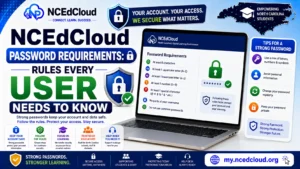
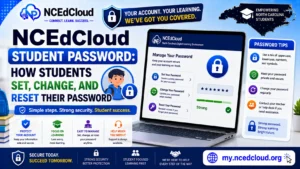
- The system presents a password creation screen. Enter a new password meeting NCEdCloud’s requirements: at least 8 characters, one uppercase letter, one lowercase letter, and one number.
- Confirm the new password by typing it again in the second field.
- Click Save or Submit. The portal confirms the change and redirects you to the login page.
- Log in with your username and the new password you just created.
Learn More About → How to Unlock a Locked NCEdCloud Account
What if the Self-Service Flow Fails?
If the system doesn’t recognize your username, check for typos and confirm the format with your teacher or school office. If your challenge question answers are rejected, you likely entered them differently than when you first set them up.
At that point, contact your school’s help desk or media center staff. They have a help desk role in NCEdCloud, allowing them to reset your password directly. Students should tell a teacher or go to the front office. Staff should contact their LEA’s technology coordinator.
How to Prevent This Problem in the Future?
Set up your challenge questions as soon as you log in to a new account. Keep a record of exactly how you wrote each answer, including capitalization. To learn more, read our complete NCEdCloud Change Password guide. Changing your password before it expires also keeps your account active and avoids the added complication of an expired password on top of a forgotten one.
Frequently Asked Questions
Can I reset my NCEdCloud forgot password without knowing my username?
No. The self-service flow requires your username as the first step. If you don’t know it, contact your school or LEA help desk to look it up first.
Does NCEdCloud send a reset link to my email?
NCEdCloud’s primary self-service method uses challenge questions, not email links. Some LEAs may have configured additional recovery options. Check with your LEA if you believe an email option should be available.
How long does a password reset take to work?
The new password works immediately after you save it. If you save it and still can’t log in, wait 60 seconds and try again, or clear your browser’s cached credentials.
My challenge question answers are not working. What should I do?
Try the exact capitalization you remember using. If that fails, the answers on file differ from what you remember. Contact your school’s help desk to reset your password directly using their admin tools.
Can students use the NCEdCloud forgot password self-service tool?
Yes, as long as they know their username and have set up challenge questions. Many elementary school students haven’t set up challenge questions, so their accounts require a staff member to perform the reset. Middle and high school students are more likely to have completed the setup.
Disclaimer Note: NCEdCloud, RapidIdentity, and Identity Automation are trademarks of their respective owners. NCEdCloudPro.com is not affiliated with or endorsed by NCDPI, NCEdCloud, MCNC, or Identity Automation. Read our full disclaimer.