NCEdCloud Regenerate Password — Admin Bulk Reset for LEA Staff
What is NCEdCloud Regenerate Password?
NCEdCloud Regenerate Password is an administrative function that allows LEA Administrators and help desk staff to reset a user’s password from the admin console, either individually or in bulk. Unlike the self-service forgot password flow, the regenerate function doesn’t require the user’s current password or challenge question answers.
NCDPI’s RapidIdentity platform includes this capability to support help desk operations across every North Carolina LEA and charter school, more than 300 in total. Only users with an NCEdCloud admin role, LEA Administrator, LEA Help Desk, School Help Desk, or related roles can perform a password action. See our full LEA Administrator guide for the complete role breakdown. End users can’t regenerate their own passwords through this method.
Regenerate Password vs. Other Reset Methods
| Method | Who Uses It | Requires Current Password | Requires Challenge Questions |
| Change Password (in dashboard) | End user | Yes | No |
| Forgot Password (login page) | End user | No | Yes |
| Regenerate Password (admin console) | Admin/help desk | No | No |
| Expired password screen | End user at login | Yes (expired) | No |
The regenerate password method is the fastest path for a help desk to restore access when a user is locked out and can’t complete self-service recovery.
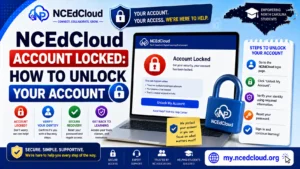
Complete Guide About → NCEdCloud Account Locked
How to Regenerate a Password in NCEdCloud?
(Individual User)
- Log in to NCEdCloud with your LEA Administrator or help desk credentials.
- Navigate to the admin console, typically accessed from your dashboard under an “Admin” or “Management” tile.
- Use the user search to find the account by username, name, or student/employee ID.
- Open the user’s account profile.
- Locate the “Reset Password” or “Regenerate Password” option in the account actions menu.
- Choose whether to set a specific temporary password or generate one automatically.
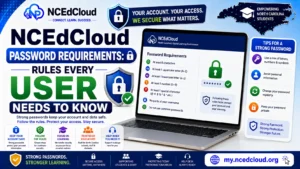
- If setting a specific temporary password, enter a value meeting NCEdCloud complexity requirements. See our full Password Requirements guide.
- Save the change. The new password is active immediately.
- Communicate the new temporary password to the user through a secure channel. Instruct them to change it at the next login.
How to Bulk Reset Passwords in NCEdCloud?
For situations requiring mass resets, such as a security incident, start-of-year reset, or migration, LEA Administrators can perform bulk password operations:
- Log in to the admin console with LEA Administrator credentials.
- Navigate to the Users section and filter to select the target group (by school, grade, role, etc.). Scope the bulk reset to the entire PSU, a single school, a specific grade, or a grade within a specific school
- Select the accounts to include.
- Choose “Reset Password” from the bulk actions menu.
- Configure the reset settings: temporary password pattern or auto-generated values.
- Confirm the action. The system processes resets for all selected accounts.
Bulk resets affect large numbers of accounts at once. Confirm the selection before executing. There is no undo for a bulk password reset. Read our full Password Reset guide to learn more.
Who Has Permission to Regenerate Passwords?
| Role | Can Reset Student Passwords | Can Reset Staff Passwords |
| LEA Administrator | Yes | Yes |
| LEA Help Desk | Yes | Limited |
| School Help Desk | Yes (own school) | No |
| LEA Student Help Desk | Yes | No |
| School Student Help Desk | Yes (own school students) | No |
| LEA Data Auditor | No | No |
Learn More About → Forgot Password Guide
Frequently Asked Questions
Can a teacher regenerate a student’s NCEdCloud password?
Standard teacher accounts don’t have password reset permissions. The reset must go through a user with a help desk or administrator role. If your school has a media specialist or technology facilitator with a help desk role, they can perform the reset.
What happens to the user’s challenge questions when an admin regenerates their password?
A password reset by an admin changes the password only. Challenge questions remain intact.
How does a user receive their regenerated password?
NCEdCloud doesn’t automatically notify users of admin-initiated password resets by default. The help desk staff member must communicate the temporary password directly in person, by phone, or through a secure messaging system.
Does a regenerated password force the user to change it at the next login?
This depends on how the admin configures the reset. RapidIdentity supports a “must change at next login” flag.
Can the regenerate password function be used during a data sync?
Avoid performing bulk password resets during an active data sync window, since accounts may not receive the new password correctly. Schedule bulk resets outside of sync windows.
Disclaimer Note: NCEdCloud, RapidIdentity, and Identity Automation are trademarks of their respective owners. NCEdCloudPro.com is not affiliated with or endorsed by NCDPI, NCEdCloud, MCNC, or Identity Automation. Read our full disclaimer.