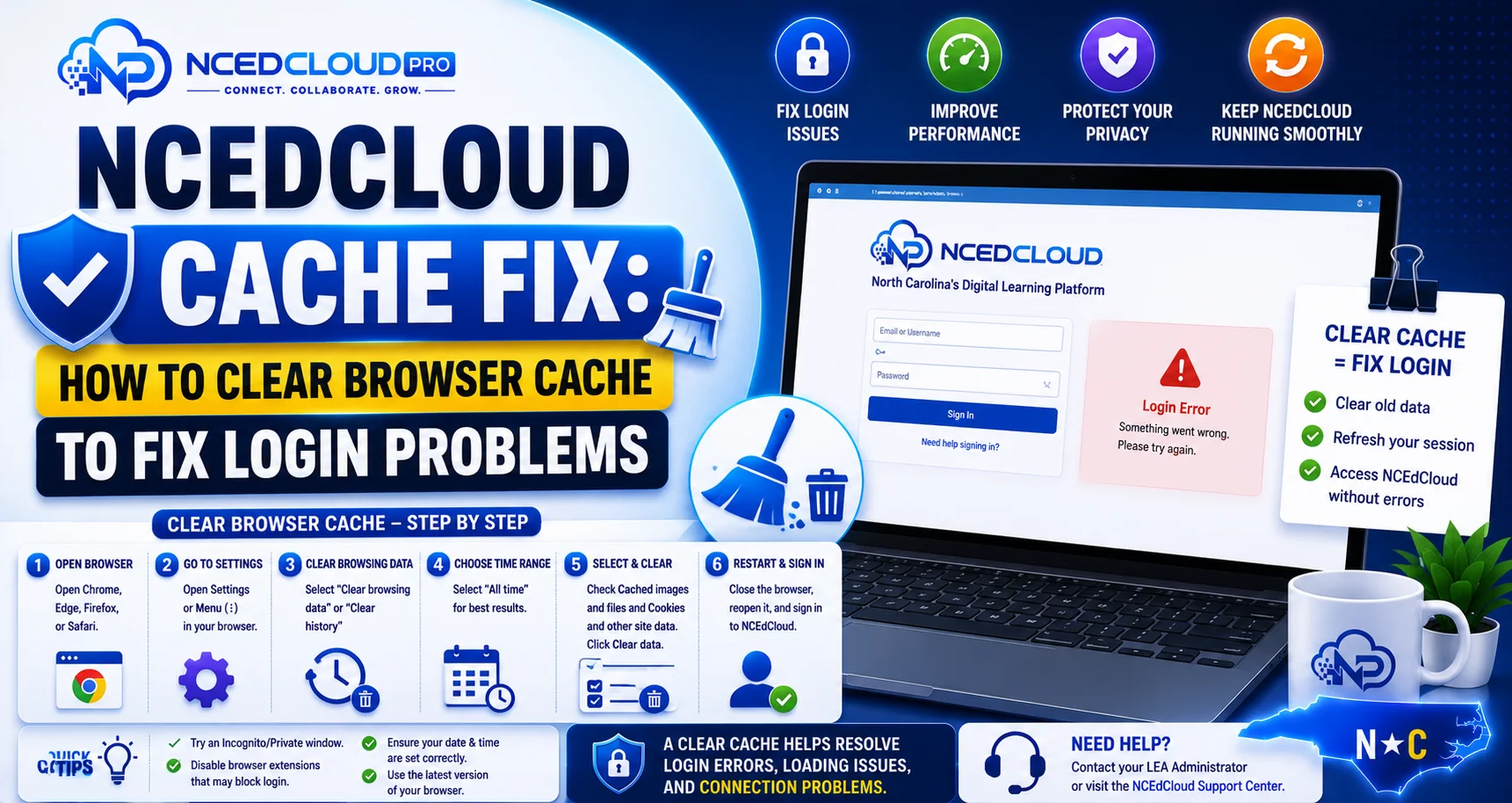
NCEdCloud Cache Fix — How to Clear Browser Cache to Fix Login Problems
Why Browser Cache Causes NCEdCloud Problems
The browser cache stores copies of web pages, images, scripts, and cookies so pages load faster on repeat visits. For NCEdCloud, cached session data can become stale and cause login errors, redirect loops, and SSO failures without any change to your account. RapidIdentity issues new session tokens on each login, but if your browser holds onto old token data, the new token conflicts with the cached one.
The most important thing to know is that clearing your browser cache is the first fix to try for almost any NCEdCloud login or SSO problem. It resolves a large majority of issues and takes less than two minutes. Read our complete Not Working Guide for how this fits into the bigger diagnostic process.
When to Clear the Cache for NCEdCloud
Clear your browser cache if you experience any of these:
- “The Request Is Invalid” error at login. Read our Request Is Invalid guide.
- Login loop (entering credentials but being sent back to login repeatedly). See our Login Loop guide for details.
- White or blank screen after login
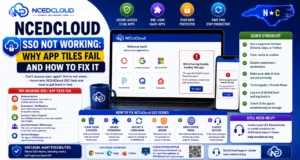
- SSO tile launches but shows an error. Read this SSO Not Working guide for more.
- Page loads with outdated content
- Start-of-year login problems after summer break
- Login was working yesterday, but fails today with no account changes
How to Clear the Cache in Chrome
(Most Common Browser)
- With Chrome open, press Ctrl + Shift + Delete (Windows) or Command + Shift + Delete (Mac).
- The “Clear browsing data” dialog opens.
- Set the time range to “All time.”
- Check the boxes for: Cookies and other site data, cached images, and files.
- Leave “Browsing history” unchecked if you want to keep your history.
- Click “Clear data.”
- Close Chrome completely and reopen it.
- Navigate directly to my.ncedcloud.org (do not use a bookmark).
- Log in.
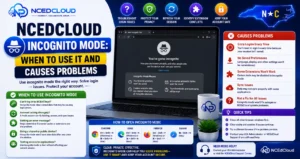
Complete Guide About → NCEdCloud Incognito Mode
How to Clear Cache for NCEdCloud Only
(Without Clearing All Cookies)
If you do not want to lose all your cookies for other websites, clear only the NCEdCloud-related cookies:
- In Chrome, navigate to my.ncedcloud.org.
- Click the lock or info icon in the address bar.
- Click “Cookies and site data” or “Site settings.”
- Click “Delete data” or select the cookies listed and remove them.
- Close and reopen the tab and navigate to my.ncedcloud.org.
How to Clear NCEdCloud Cache in Other Browsers?
| Browser | Cache Clear Shortcut | Notes |
| Firefox | Ctrl + Shift + Delete | Select “Cookies” and “Cache” |
| Edge | Ctrl + Shift + Delete | Same options as Chrome |
| Safari (Mac) | Safari menu > Clear History > All History | Clears both cache and cookies |
| Safari (iOS) | Settings > Safari > Clear History and Website Data | Affects all sites |
| Chrome (Android) | Settings > Privacy > Clear browsing data | Same options as desktop |
Complete Guide About → NCEdCloud Error Messages
After Clearing Cache — What to Expect
Your NCEdCloud session is gone. You will need to log in again. Any browser-saved passwords you deleted will need to be re-entered manually. Applications that had active sessions through NCEdCloud SSO will require re-authentication through NCEdCloud. This is expected and not a sign that the fix failed.
Frequently Asked Questions
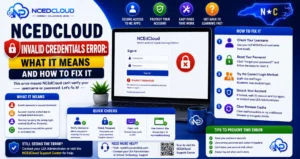
Will clearing my cache fix an NCEdCloud Invalid Credentials error?
Clearing the cache will not fix a wrong password, but it will fix “Invalid Credentials” errors caused by a stale session cookie that is preventing the new login from processing. If the error continues after clearing the cache, use the Forgot Password flow to verify the password is correct.
How often should I clear my cache for NCEdCloud?
You do not need to clear the cache on a regular schedule. Only clear it when you experience a specific problem. Clearing the cache proactively at the start of each school year is a good preventive measure.
My school Chromebook will not let me clear the cache. What do I do?
On district-managed Chromebooks, some settings are controlled by district policy and cannot be changed by the user. Ask your school IT coordinator to clear the cache for you, or ask them to permit you to clear browsing data on the device.
I cleared the cache, and the problem came back the next day. Why?
If the problem recurs after clearing the cache, it is likely caused by an ongoing cookie-blocking policy in your browser or an extension that keeps removing the NCEdCloud session cookie. Check your browser’s privacy settings and turn off any extensions that manage cookies or block trackers.
Does clearing the cache on one device fix the problem on another device?
No. Browser cache is stored locally on each device. Clearing the cache on your laptop does not affect the cache on your phone or Chromebook. You need to clear the cache separately on each device where the problem occurs.
Disclaimer Note: NCEdCloud, RapidIdentity, and Identity Automation are trademarks of their respective owners. NCEdCloudPro.com is not affiliated with or endorsed by NCDPI, NCEdCloud, MCNC, or Identity Automation. Read our full disclaimer.