
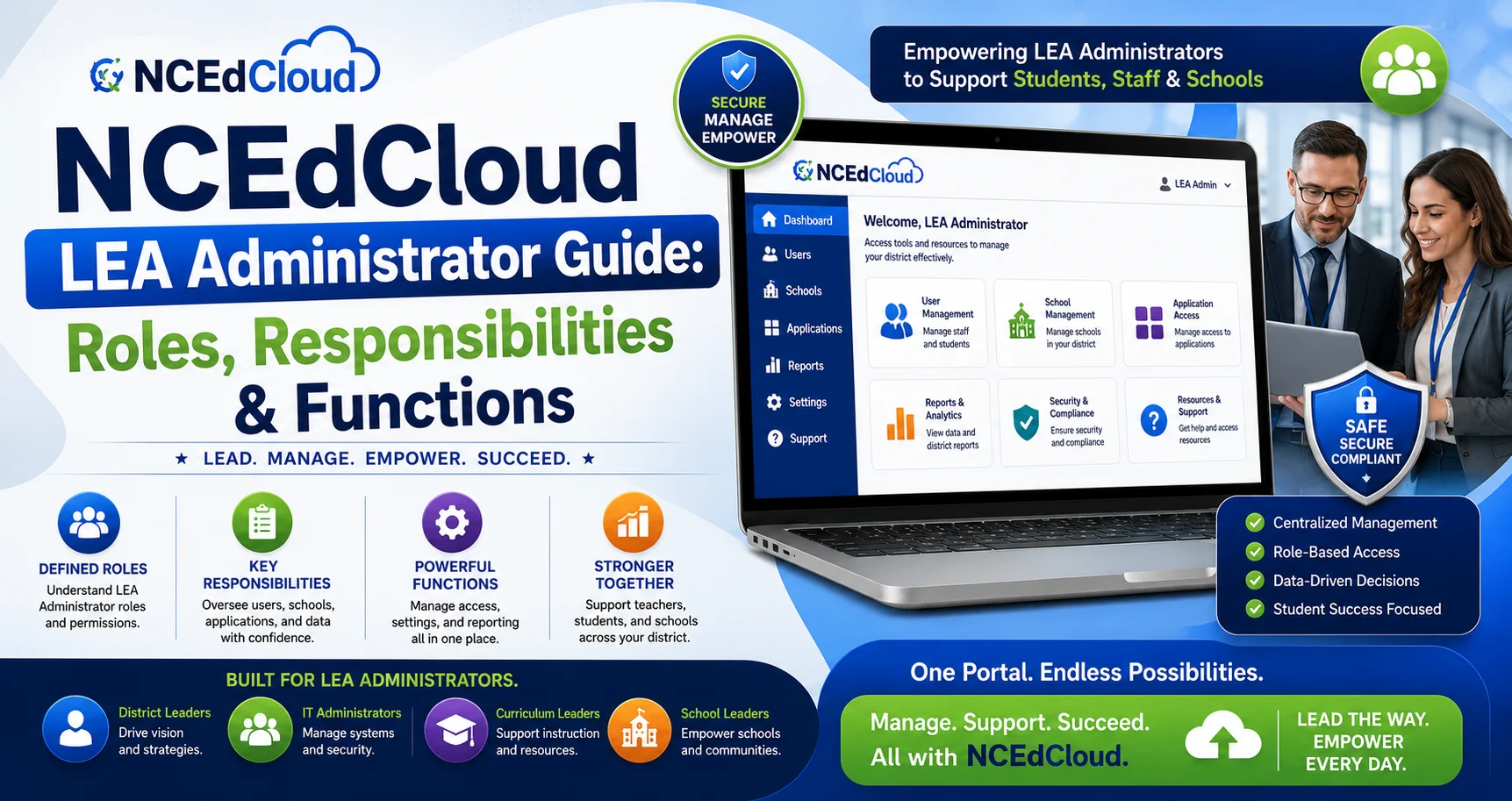
NCEdCloud LEA Administrator Guide for Roles and Requests
The NCEdCloud LEA Administrator is the highest-privilege role available within a Public School Unit (PSU) on the NCEdCloud platform. LEA Administrators manage user accounts, approve or deny requests for other privileged roles, configure district-wide settings, submit opt-in requests for platform features, and serve as the primary contact between the district and Identity Automation support.
For a brand-new PSU, such as a newly opened charter school, the very first LEA Administrator request is vetted directly by NCDPI before it’s granted. After that, an existing LEA Administrator approves future requests within their own PSU.
What is the LEA Administrator Role?
The LEA Administrator is a privileged account role assigned to district-level IT staff or designated administrative personnel, most commonly a Technology Director, CTO, principal, or assistant principal. It provides management authority over user accounts and settings across an entire LEA or PSU. Most districts have one primary LEA Administrator, though larger districts often maintain several.
This role is distinct from school-level roles. An LEA Administrator can act across every school within the district, while roles like School Help Desk and School Student Help Desk are scoped to a single campus.
Because privileged roles have access to student and employee data, NCDPI requires Multi-Factor Authentication for every LEA Administrator account, along with every other privileged role. This has been mandatory statewide since 2019, not an optional setting an administrator turns on.
How to Request the LEA Administrator Role?
The request happens inside the NCEdCloud platform itself, not through a separate support ticket:
- Log in at my.ncedcloud.org and click the dropdown arrow next to Applications.
- Select Requests, then go to Entitlements or Catalog.
- Choose LEA Administrator from the list of privileged roles and click Request.
- Enter your three-digit LEA code (charter school codes end with a letter).
- Submit the request.
What happens next depends on whether your Public School Unit already has an LEA Administrator. If this is the very first LEA Administrator request for a new PSU, such as a newly opened charter school, NCDPI vets and grants the request directly. If your PSU already has an LEA Administrator, that person reviews and approves the request instead, the same way they’d approve any other privileged role request.
If a current LEA Administrator is leaving the district, they should coordinate a successor’s request before their own account is deactivated, so the PSU isn’t left without anyone able to approve requests or manage accounts.
What LEA Administrators Can Do?
LEA Administrators have broad authority across NCEdCloud for their PSU. Their capabilities include:
Account Management:
- View, search, and manage all user accounts within the LEA.
- Enable and disable individual accounts.
- Unlock locked accounts.
- Reset passwords for any user in the LEA.
- Regenerate student passwords in bulk.
Role Management:
- Approve or deny requests for privileged roles submitted through the Requests module.
- Assign the five roles below LEA Administrator: LEA Data Auditor, LEA Help Desk, LEA Student Help Desk, School Help Desk, and School Student Help Desk.
- Immediately disable an account if a security concern arises. Removing another user’s privileged role specifically, as opposed to disabling their account, requires a support ticket with Identity Automation rather than a simple in-platform revoke.
Opt-In Features:
- Submit requests to opt in to Target Applications and other district-wide opt-in features.
- Coordinate MFA rollout and enrollment decisions for general staff and student accounts, separate from the MFA requirement that already applies to privileged-role holders themselves. To learn more, read this MFA setup guide.
Application Management:
- Work with Identity Automation to configure and troubleshoot application SSO integrations.
- Assign applications to user groups or individual accounts. See more in this Applications guide.
Reporting and Data:
- Access data files showing account status and sync information.
- Review roster sync logs from PowerSchool and Home Base.
- Identify accounts that haven’t synced or provisioned correctly.
How the Requests Module Works?
The Requests module is the in-platform workflow tool that manages privileged role assignments, reachable from the Applications dropdown after logging in.
When a staff member needs a privileged role, such as a new hire who needs School Help Desk access, they submit a request through Requests, choosing their role from Entitlements or Catalog. PSU-wide roles require a three-digit LEA code. School-level roles like School Student Help Desk require a six-digit Campus Code instead.
The request routes to the notification queue of every LEA Administrator in the PSU. Any one of them can review it under Tasks and Approvals, then approve or deny it. An approved request activates the role on the user’s account, typically at their next login.
LEA Administrators should check the Requests queue regularly, especially at the start of each school year when new staff join. Pending requests don’t expire on a fixed schedule, but leaving them unreviewed can delay a colleague’s access to the tools they need.
Related Admin Roles
NCEdCloud includes five privileged roles below LEA Administrator. The LEA Administrator approves and can effectively remove access for all of them.
Role | Scope | Can Reset Passwords For |
LEA Data Auditor | Entire PSU | View-only; no password reset |
LEA Help Desk | Entire PSU | All users |
LEA Student Help Desk | Entire PSU | Students only |
School Help Desk | Single school | All users at that school |
School Student Help Desk | Single school | Students only at that school |
The LEA Data Auditor role is aimed at data coordinators and managers who need to view account and data information across the PSU without the ability to make changes. Help Desk roles are the most commonly assigned, typically to IT staff, front office personnel, and school registrars.
Whether a teacher can see the My Students tab depends on their assigned Teacher Job Code in the payroll/UID system, set by NCDPI. Not every staff role automatically has this visibility.
Data Files and Reporting
LEA Administrators can pull data file exports from within the NCEdCloud platform. These files contain account-level information for the PSU, including provisioning status, role assignments, and sync timestamps. They’re useful for:
- Auditing which accounts have been claimed and which are still unclaimed
- Identifying sync errors between PowerSchool or Home Base and NCEdCloud
- Verifying that departing staff accounts have been deactivated
- Reviewing MFA enrollment status across privileged and general accounts
For automated reporting or integration with other district systems, contact Identity Automation support directly for available options.
Contacting Identity Automation Support
LEA Administrators are the primary PSU contact for escalated NCEdCloud issues. When something can’t be resolved through the platform’s built-in tools, such as a bulk provisioning failure, an application SSO integration error, or removing another user’s privileged role, only the LEA Administrator role, not LEA Help Desk or other privileged roles, can open a support ticket directly with Identity Automation, typically through the Customer Support Community accessible from the Applications menu.
Support resources available to LEA Administrators include the official NCEdCloud IAM Service documentation at ncedcloud.mcnc.org, Identity Automation’s Customer Support Community, and NCDPI’s channels for policy-level questions. School-level staff and students should always contact their own school’s help desk first. LEA Administrators handle the escalations school-level staff can’t resolve.
Frequently Asked Questions
What is an NCEdCloud LEA Administrator?
The NCEdCloud LEA Administrator is the highest-privilege role within a PSU. They manage user accounts, approve privileged role requests, configure district settings, and serve as the primary contact for Identity Automation support.
How do I become an NCEdCloud LEA Administrator?
Request the role through the Requests module after logging in at my.ncedcloud.org. If your PSU already has an LEA Administrator, they approve the request. If it’s the very first request for a new PSU, such as a new charter school, NCDPI vets and grants it directly.
Can an LEA Administrator reset any password in the district?
Yes. LEA Administrators, along with LEA Help Desk users, can reset passwords for any account within their PSU, including staff and student accounts across every school.
What is the difference between LEA Administrator and LEA Help Desk?
Both operate at the full-PSU scope, but the LEA Administrator has additional capabilities: approving privileged role requests, managing opt-in features, accessing data files, and contacting Identity Automation support directly. LEA Help Desk is limited to account lookups and password resets.
What is the Requests module in NCEdCloud?
The Requests module is the in-platform workflow tool, found under the Applications dropdown, where users submit privileged role requests using their LEA or Campus code. LEA Administrators review, approve, or deny these requests.
How do I assign the School Help Desk role to a staff member?
The staff member submits the request themselves through Requests, entering their six-digit Campus Code. An LEA Administrator then approves it from their Tasks and Approvals queue, which activates the role.
What happens if an LEA Administrator leaves the district?
A departing LEA Administrator should coordinate with a successor to submit their own LEA Administrator request before the departing administrator’s account is deactivated, so someone remains able to approve requests. If a PSU is left with no LEA Administrator, contact NCDPI directly.
What can an LEA Data Auditor do in NCEdCloud?
The LEA Data Auditor can view account information, provisioning status, and data files across the PSU, but can’t make changes: no password resets, no role approvals, and no account modifications. It’s a read-only role.
Disclaimer
This page is part of NCEdCloudPro.com, an independent resource for North Carolina’s NCEdCloud platform. We are not affiliated with, endorsed by, or connected to the North Carolina Department of Public Instruction (NCDPI), official IAM Service, MCNC, or Identity Automation.
For account-specific issues, always contact your school or district Help Desk, or go directly to the official login at my.ncedcloud.org and read our full disclaimer written by Mark Albert.