NCEdCloud Request Role — How to Submit an Admin Role Request
What is the NCEdCloud Request Role Process?
The NCEdCloud role request process is the main process for staff to request administrative permissions, such as LEA Help Desk, School Help Desk, or LEA Administrator roles, within RapidIdentity, the platform behind NCEdCloud. NCDPI designed this process to ensure that elevated account permissions are granted only after review and approval by an authorized administrator.
This process is used the same way across every North Carolina LEA and charter school on NCEdCloud. The most important thing to know is that you cannot grant yourself an admin role. An LEA Administrator must approve every role request before access is active. For the full context of how these roles fit together, see our LEA Administrator guide.
Admin Roles You Can Request Through NCEdCloud
| Role | Who Requests it | Approver |
| LEA Administrator | Senior IT or district technology director | Existing LEA Administrator |
| LEA Data Auditor | Data compliance or FERPA officer | LEA Administrator |
| LEA Help Desk | District IT support staff | LEA Administrator |
| LEA Student Help Desk | District staff supporting student accounts | LEA Administrator |
| School Help Desk | School media specialist or tech facilitator | LEA Administrator |
| School Student Help Desk | School staff supporting student logins | LEA Administrator |
Standard teacher and student accounts do not use the role request process. Those are provisioned automatically from source system data.
Learn More → NCEdCloud School Help Desk Role Guide
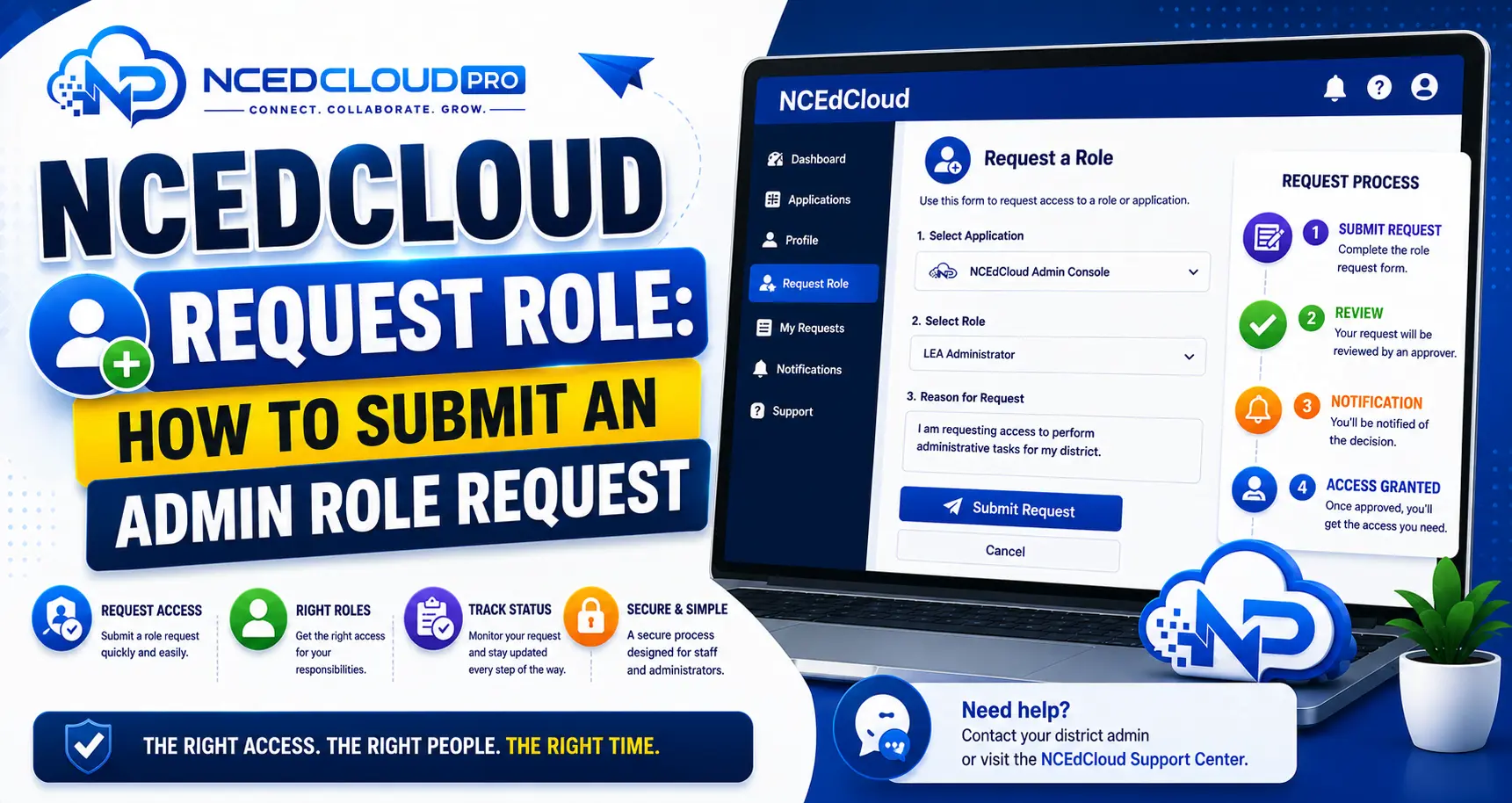
How to Submit an NCEdCloud Role Request?
- Log in to my.ncedcloud.org with your existing staff credentials.
- On your dashboard, locate the “Requests” tile or navigate to the Requests module.
- Click “New Request” or “Request Access.”
- Select the role you are requesting from the available options.
- If prompted, select the school or scope the role applies to (for school-scoped roles like School Help Desk).
- Add a justification note explaining why you need the role and what tasks you will use it for.
- Submit the request. The system routes it to the LEA Administrator for review.
- You will receive a notification when the request is approved or denied.
Learn More → NCEdCloud LEA Help Desk Role Guide
What Happens After You Submit the Request?
Your request enters a queue visible to LEA Administrators, who can approve or deny it from the admin console. See our Approve Role guide for how that review works. Most districts process role requests within one to two business days. You cannot use the requested role until approval is confirmed. If you submitted a request and have not heard back after two business days, follow up directly with your LEA technology coordinator.
If the Requests Module is Not on Your Dashboard
Not all staff accounts include the Requests module tile by default. If you do not see it, contact your LEA Administrator directly and ask them to assign the role or add the Requests tile to your account. Some districts handle role assignments entirely through the admin console without using the self-service request workflow.
Learn More About → NCEdCloud Revoke Role Guide
Frequently Asked Questions
Can I request any admin role for myself through the NCEdCloud Requests module?
You can request roles that your account is eligible for based on your staff provisioning. Some roles, like LEA Administrator, may require your district to follow an out-of-band approval process before the NCEdCloud request is submitted. Check with your district technology director for high-privilege roles.
How long does an NCEdCloud request role take to be approved?
Processing time varies by district. Most LEA Administrators review requests within one to two business days. If your role access is time-sensitive, notify your LEA Administrator directly by phone or email after submitting the request so they can prioritize it.
My role request was denied. What do I do?
Contact your LEA Administrator and ask why the request was denied. Common reasons include insufficient justification, the requester not meeting the eligibility criteria for the role, or the wrong role being requested for the task at hand. Resubmit after addressing the reason for denial.
Can a teacher request the School Help Desk role?
Yes. Role assignments are based on job function need, not job title. If a teacher’s responsibilities include supporting student logins at their school, an LEA Administrator can approve a School Help Desk role request for them.
Does a role request expire if not acted on?
Pending requests typically remain in the queue until approved, denied, or withdrawn. There is no automatic expiry on pending requests in most configurations. If a request has been sitting unanswered for more than a week, follow up with the LEA Administrator.
Disclaimer Note: NCEdCloud, RapidIdentity, and Identity Automation are trademarks of their respective owners. NCEdCloudPro.com is not affiliated with or endorsed by NCDPI, NCEdCloud, MCNC, or Identity Automation. Read our full disclaimer.